
Signing up
Sign up: add your logo and photos
Step 4 of signing up: add your logo and photos, or use the ones on your current website.
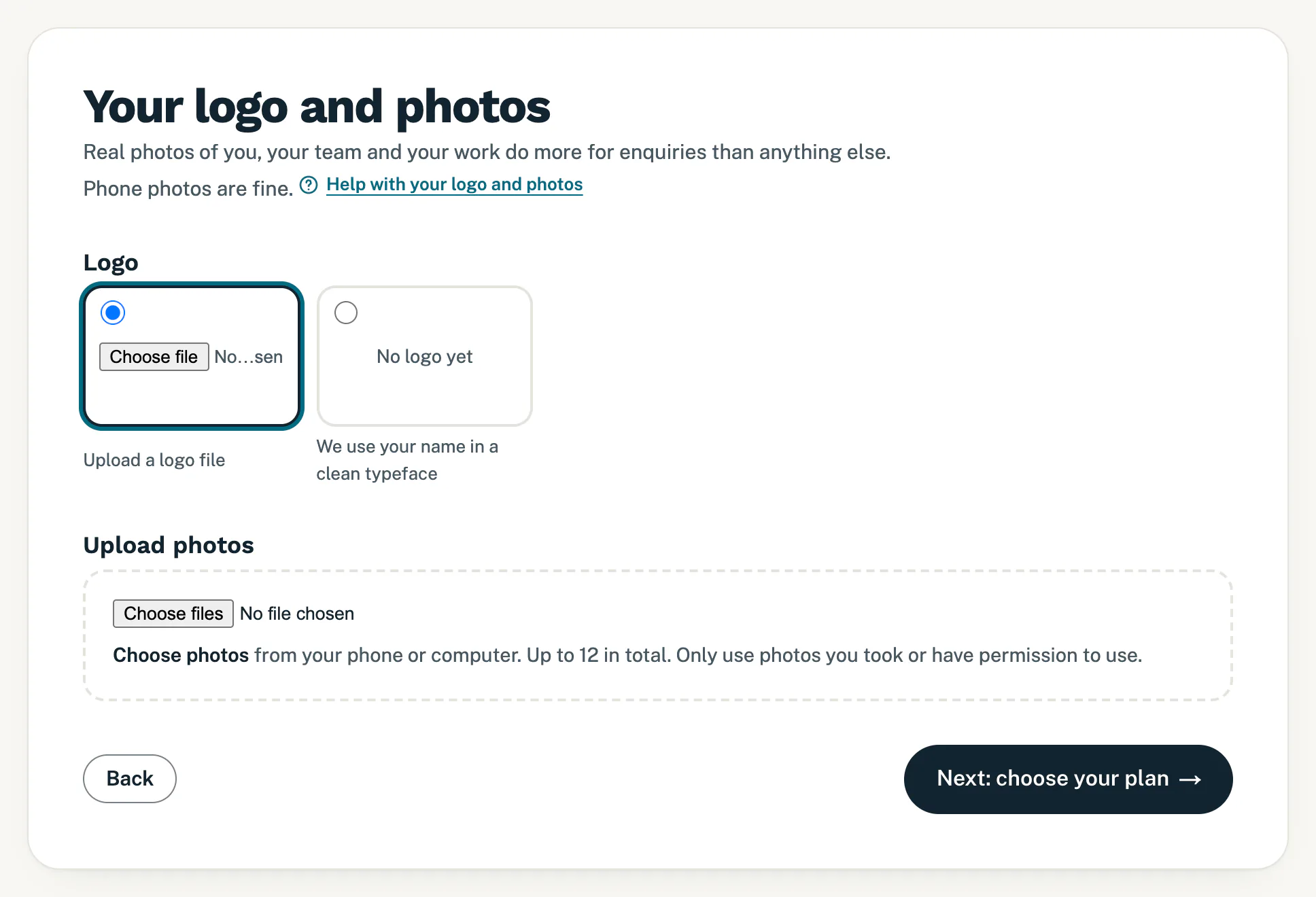
On this step you add your logo and photos of your business. Real photos of you, your team and your work do more for enquiries than anything else, and phone photos are fine. Nothing here is required: if you have no logo or photos yet, you can carry on.
Your logo
- Under Logo, choose one:
- Current logo: the logo you already added, when you come back to this step.
- From your website: a logo we found on the website you gave on step 1.
- Upload a logo file: tap the file button and choose your logo. It is picked as soon as you choose a file.
- No logo yet: we use your business name in a clean typeface.
Photos from your website
- If you gave your website on step 1, the photos we found on it show under Photos from your website. Tick the ones that show you and your work, and skip stock photos.
Upload photos
- Tap the box under Upload photos and choose photos from your phone or computer. You can choose several at once.
- Below the box you see how many photos are ready to upload.
- Tap Next: choose your plan. While your photos upload, the button says Uploading photos…. Large phone photos are made smaller first, so they go up quickly on mobile data.
When you come back to this step, the photos you added are under Your photos. Untick one to remove it.
Which files work
- Logo: a JPG, PNG, WebP or SVG file, under 10MB.
- Photos: JPG, PNG or WebP, each under 10MB, and at most 12 in total, counting the ones from your website.
- Only use photos you took or have permission to use.
Good to know
- No photos yet? Carry on. Later, the checklist on My site in your portal asks for photos of real jobs, and sending them there does not use your monthly change. See Send us what we still need.
- To change your logo or photos before you pay, tap Logo and photos in the steps at the top.
If something goes wrong
- A message such as “2 files were not added: photos must be JPG, PNG or WebP, under 10MB, and at most 12 in total.” The other photos were saved. Untick some under Your photos or choose other files, then tap Next: choose your plan again.
- “The logo must be a JPG, PNG, WebP or SVG file under 10MB.” Choose another file, or pick No logo yet for now.
Next up: Sign up: choose your plan and pay.
Still stuck?
Message us on WhatsApp or send us an email. Tell us your business name, the page you were on and what you tried, and we take it from there.