
Signing up
Sign up: choose your look and colours
Step 3 of signing up: pick a template, your main colour and a colour style.
On this step you choose how your website looks: a template, your main colour and a colour style. A small preview shows how your choices work together before you move on.
Pick a template
- Look through the six templates. Each card says what makes it different.
- One of them is already chosen, with a tag such as Suits plumber: the template we suggest for your kind of business. You can pick any of the six.
- Tap See a live example on a card to open a full example website in a new tab. Your choices on this page stay as they are.
- Tap the card you like.
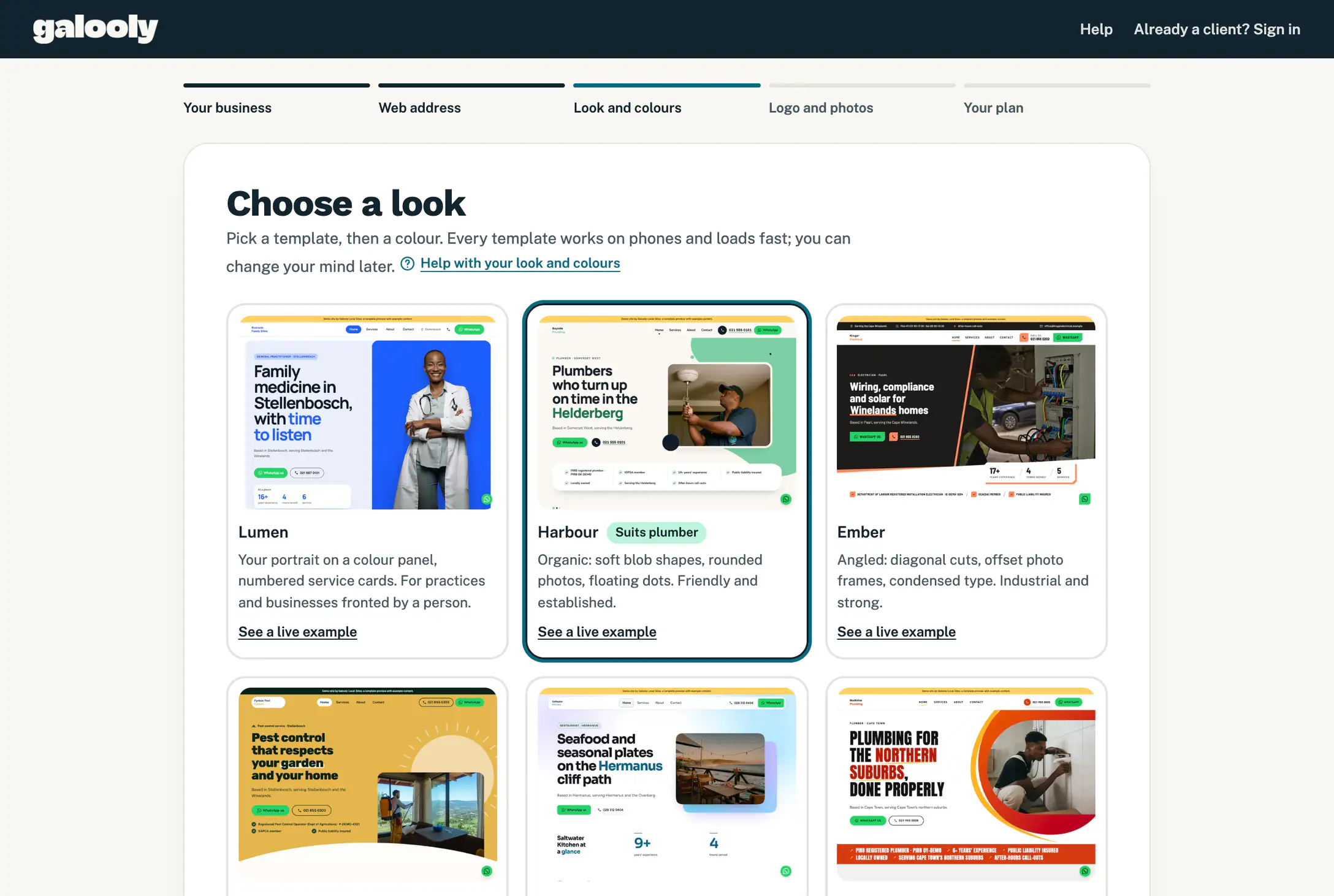
The six templates:
- Lumen: your portrait on a colour panel, numbered service cards. For practices and businesses fronted by a person.
- Harbour: soft blob shapes, rounded photos, floating dots. Friendly and established.
- Ember: diagonal cuts, offset photo frames, condensed type. Industrial and strong.
- Meadow: a full-colour hero with a curved edge, sun discs, icon cards. Bright and cheerful.
- Horizon: soft gradient light, rising photo frames, gradient numbers. Calm and premium.
- Concept: heavy capitals, a bold colour swoosh, edge-cut photos. Bold and urgent.
Every template works on phones and loads fast.
Pick your colour
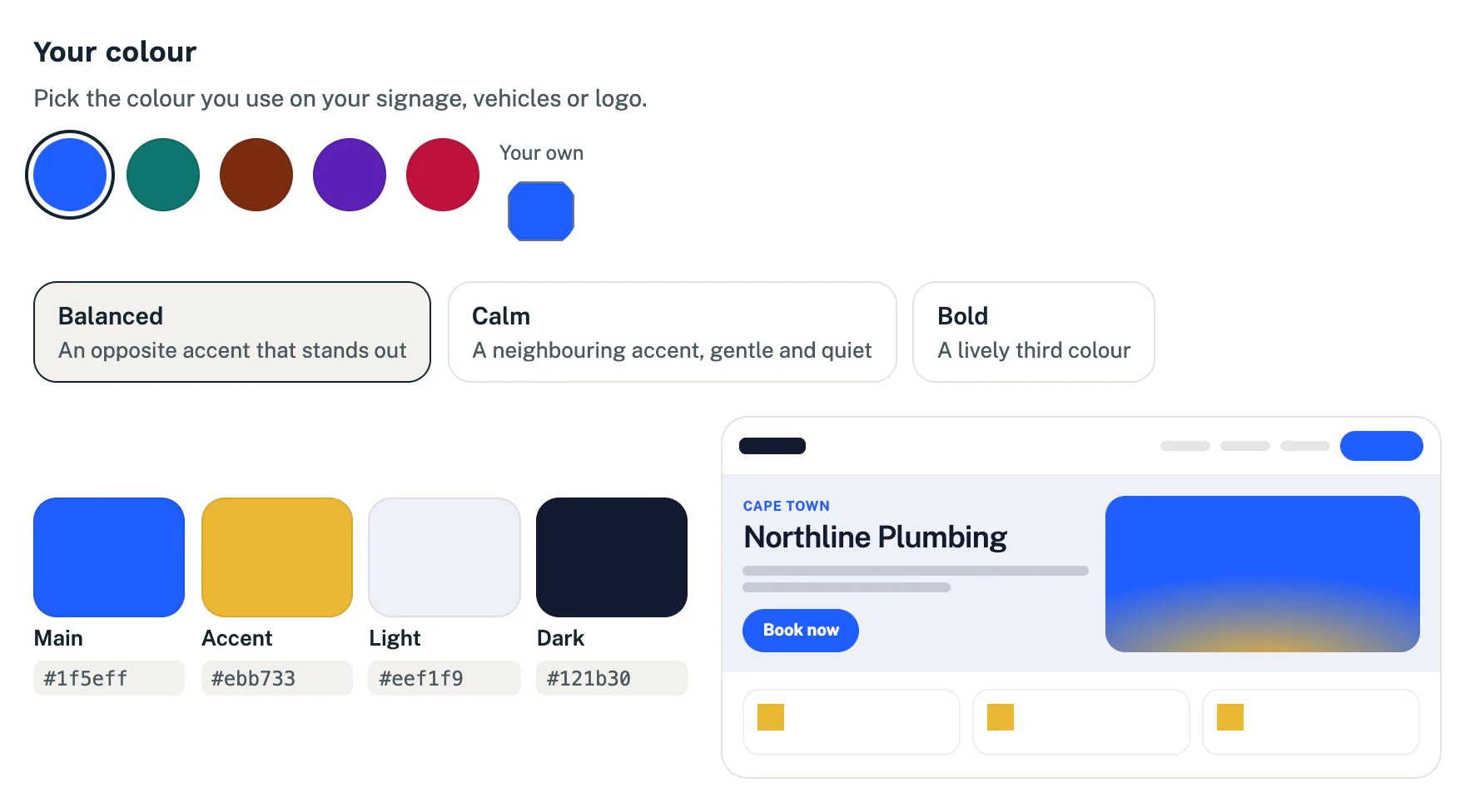
- Under Your colour, tap a colour. If you gave your website on step 1, the colours we found on it come first, marked From your site.
- Or tap the colour circle under Your own to choose any colour. The colour on your signage, vehicles or logo is a good choice.
Choose a style
- Choose how your second colour, the accent, is picked:
- Balanced: an opposite accent that stands out.
- Calm: a neighbouring accent, gentle and quiet.
- Bold: a lively third colour.
Check the palette and the preview
- Below the styles you see your four colours, Main, Accent, Light and Dark, and a small preview with your business name and town. Both change as you choose, so try a few.
- Tap Next: logo and photos.
Good to know
- If your main colour is too light for white text, we darken it a little and say so: “We darkened your main colour slightly so white text on it stays easy to read.”
- To change a choice before you pay, tap Back, or tap Look and colours in the steps at the top.
- We build your preview with the template and colours you choose here, and nothing goes live until you approve it.
If something goes wrong
- “Please choose a template.” Tap one of the six cards.
- “Please choose a colour.” Tap a colour, or choose your own.
Next up: Sign up: add your logo and photos.
Still stuck?
Message us on WhatsApp or send us an email. Tell us your business name, the page you were on and what you tried, and we take it from there.