
Billing
Your plan and invoices
See your plan and next billing date, download your invoices and set what they show.
Billing in your portal shows your plan, what you pay and when, and an invoice for every payment. This guide shows where to find each one, and how to choose the name and address your invoices show.
Your plan
-
Open Billing. On a computer, it is in the menu on the left. On a phone, tap Billing in the bar at the bottom.
-
Check your status. The pill beside your business name, at the top, shows where your subscription stands:
- Active: you are paid up.
- Past due: your last card payment did not go through, and Stitch is trying again. See When a card payment fails.
- Suspended: your card subscription stopped after the retries, so website changes are paused.
- Cancelled: your subscription has ended.
- Not activated: you have not paid your first month yet.
-
Read your plan card. It shows your plan’s name, its price per month and how you pay (paid by card or paid by EFT). Next billing is the date of your next monthly payment. Below that is everything your plan includes.
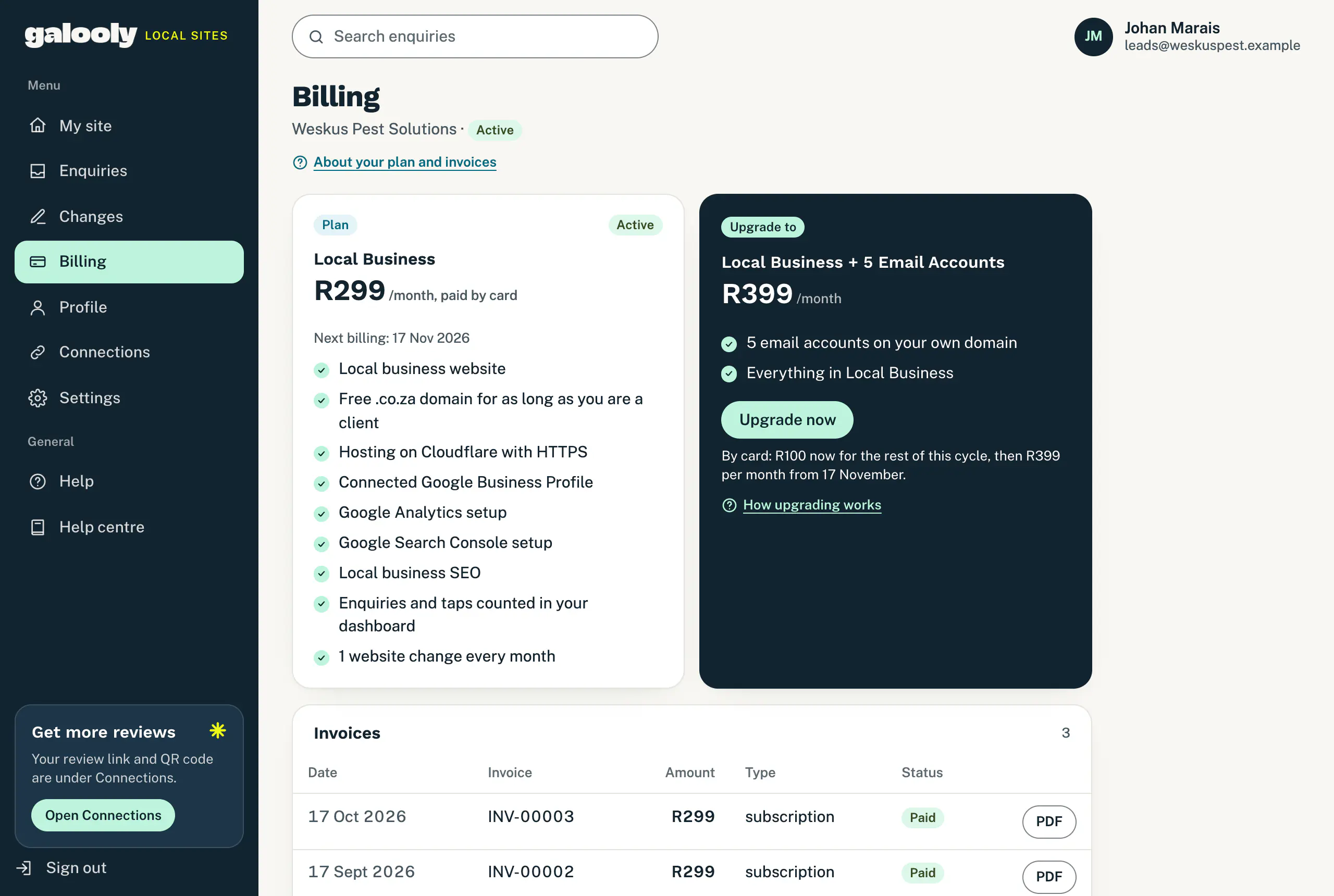
Billing: your plan and the next billing date.
Beside your plan, the navy Upgrade to card shows the plan with email accounts. See Upgrade your plan.
Not paid your first month yet? Your plan card shows Activate with your plan’s name, to pay by card, and the amount and monthly payment day underneath. Or tap Pay by EFT and we email you an invoice with our banking details.
Download an invoice
-
Scroll down to Invoices. Your newest payment is at the top, and the list keeps your last 24 payments.
-
Find the payment. Each row shows the Date, the Invoice number (such as INV-00003), the Amount, the Type and the Status.
-
Tap PDF at the end of the row. The invoice opens as a PDF, ready to save or print. On a phone, tap the invoice number under the date instead.
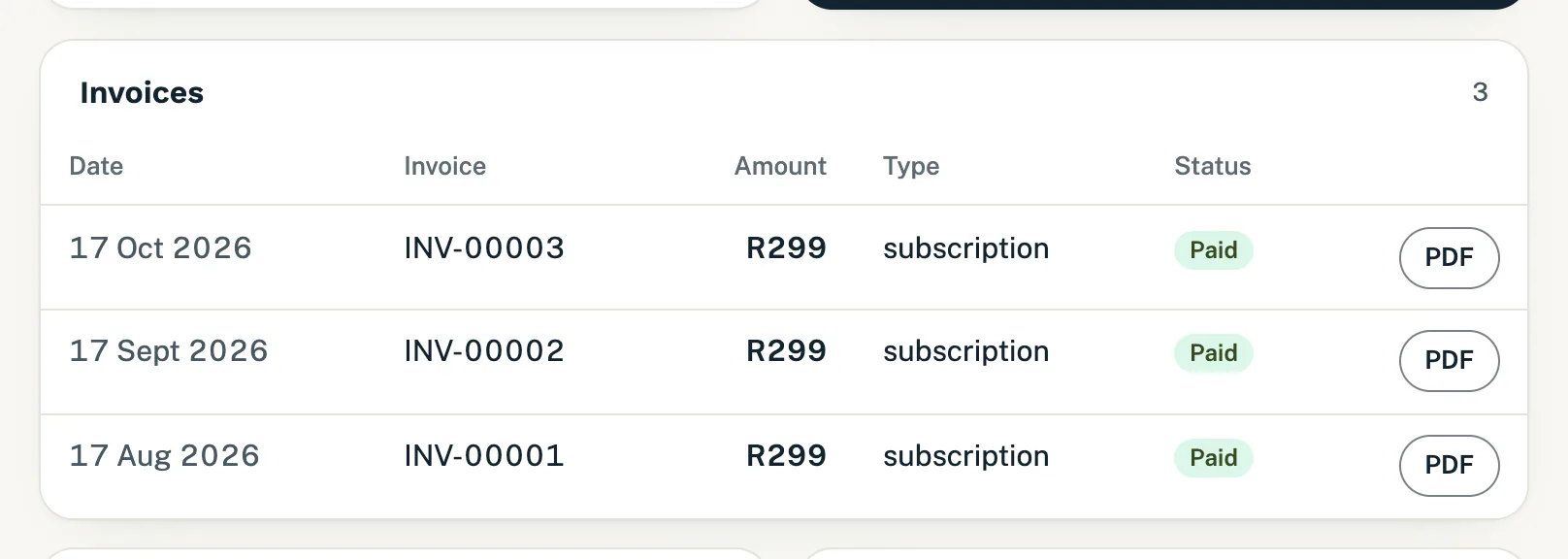
Every payment has an invoice to download.
What the status means:
- Paid: the payment went through, and its invoice is ready.
- Failed: a card payment that did not go through. It has no invoice.
- Refunded or Partly refunded: we have paid all or part of it back. A partial refund shows the amount refunded beside the amount.
Set what your invoices show
-
Find Invoice details, below the invoices. What you type here appears under “Bill to” on your invoices.
-
Fill in the boxes:
- Business name on invoices: leave it empty to use your business name.
- Address: your business or postal address.
- Email on invoices: an address to print on the invoice. Leave it empty and the invoice shows no email address.
-
Tap Save. A note says “Invoice details saved. They appear on your next invoice.”
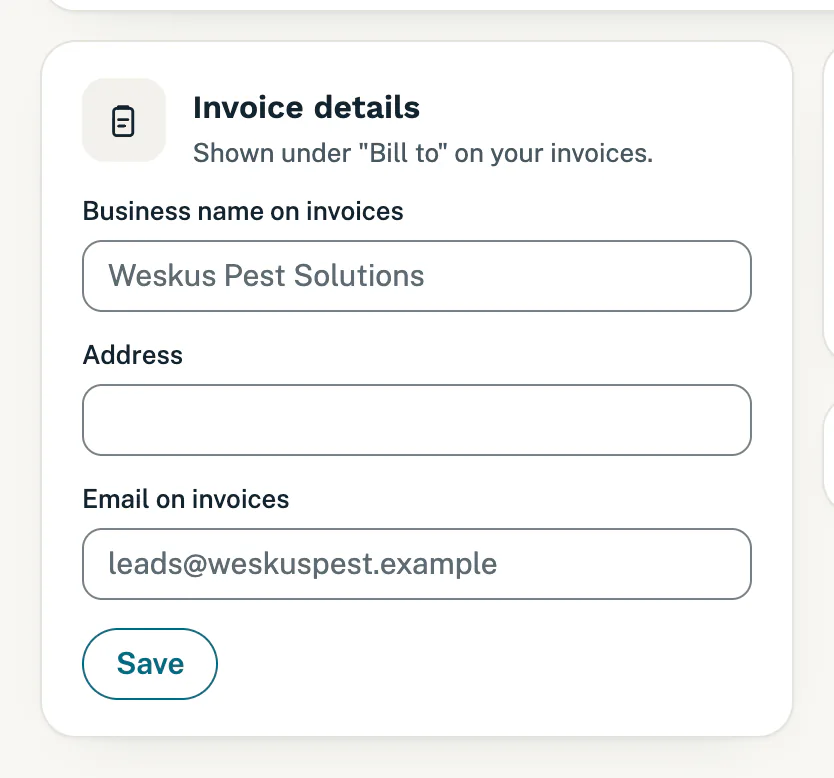
What your invoices show under Bill to.
Invoices you already have stay as they are. The new details show from your next payment.
Receipts by email
After every payment, we email you a receipt with “Payment received” in the subject. It lists the invoice number, the amount, what the payment was for and its status. Tap View invoice to open Billing, where the PDF is.
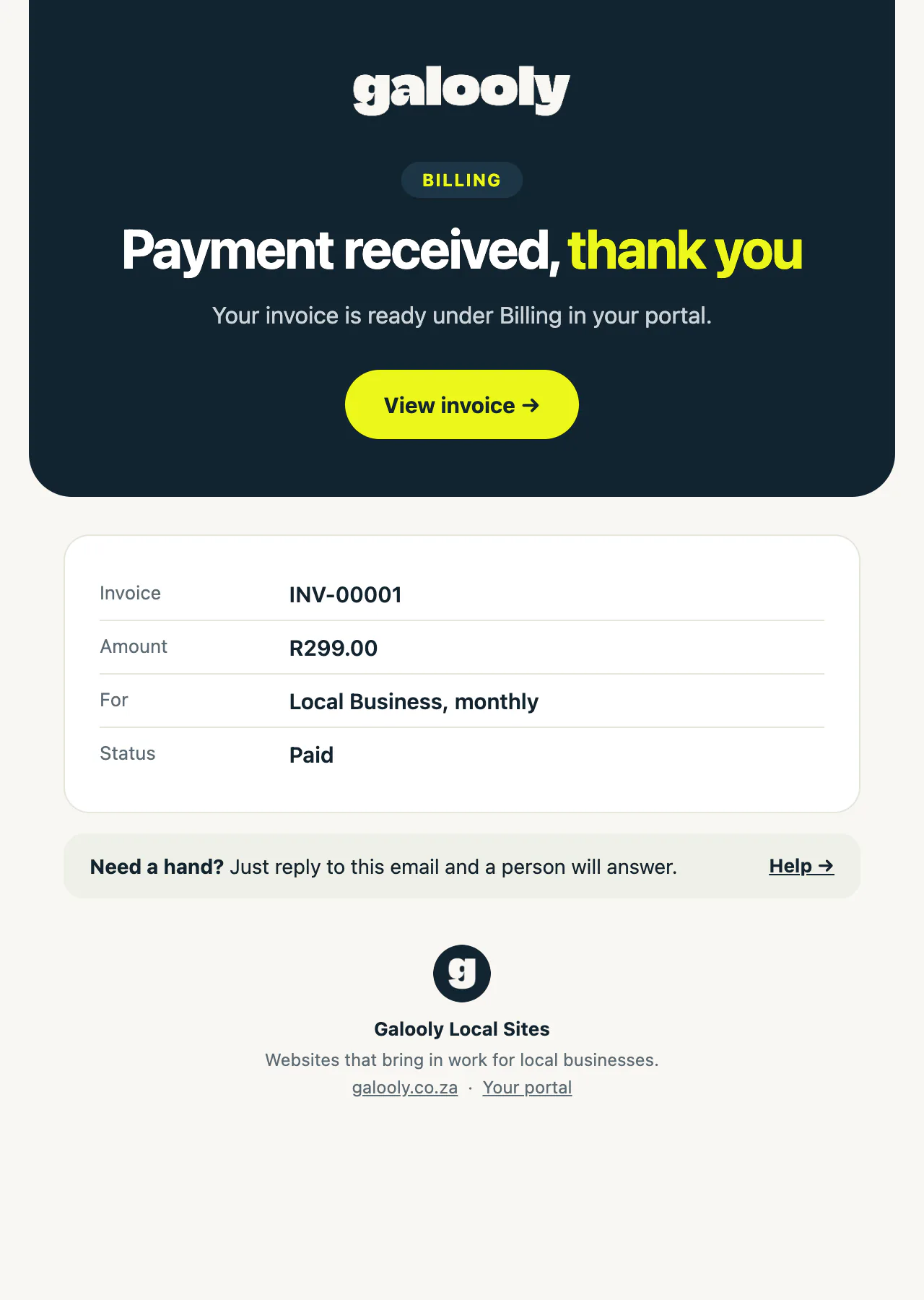
Good to know
- No VAT: we are not registered for VAT, so your invoices show no VAT.
- Your payment day: card payments fall on the same day each month, the 28th at the latest. Next billing shows the next one.
- Who gets the receipt: card receipts go to the email address your account was opened with. Email on invoices only changes what the invoice shows. It does not send invoices to that address.
- EFT payments show in the list without a PDF. Their invoice is the one we email you with our banking details.
- Refunds: when we refund a payment, we email you that your refund is on its way. It goes back to the card or account you paid with, and your bank may take a few days to show it.
- Your card number: card payments run through Stitch, our payment provider. We never see or store your card number.
If something goes wrong
- You have just paid, but the payment is not listed. Back from Stitch’s page, Billing may say “If you completed the payment, it shows here within a minute.” Wait a minute and reload the page. If you cancelled on Stitch’s page, nothing was charged.
- A paid row has no PDF button. The invoice is made straight after the payment, so wait a minute and reload. If it is still missing, see Contact support.
- An invoice shows the wrong name or address. Correct them under Invoice details for your next invoice. For one you already have, let us know.
Still stuck?
Message us on WhatsApp or send us an email. Tell us your business name, the page you were on and what you tried, and we take it from there.