
Signing in and your account
Choose where enquiries go
Choose who gets website enquiries by email, switch on a daily summary, and add WhatsApp alerts.
Every enquiry sent through the form on your website is emailed to you the moment it arrives. Here you choose which addresses get them, switch on a morning summary, and add WhatsApp. WhatsApp and call taps on your website go straight to your phone, so they are not emailed one by one.
Add or remove an address
- Open Settings. On a computer it is in the menu on the left. On a phone, tap More at the bottom, then Settings.
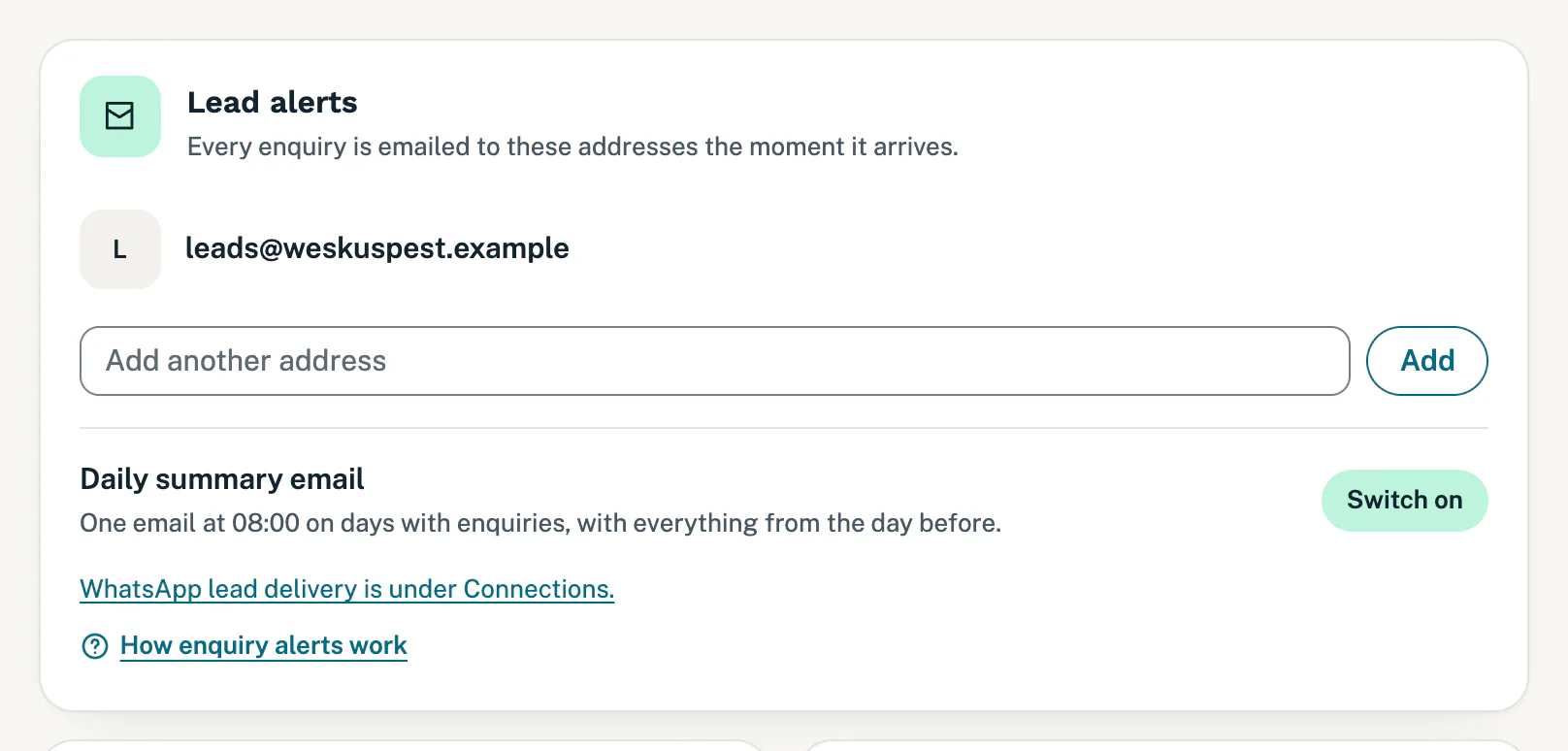
- The Lead alerts card lists every address that gets enquiries.
- To add one, type it in the Add another address box and tap Add.
- To stop sending enquiries to an address, tap Remove beside it.
- You see Saved. Enquiries now go to the addresses listed. The next enquiry goes to the new list.
What an enquiry email looks like
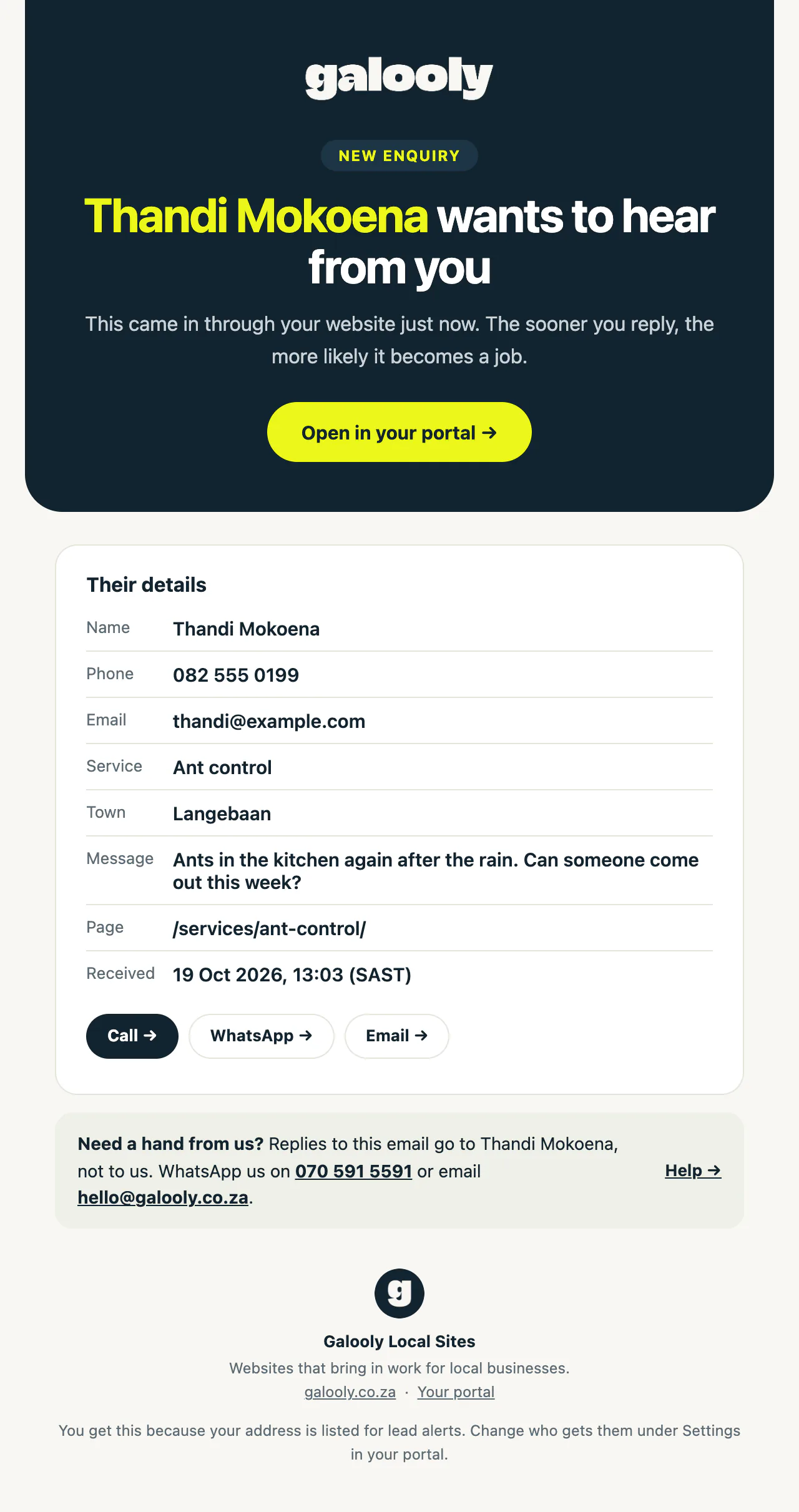
Each enquiry arrives as its own email with New website enquiry and the customer’s name in the subject. Under Their details you see what they filled in, such as their phone number, the service they asked about, their town and their message, plus the page they sent it from and when it arrived.
- Tap Call, WhatsApp or Email to answer them from the email. Call and WhatsApp show when the customer gave a South African phone number, and Email when they gave an email address.
- Tap Open in your portal to find it under Enquiries, where you mark it contacted, won or lost. See Follow up your enquiries.
Get a daily summary
- In Settings, find Daily summary email on the Lead alerts card.
- Tap Switch on. You see You will get a summary each morning at 08:00 on days with enquiries.
- To stop it, tap Switch off.
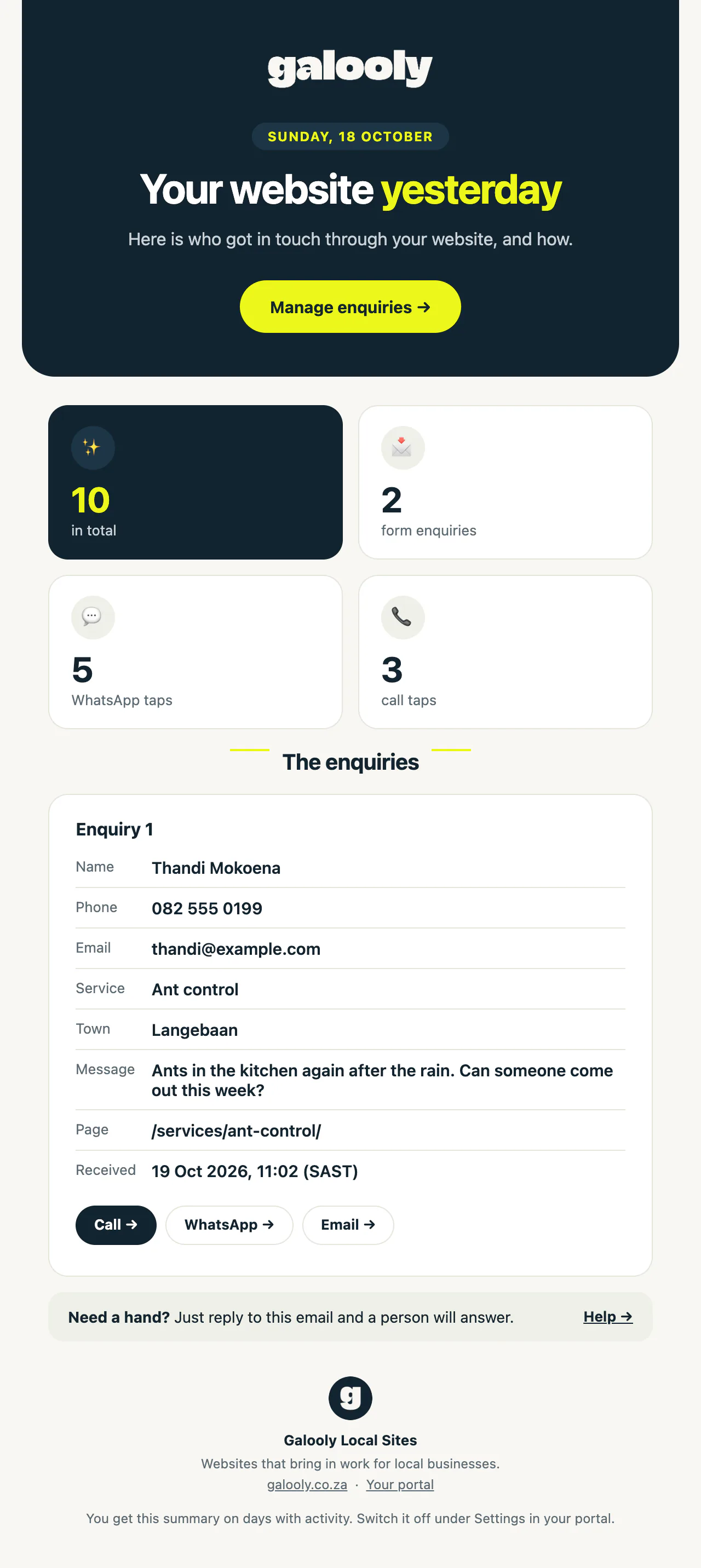
The summary arrives at 08:00 with the day before: how many form enquiries, WhatsApp taps and call taps your website had, and each enquiry in full. It goes to the same addresses as your lead alerts, and only on days when someone got in touch. You still get each enquiry by email as it arrives.
Get enquiries on WhatsApp too
- Open Connections. In Settings, the link WhatsApp lead delivery is under Connections. takes you there.
- On the WhatsApp Business card, tap Also send enquiries to my WhatsApp.
- Lead alerts on that card changes to Email + WhatsApp.
WhatsApp alerts start once WhatsApp approves our alert message. Until then, every enquiry reaches you by email and on Enquiries, and if you have chosen alerts, they start on their own. Once they start, each enquiry also arrives as a short WhatsApp message from our WhatsApp number to the number shown on that card. It has the customer’s name, what they asked about, their town and phone number, and a See the enquiry button that opens Enquiries. You reply to customers from your own WhatsApp, and enquiry emails keep coming as well. To turn it off, tap Stop WhatsApp alerts, or reply STOP to our WhatsApp number. More in WhatsApp enquiry alerts and your QR code.
Good to know
- At least one address must stay on the list, so Remove only shows when there are two or more.
- Changing the addresses also adds a request called Update lead email recipients to your Changes page, so your website’s records match. It does not use your monthly changes.
- If an enquiry email cannot be sent when the enquiry arrives, we send it again at 08:00 the next morning, with you may have missed in the subject. Every enquiry is also in your portal under Enquiries.
- When the customer gave an email address, tapping Reply on an enquiry email answers the customer, not us. The note at the bottom of that email says so, with our WhatsApp number and email address. See Contact support.
- Enquiries you report as spam are left out of the daily summary.
- Before your website is first published, these settings cannot be changed yet: tapping Add, Remove or Switch on shows “Your site has not been deployed yet”. Try again once it is live.
- People you invite to the portal only get enquiry emails if you add their address here. See Give someone in your team access.
Still stuck?
Message us on WhatsApp or send us an email. Tell us your business name, the page you were on and what you tried, and we take it from there.