
Your website and enquiries
WhatsApp enquiry alerts and your QR code
Choose WhatsApp enquiry alerts, change your WhatsApp number and print a QR code that opens a chat with you.
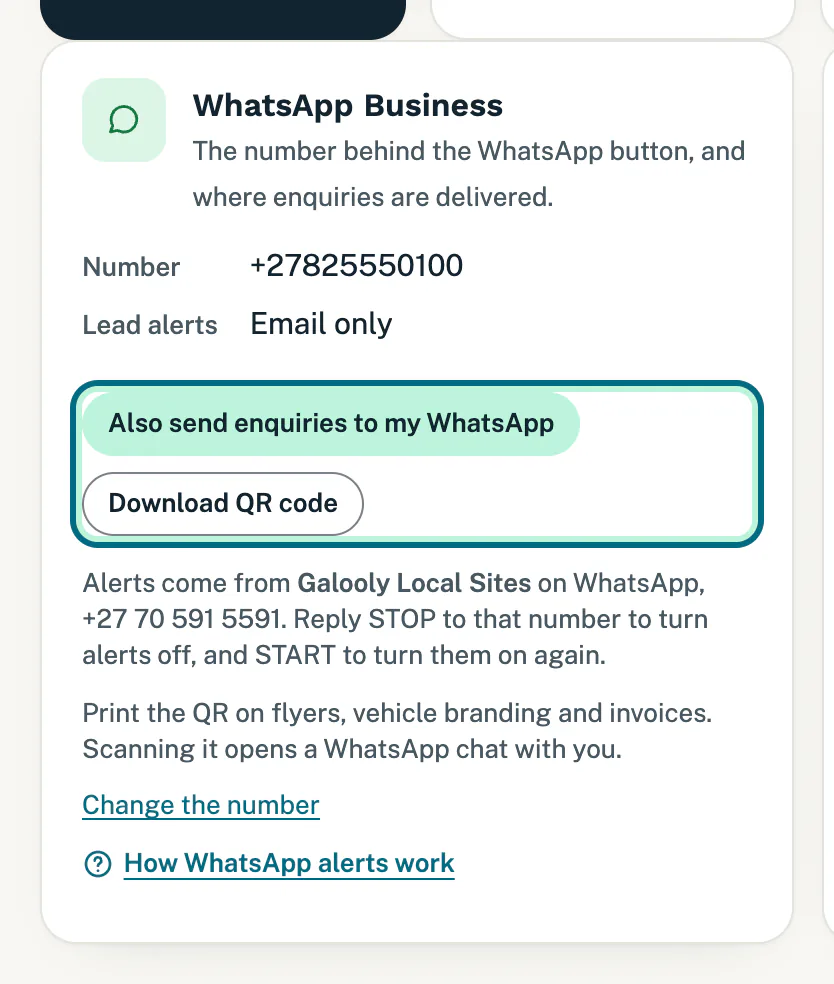
Every enquiry from your website’s form is emailed to you and listed on Enquiries. You can choose to get each one on your WhatsApp as well. Everything here is on the WhatsApp Business card under Connections, together with your WhatsApp QR code.
Turn WhatsApp alerts on
- Open Connections. The WhatsApp Business card shows your Number and your Lead alerts, which start as Email only.
- Tap Also send enquiries to my WhatsApp.
- Lead alerts now says Email + WhatsApp, and the card shows the date you opted in.
Under the button, the card says where the alerts come from: our WhatsApp number, with its name and number. It also says that replying STOP to that number turns them off.
What an alert looks like
WhatsApp alerts start once WhatsApp approves our alert message. Until then, every enquiry reaches you by email and on Enquiries, and if you have chosen alerts, they start on their own. You do not need to tap the button again.
Once they start, each enquiry from your website’s form also arrives as a short WhatsApp message from our WhatsApp number to the number on the card. It has:
- your business’s name, the customer’s name and what they asked about;
- their town and phone number, or “not given” when they left one out;
- a See the enquiry button, which opens Enquiries in your portal with the newest enquiry first.
To answer the customer, message or call them from your own WhatsApp or phone, or tap WhatsApp them on Enquiries (see Follow up your enquiries). The enquiry email still arrives as well.
Turn them off
- Tap Stop WhatsApp alerts on the card. Lead alerts goes back to Email only.
- Or reply STOP to our WhatsApp number, for example to an alert. That turns them off in the same way, and our number stops messaging you. Reply START to turn them back on.
Enquiries still reach your email and the Enquiries page either way. If you replied STOP, the card says so, and no alerts can reach you until you reply START to our number, even if you tap Also send enquiries to my WhatsApp again.
Download your WhatsApp QR code
- Tap Download QR code. Your QR code opens as a picture.
- Save it. On a phone, press and hold the picture.
- Print it on flyers, vehicle branding and invoices.
Scanning it opens a WhatsApp chat with you. The same QR code is on My site.
Change your WhatsApp number
The number on the card is the one behind the WhatsApp button on your website. To change it:
- Go to Changes and tap Change phone number.
- Type the new number under New WhatsApp number (if different). If one new number is for both calls and WhatsApp, type it under New phone number as well.
- Tap Queue change.
We change the number everywhere it appears, including the call and WhatsApp buttons. Once the change is live, your QR code and WhatsApp alerts use the new number. It is a website change, so it counts towards your monthly changes. See Ask for a change to your website.
Good to know
- Alerts are for form enquiries. A customer who taps the WhatsApp button on your website messages you directly.
- Alerts have limits. On a very busy day, or once our WhatsApp alerts reach their limit for the day or the month, some enquiries reach you by email only. They are on Enquiries as always.
- Do not reply to the alert itself. It comes from our number, so your reply reaches us, not your customer.
- Email alerts carry on whichever you choose here. To choose who gets them, see Choose where enquiries go.
- Missed a WhatsApp alert? The enquiry is still in your email and on Enquiries. An alert that could not be delivered is not sent again.
- Before your website is live, tapping the button shows a red note at the top of the page: “Your site has not been deployed yet, so this cannot be set up until launch.” Try again once it is live.
- No Download QR code button? It shows once your website has an address. If it does not open while your own domain is being connected, use the one on My site.
Still stuck?
Message us on WhatsApp or send us an email. Tell us your business name, the page you were on and what you tried, and we take it from there.