
Getting started
From sign-up to a live website
What happens after you sign up, who does what, and what you can do in your portal while we build your website.
This is the whole journey, from signing up to a website that brings you enquiries. It shows what you do, what we do, and where to find things in your portal along the way.
The steps
-
Sign up online or on WhatsApp. Tap Get started at the top of this website. Sign-up has five short steps: your business, your web address, your look and colours, your logo and photos, and your plan. Not sure about your web address yet? Leave it on I am not sure yet and we sort it out with you after you have paid. Prefer WhatsApp? Message us and tap Get a website. We ask a few questions there, then send you a link to finish on the web. See Start your sign-up on WhatsApp.
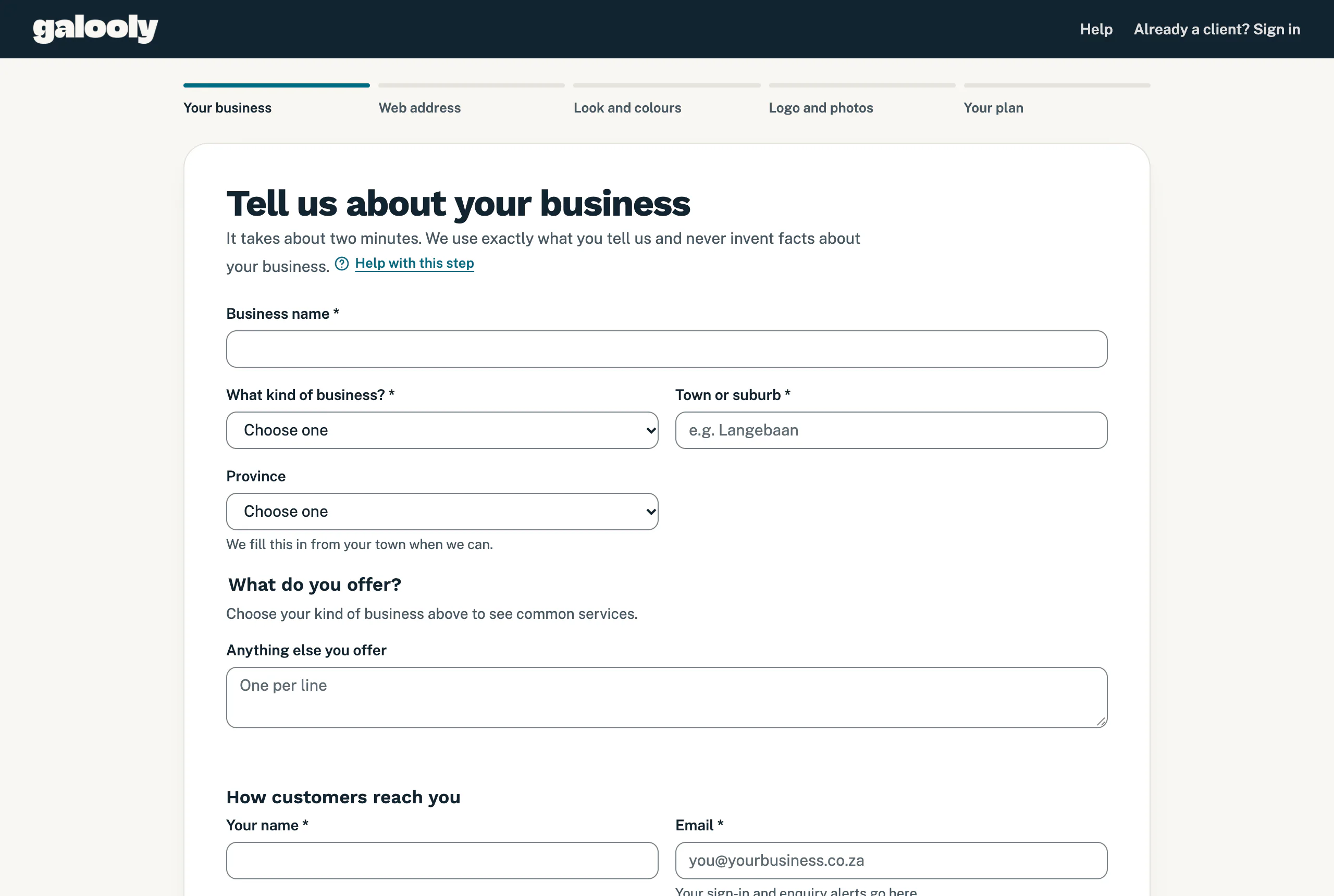
Step 1 asks about your business and how customers reach you. -
Pay the first month by card. At the end of step 5, tick the box to accept the terms and tap Continue to payment. This creates your portal account, signs you in on that device for 90 days and opens the secure page of Stitch, our payment provider, where you pay by card. After you pay, Stitch sends you back to My site, the home page of your portal, and we email you a welcome, once, with your first payment. Until your website is live, My site shows What happens next, with the step you are at marked Now. Sign up: choose your plan and pay has the details.
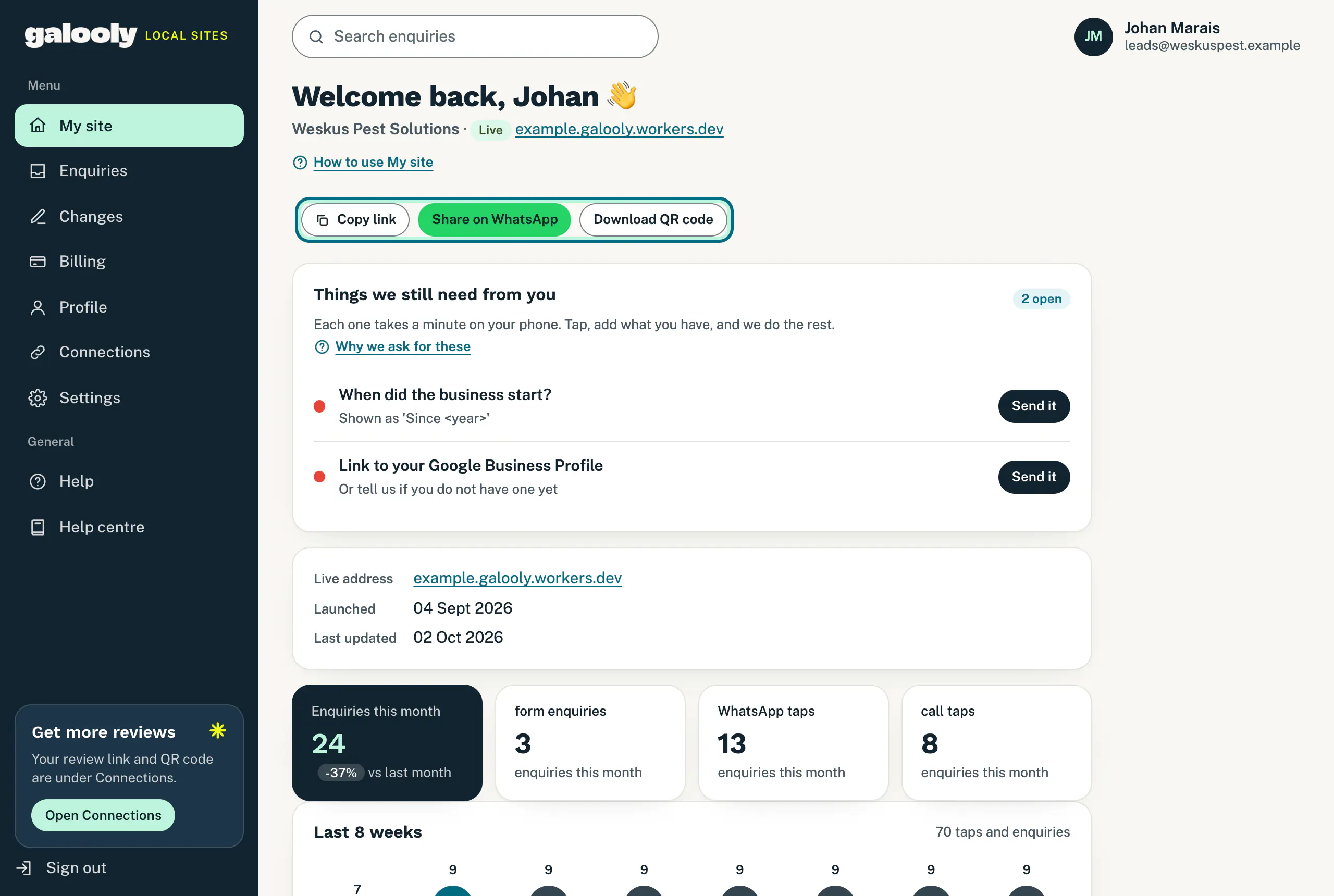
My site is the home page of your portal. Once your website is live, it shows your address and enquiry numbers. -
We build your website and send you a preview link. Once your payment is confirmed, we build your website from what you gave us. We use exactly what you tell us and never invent facts about your business. You get a link to a preview, usually within a few days. If we need anything else, like a photo of you or the year you started, My site lists it with a Send it button. See Send us what we still need.
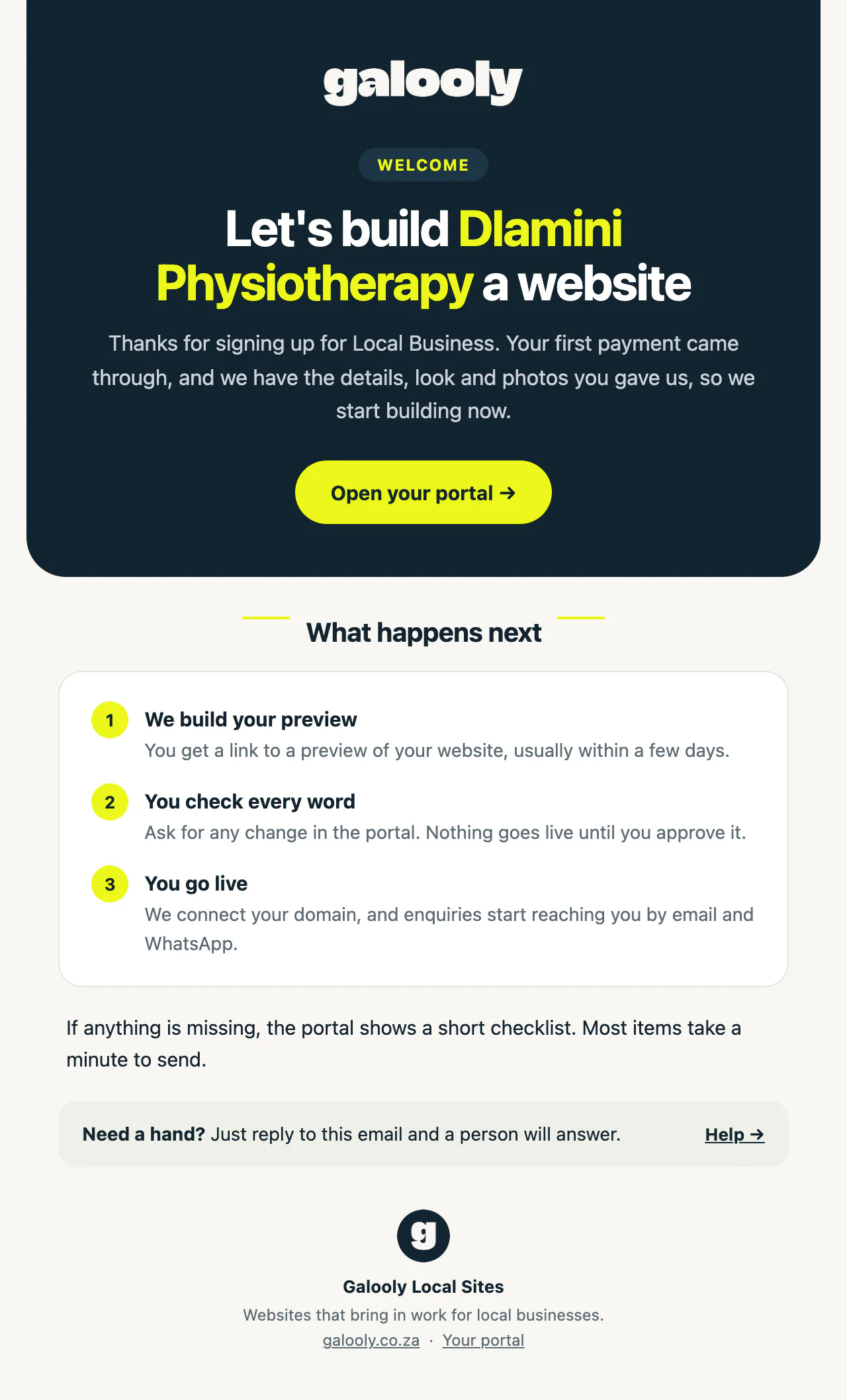
The welcome email sets out what happens next. -
You approve it and it goes live. Look through your preview on your phone and on a computer, and reply to tell us what you would like changed. Nothing goes live until you approve it. Once it is live, My site shows Live, your web address and the buttons Copy link, Share on WhatsApp and Download QR code. Your website can start on a free temporary address while your own domain is being connected. See Connect your own domain or Get a new domain or transfer yours.
-
Follow your enquiries and ask for changes. Every enquiry from the form on your website is emailed to you the moment it arrives, and listed under Enquiries. WhatsApp and call taps go straight to your phone, and My site counts them. To change something on your website, open Changes and pick a quick request, like Update hours or Add a service, or Something else. We apply it for you, and you can follow its progress there. See Ask for a change to your website.
Good to know
- Sign-up saves as you go. Your answers are kept after each step, in the browser you are using. To carry on later, use the same phone or computer and the same browser, or, once you have finished the first step, tap Email me a link to continue at the bottom of the page and open the link on another phone or computer. It works for 7 days.
- One email address per business. The email address you sign up with is your sign-in and where enquiry alerts go. To sign up a second business, use that business’s own email address.
- There is no password. You sign in with a link we email you. It works once and expires after 15 minutes. See Sign in to your portal.
- Your plan includes a set number of website changes each month. The Changes page shows how many you have used. See Your monthly changes and fast-track.
- What we still need is not a change. Anything you send with Send it on My site never uses your monthly changes.
- Setting up is not a change either. Connecting your domain, setting up your email, another mailbox or your Google review link, asked for on Connections, never uses your monthly changes.
If something goes wrong
- You left the payment page without paying. Nothing was charged. Open Billing in your portal and tap the Activate button for your plan to pay by card, or tap Pay by EFT and we email you an invoice with our banking details.
- The payment page did not open. You see “We could not open the payment page just now.” Wait a minute, then try again from Billing.
- “There is already an account for this email address.” That address already has a portal. Sign in with it instead, or sign up a different business with its own email address.
- You were signed out. Your first sign-in, when you sign up, lasts 90 days on that device. Tap Sign in at the top of this website and we email you a new link.
Still stuck?
Message us on WhatsApp or send us an email. Tell us your business name, the page you were on and what you tried, and we take it from there.