
Domain and email
Add a mailbox or change a password
Create another mailbox within your plan, and set new mailbox passwords yourself.
Once your email is set up, you can add mailboxes up to your plan’s limit and set new passwords yourself, on Connections. There is no need to wait for us.
Add a mailbox
- Open Connections and find the Email card.
- Tap Add a mailbox. Next to it you see how many you have left, for example “(3 available)”.
- Type the part of the address before the @. Your domain is filled in for you. Start with a letter or number, and use only letters, numbers, dots, hyphens and underscores.
- Choose a password, then type it again in the box below.
- Tap Create mailbox. A note confirms the new address is ready. Sign in to webmail with it and the password you chose.
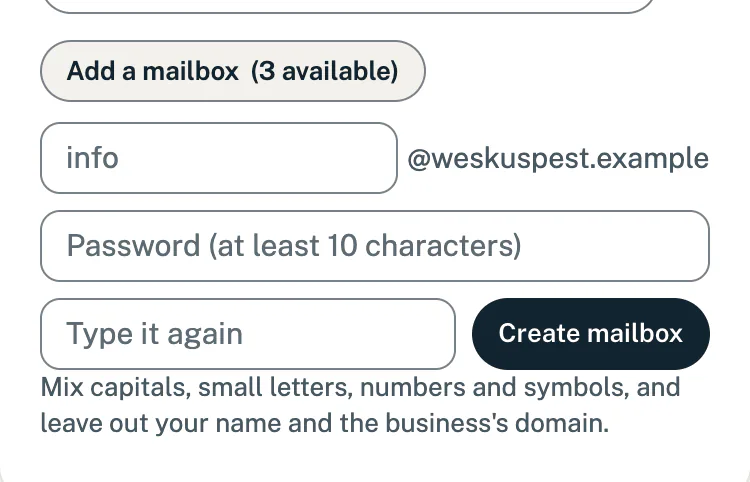
Once all the mailboxes on your plan are in use, Add a mailbox no longer shows.
What makes a good password
Your mailbox password must:
- be 10 to 54 characters long
- use letters, numbers and symbols only, with no spaces or quotes
- mix at least three of: small letters, capitals, numbers and symbols
- leave out the part before the @ and your domain name. For info@yourbusiness.co.za, “info” and “yourbusiness” may not be in it.
A few unrelated words joined with symbols, plus a number, are easy to remember and hard to guess. We do not keep a copy of your password, so store it somewhere safe, such as a password manager.
Set a new password
- On the Email card, find the mailbox and tap Set a new password under it.
- Type the new password under New password, and again under Type it again.
- Tap Save password. A note confirms the new password is set for that address.
- Change the password on every phone and computer that uses this mailbox too, or they can no longer sign in.
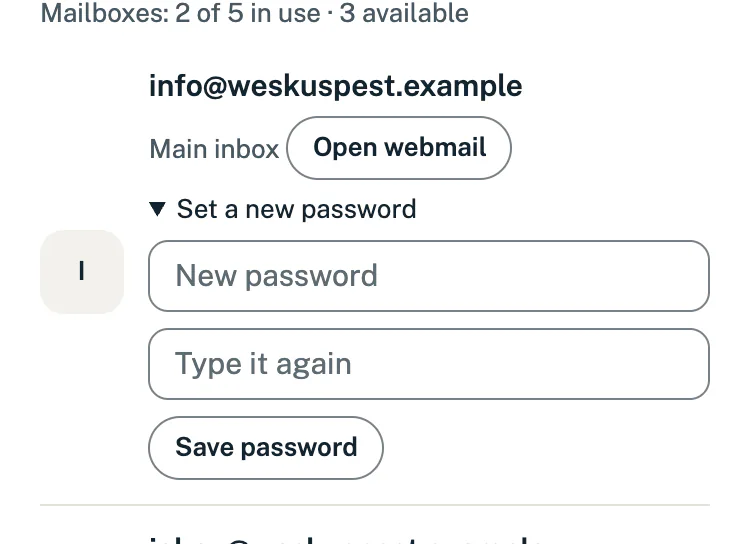
Anyone with access to your portal can set a new password. So if someone in your team forgets theirs, you can set a new one for them here.
Ask for another mailbox
If the Email card shows Ask for another mailbox instead of Add a mailbox, we add mailboxes for you:
- Tap Ask for another mailbox. Changes opens a form called Ask for another mailbox.
- Under The address and who will use it, type the address you would like and who will use it.
- Tap Send it. The request, “Add an email address”, is marked Setup on Changes.
Asking for a mailbox is setup, not a change to your website, so it never uses your monthly changes. When the mailbox is ready, we email you. The subject is “Your setup request is done”.
If something goes wrong
- “The two passwords do not match.” Type the password again in both boxes.
- “Use at least 10 characters.” or “Mix at least three of: lower-case letters, capitals, numbers and symbols.” Make the password longer, or add the kinds of characters it is missing.
- “The password may not contain the email address or the business’s domain.” Take out the part before the @ and your domain name.
- No Set a new password under a mailbox? Then its password is changed elsewhere. The Password line in the card’s settings says where, or contact us.
- Need more mailboxes than your plan includes? Contact us.
Still stuck?
Message us on WhatsApp or send us an email. Tell us your business name, the page you were on and what you tried, and we take it from there.