
Domain and email
Set up email on your phone or computer
The settings for Outlook, Apple Mail and phones, and how to send them to someone in your team.
To read your business email in Outlook, Apple Mail or the mail app on your phone, the app needs a few settings. You find them on Connections, and you can email them to yourself or to someone in your team.
Find the settings
- Open Connections and find the Email card.
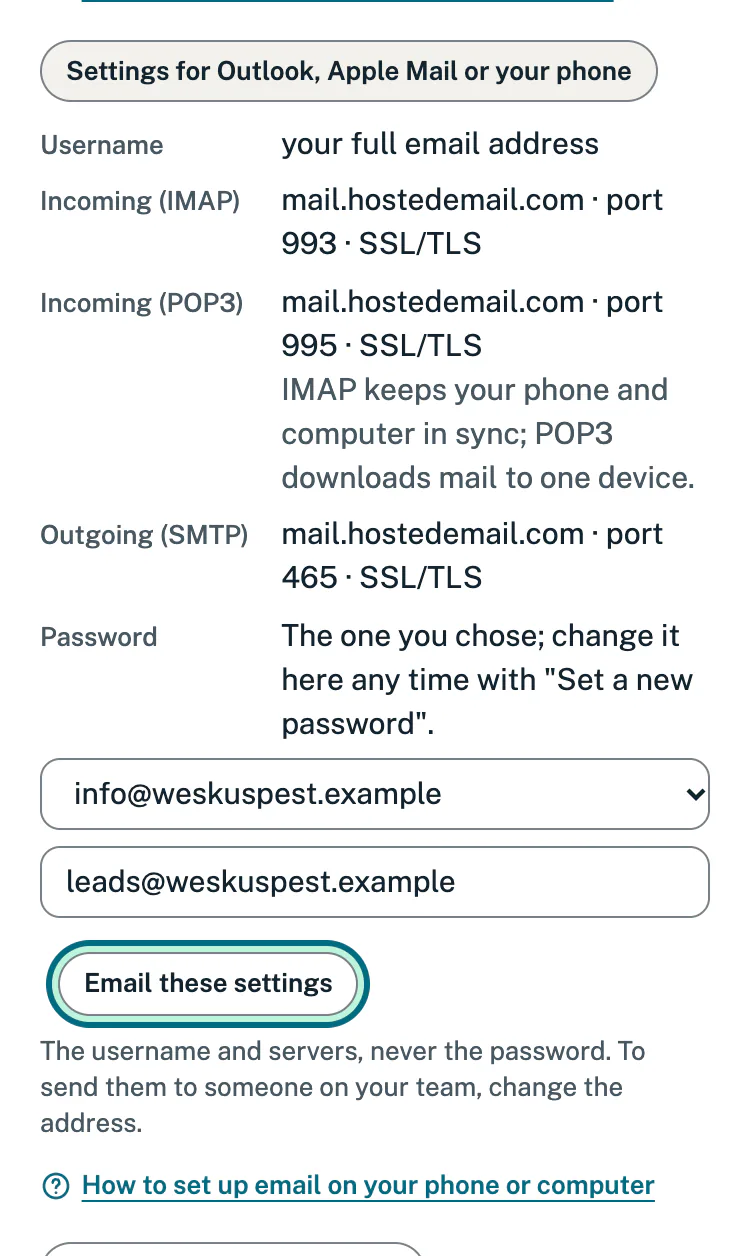
- Tap Settings for Outlook, Apple Mail or your phone.
- In your mail app, add a new account. If it asks, choose the manual or advanced set-up.
- Fill in what the card shows:
- Username: your full email address, for example info@yourbusiness.co.za, not only “info”.
- Incoming (IMAP): the server, port and security, exactly as shown.
- Outgoing (SMTP): the server, port and security, exactly as shown. If the app asks how to sign in for outgoing mail, use the same username and password.
- Password: the mailbox’s own password.
IMAP or POP3
The card may show two ways to receive email. IMAP keeps your phone and computer in sync. POP3 downloads mail to one device.
Choose IMAP if you read email on more than one device, for example your phone and the office computer.
Email the settings
Handy when someone in your team sets up their own phone.
- Open Settings for Outlook, Apple Mail or your phone on the Email card.
- If you have more than one mailbox, choose the one the settings are for.
- The address box starts with your own email address. To send the settings to someone else, type their address instead.
- Tap Email these settings.
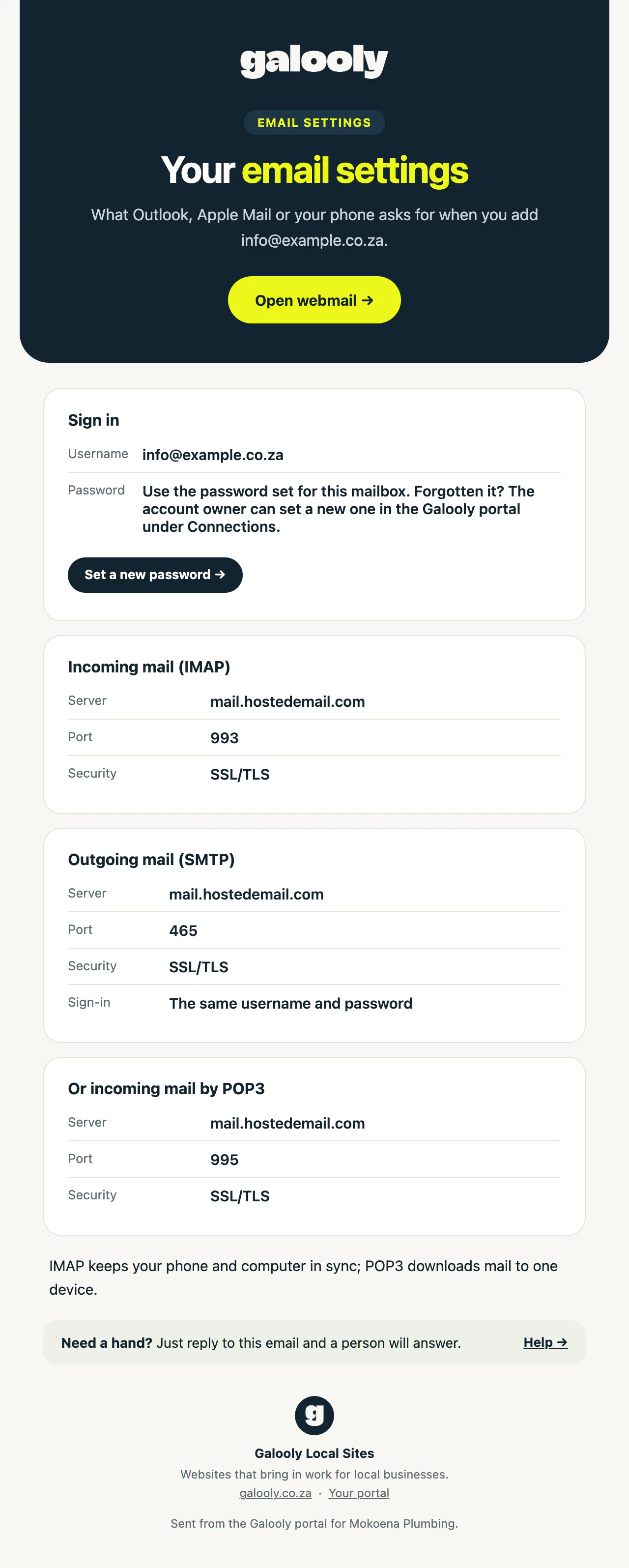
The email has the username, the servers and a button to open webmail. It never contains the password. If they forget it, you can set a new one, as in Add a mailbox or change a password.
Ask for them on WhatsApp
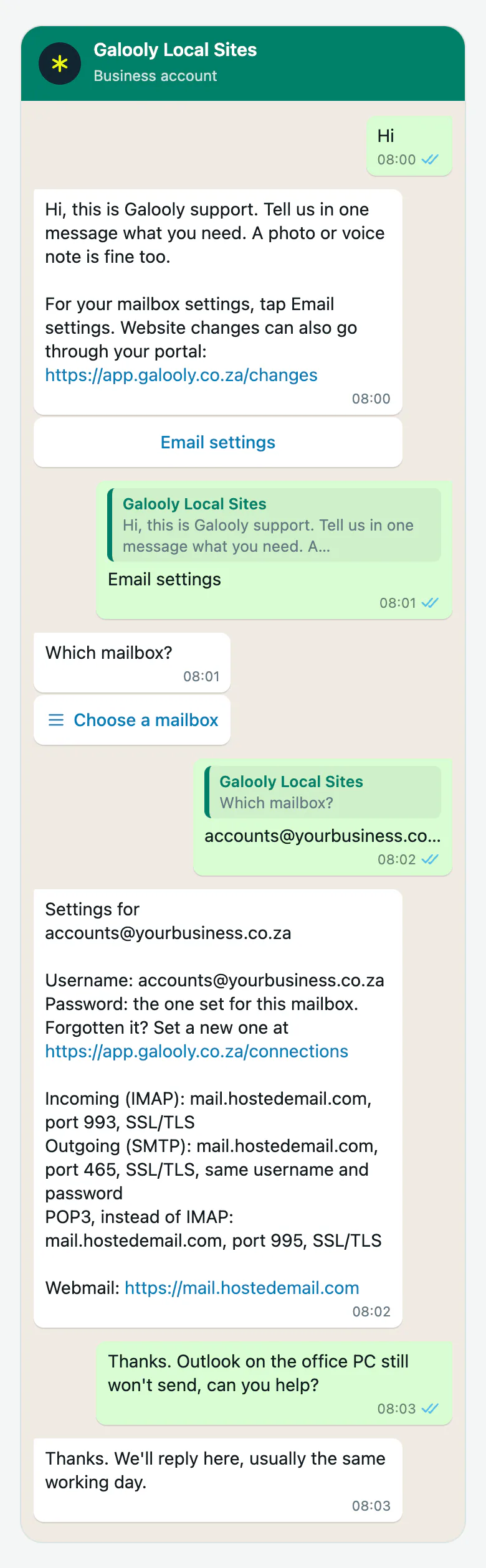
- Message us on WhatsApp from your business’s WhatsApp number, the one on your website. Our number is under Still stuck? at the end of this page.
- Tap Email settings in our reply, or type “email settings”.
- If you have more than one mailbox, tap Choose a mailbox and pick one.
- The settings arrive in the chat. Like the email, they never include the password.
Writing from another number? Tap Contact us, then tell us what you need and which business it is for.
Good to know
- The settings are the same for every mailbox on your domain. Only the username changes.
- You can send up to 10 settings emails a day from the portal. After that you see “You’ve reached today’s limit for settings emails. Please try again tomorrow.”
If something goes wrong
- The app says the username or password is wrong. Check that the username is the full email address. Still wrong? Set a new password on Connections, then use it on every device.
- You can receive email but not send it. Check the outgoing (SMTP) server, port and security, and that outgoing mail signs in with the same username and password.
- Nothing works yet? You can read and send email in webmail in the meantime. Contact us and tell us which app you use and what it says.
Still stuck?
Message us on WhatsApp or send us an email. Tell us your business name, the page you were on and what you tried, and we take it from there.