
Getting started
Find your way around the portal
What each page of your client portal is for, on a computer and on a phone.
Your portal is where you follow up enquiries, ask for changes to your website and look after billing. This guide shows where everything is, on a computer and on a phone.
The steps
-
Sign in. Tap Sign in at the top of this website, type your email address and tap Email me a link. Open the email on the same device and tap Sign in to your portal. There is no password to remember. You land on My site. See Sign in to your portal.
-
Use the menu on a computer. The menu on the left takes you to every page:
- My site: your web address, buttons to share it, anything we still need from you, and your enquiry numbers.
- Enquiries: every enquiry from the form on your website, to follow up and mark as contacted, won or lost.
- Changes: ask us to change your website, and follow each request.
- Billing: your plan, invoices and card details.
- Profile: what your website shows, from your hours to your services and areas.
- Connections: WhatsApp alerts, Google reviews, email and your domain.
- Settings: where enquiry alerts go, who has access, your name and language.
Under General, Help opens the help page in your portal and Help centre opens these guides in a new tab. Sign out is at the bottom of the menu. The Search enquiries box at the top finds an enquiry by name, phone number or message.
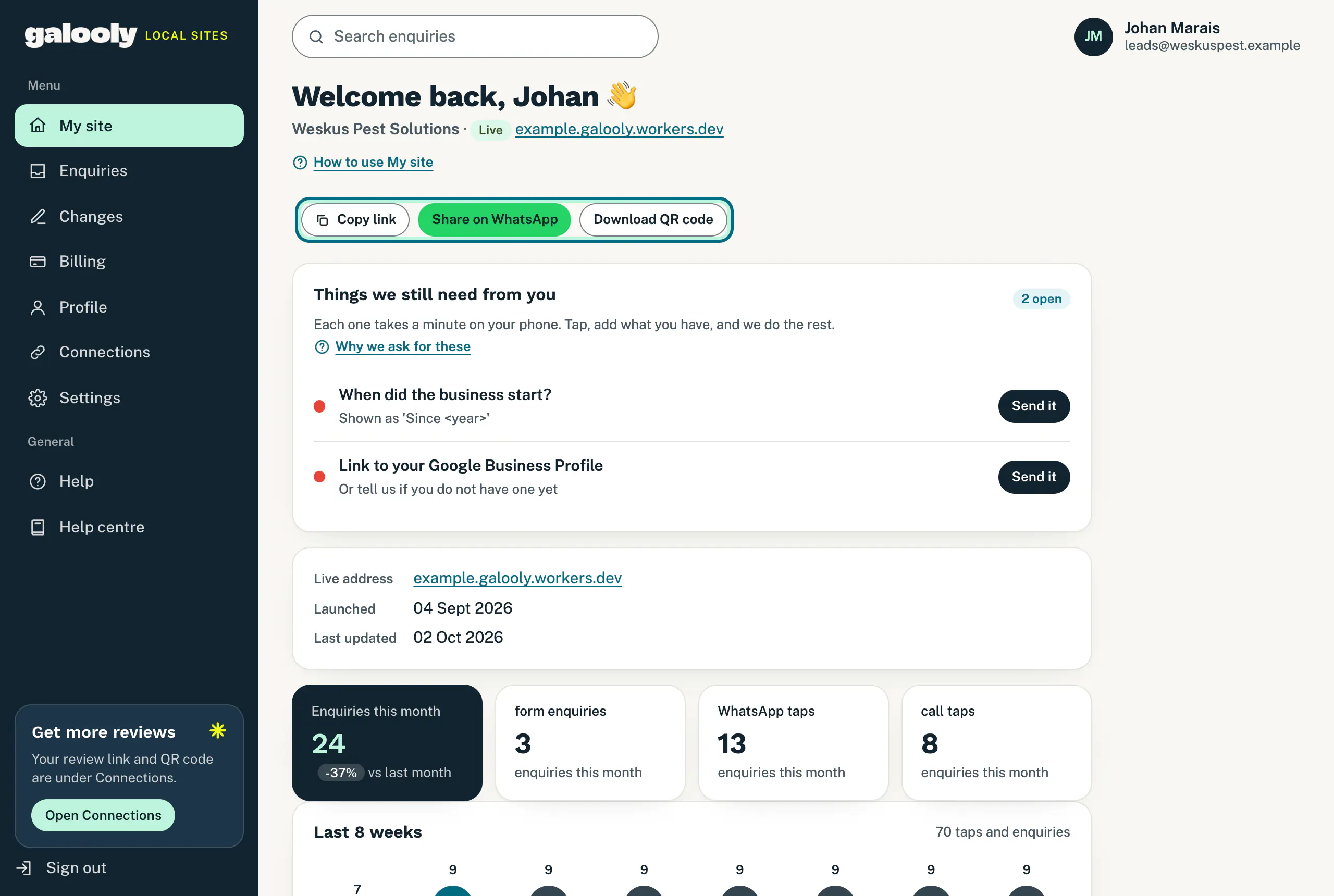
On a computer, the menu on the left lists every page. Help and Help centre are under General. -
Use the bar at the bottom of a phone. On a phone, My site, Enquiries, Changes and Billing sit in the bar at the bottom of the screen. Tap More for everything else: it opens the Help page, which lists Profile, Connections and Settings under Where to go. Your initials and the sign-out button are at the top right.
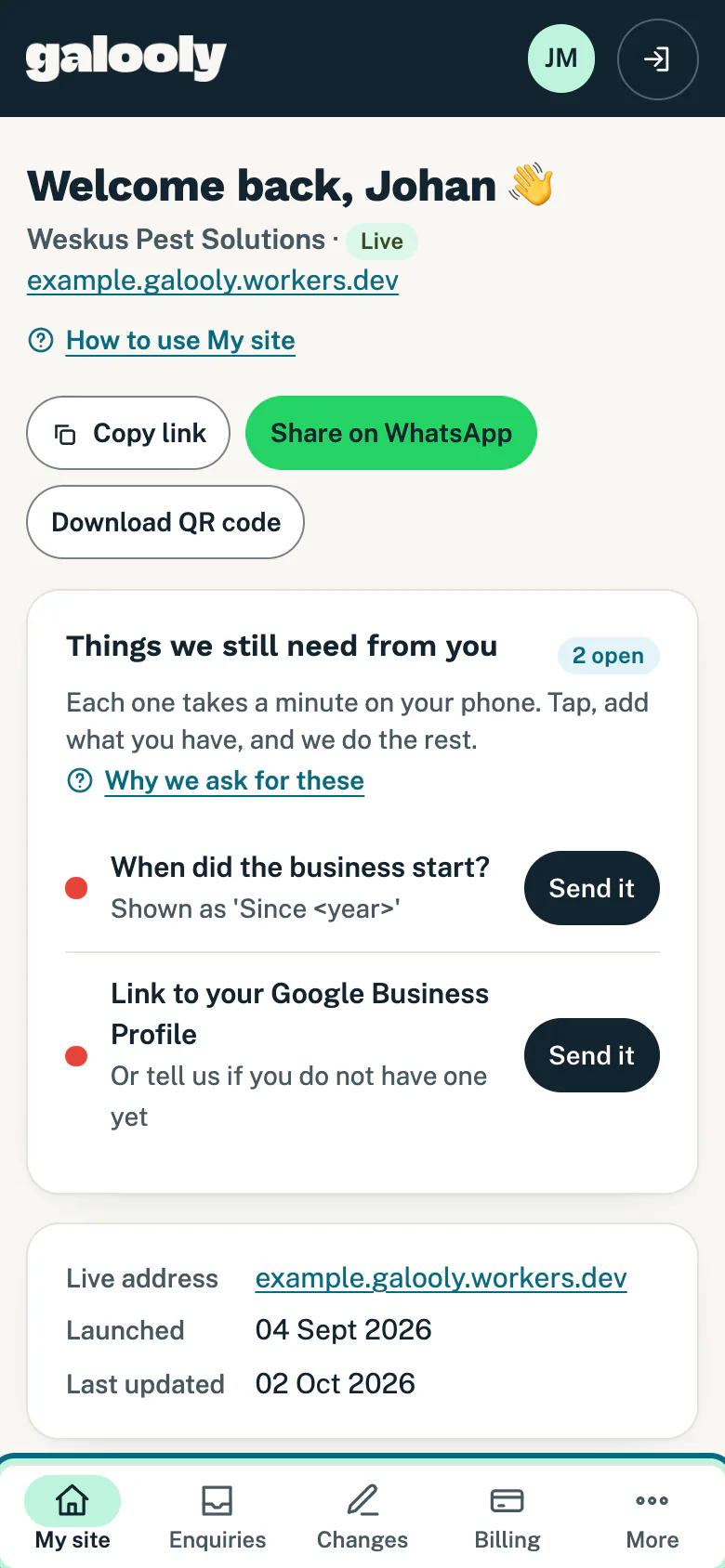
On a phone, the main pages are in the bar at the bottom. More has the rest. -
Find help. Tap Help in the menu, or More on a phone. The Help page has:
- Help centre: search these guides, or open a popular one. See every help topic lists them all.
- Where to go: every page in your portal, with what it is for and an Open button.
- Common questions: quick answers, each with a link to the right page and to the full guide.
- Need a hand? The Email support and WhatsApp buttons reach a person.
- Your name and email address, with Sign out.
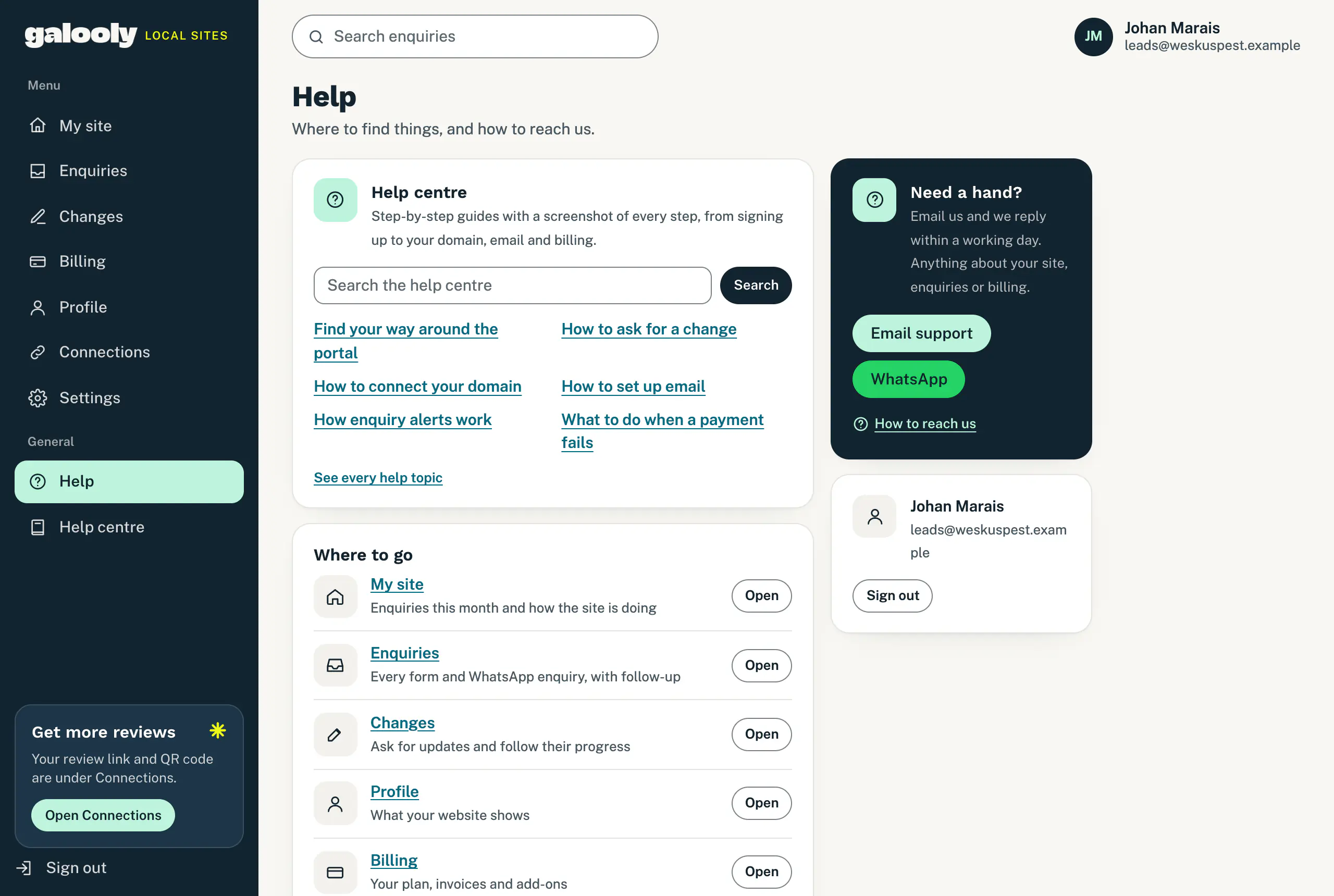
The Help page lists every page, common questions and how to reach us. Across the portal, links with a question mark, like How to use My site or Why we ask for these, open the guide for that spot in a new tab. Whatever you were busy with stays open in your portal.
Good to know
- It is the same portal on any screen. On a phone or another narrow screen, the menu moves to the bar at the bottom.
- Searching enquiries needs the wider layout. On a phone, open Enquiries and use the filters, like New, Won or Spam, instead.
- You can use the portal in Afrikaans. Choose the language under Settings, in You. Some screens, and these guides, are in English only. See Your name, language and signed-in devices.
- How long you stay signed in. A sign-in lasts 30 days on a device, or 90 days when you tick Keep me signed in on this device for 90 days.
- Everyone gets their own sign-in. To give someone in your team access, see Give someone in your team access.
If something goes wrong
- The portal asks you to sign in again. Your sign-in ran out, or you signed out. Type your email address and tap Email me a link. No email? See Sign-in email missing or link not working.
- You cannot find a page on your phone. Tap More at the bottom right. Every page is listed under Where to go.
- My site shows no enquiries yet. Enquiries show there once your website is live. Some settings, like extra alert addresses and WhatsApp alerts, also open up only once your website is launched.
Still stuck?
Message us on WhatsApp or send us an email. Tell us your business name, the page you were on and what you tried, and we take it from there.