
Signing in and your account
Give someone in your team access
Invite people to your portal, and remove their access when they no longer need it.
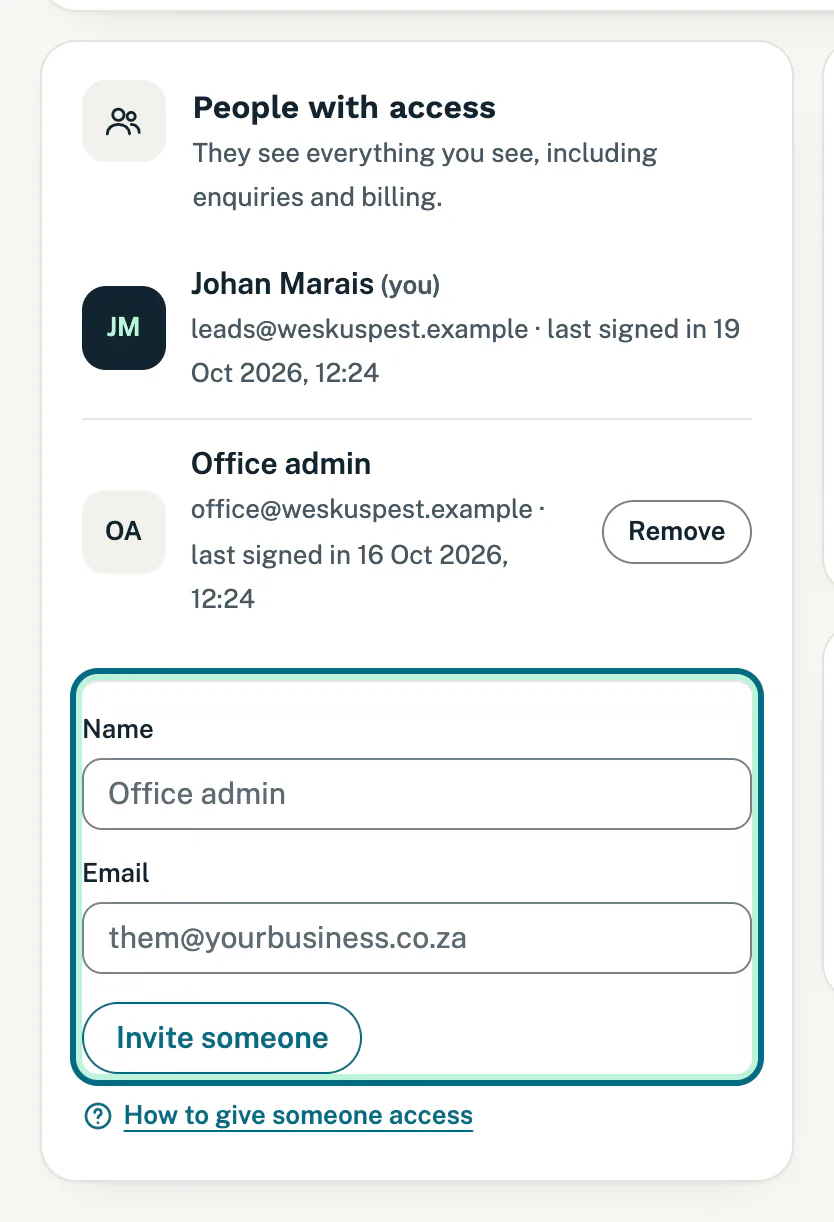
Give each person who helps run your business their own sign-in, so nobody has to share yours. They see everything you see in the portal, including enquiries and billing.
Invite someone
- Open Settings. On a computer it is in the menu on the left. On a phone, tap More at the bottom, then Settings.
- Find the People with access card.
- Type their name under Name and their email address under Email. The name is optional, but it makes the list easier to read.
- Tap Invite someone. A message at the top says they have a sign-in link in their inbox, and they appear in the list.
What they receive
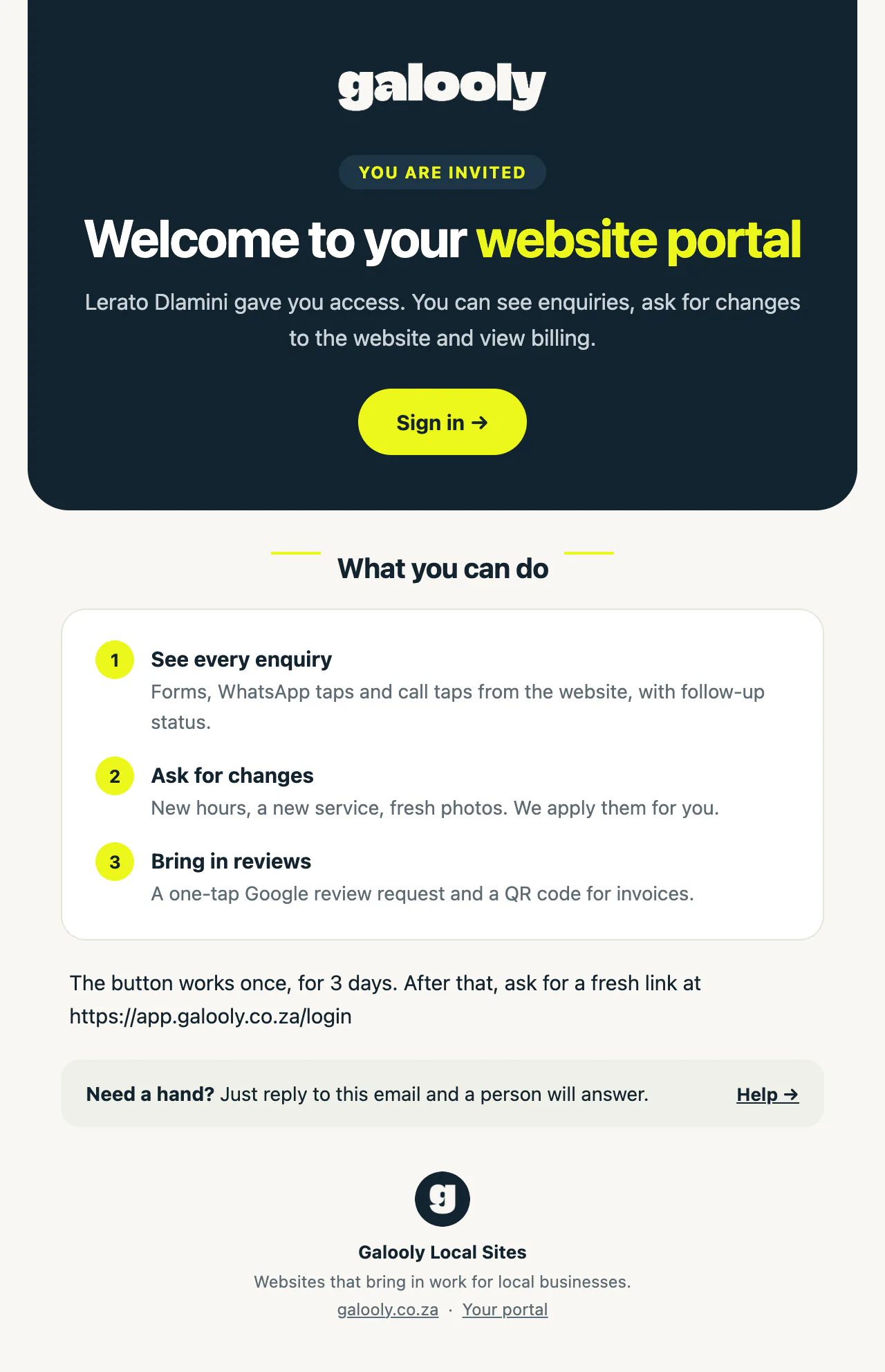
- They get an email saying you gave them access, with a Sign in button.
- The button works once, for 3 days, so it is fine if they open the email later. After that, they sign in the usual way: on the sign-in page they type their own email address and tap Email me a link. See Sign in to your portal.
The email uses your name from Settings, or your email address if you have not added a name. See Your name, language and signed-in devices.
Remove someone
- Open Settings and find People with access.
- Tap Remove beside their name.
- You see Access removed. They are signed out of the portal on all their devices straight away.
Good to know
- Everyone with access can do what you can, including inviting and removing other people. Only add people you trust.
- The list shows when each person last signed in, or never signed in if they have not used their access yet.
- There is no Remove button beside your own name. Someone else on your account can remove you.
- An email address can belong to only one portal account. That address already has access. means it is already on your list or on another account: ask them for a different address.
- People you invite do not get enquiry emails on their own. To send them enquiries too, add their address under Lead alerts: see Choose where enquiries go. Removing someone’s access does not take their address off Lead alerts, so remove it there as well if they should stop getting enquiries.
Still stuck?
Message us on WhatsApp or send us an email. Tell us your business name, the page you were on and what you tried, and we take it from there.