
Billing
When a card payment fails
What happens when a card payment does not go through, and how to update your card.
If a monthly card payment does not go through, your website stays live and Stitch, our payment provider, tries the card again. This guide explains what happens next, and how to pay with another card if you need to.
Stitch tries again
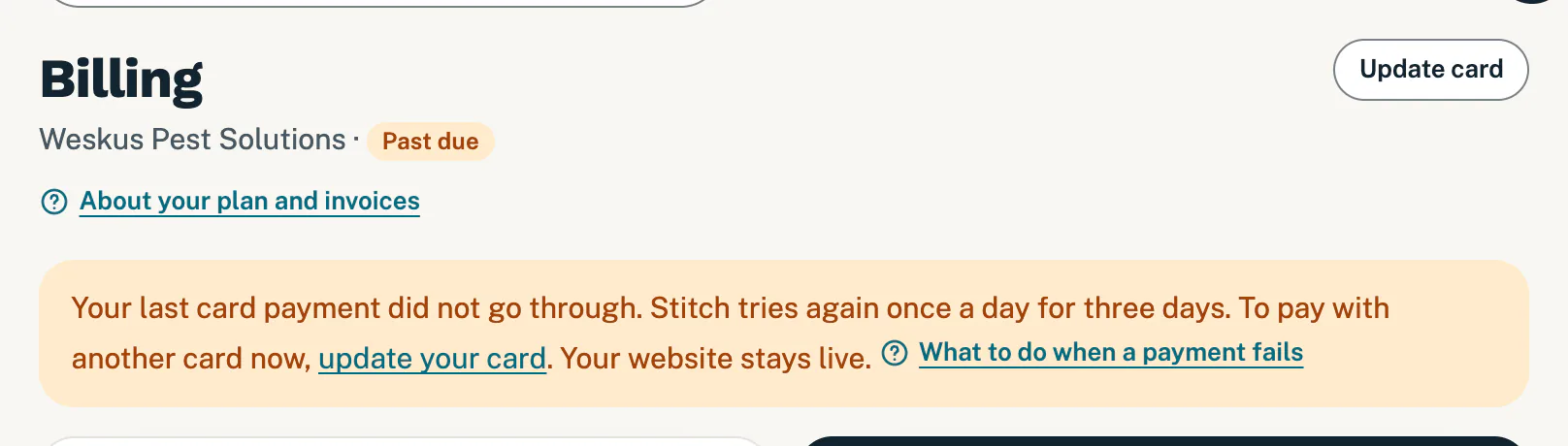
- Billing shows Past due beside your business name, and a yellow note says “Your last card payment did not go through.”
- Stitch tries your card again once a day for three days. If one of those tries goes through, there is nothing more to do: your status goes back to Active.
- Your website stays live, and you can still ask for changes.
- Under Invoices, the payment that did not go through shows as Failed, without a PDF.
Update your card
You do not have to wait for the retries. To pay with another card straight away:
- Open Billing and scroll down to Card details. The update your card link in the yellow note takes you there.
- Read the line under Update card, for example “You add the new card on Stitch’s secure page: R299 now, then every month on the 19th.” You pay for the month that did not go through now. From then on, your monthly payment falls on the day you add the card (the 28th at the latest).
- Tap Update card. The same button is at the top right of Billing. Stitch’s secure page opens.
- Add your card and pay.
- Check Billing. Stitch brings you back, and once the payment is confirmed a note says “Thanks for your payment. It is confirmed and listed under Invoices below.” Your status goes back to Active, and we email you a receipt.
Your new card replaces the old one: once the payment goes through, we stop the old card subscription at Stitch.
Use a different card while payments work
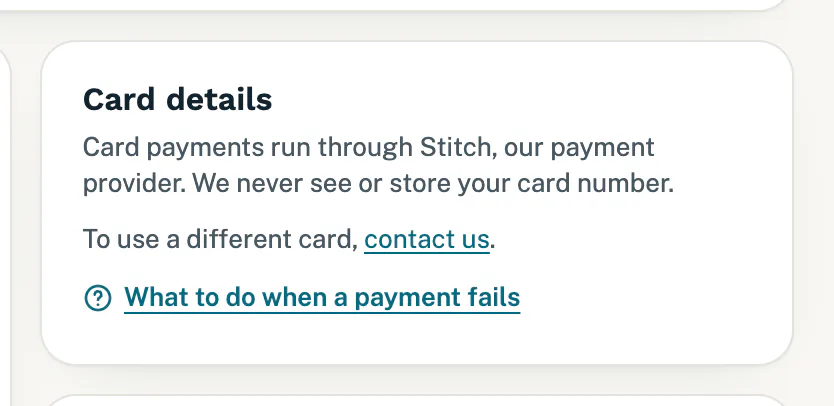
Card details shows how you pay. While your card payments go through, there is no Update card button. To switch to another card, for example before yours expires, tap contact us there and tell us.
The emails we send
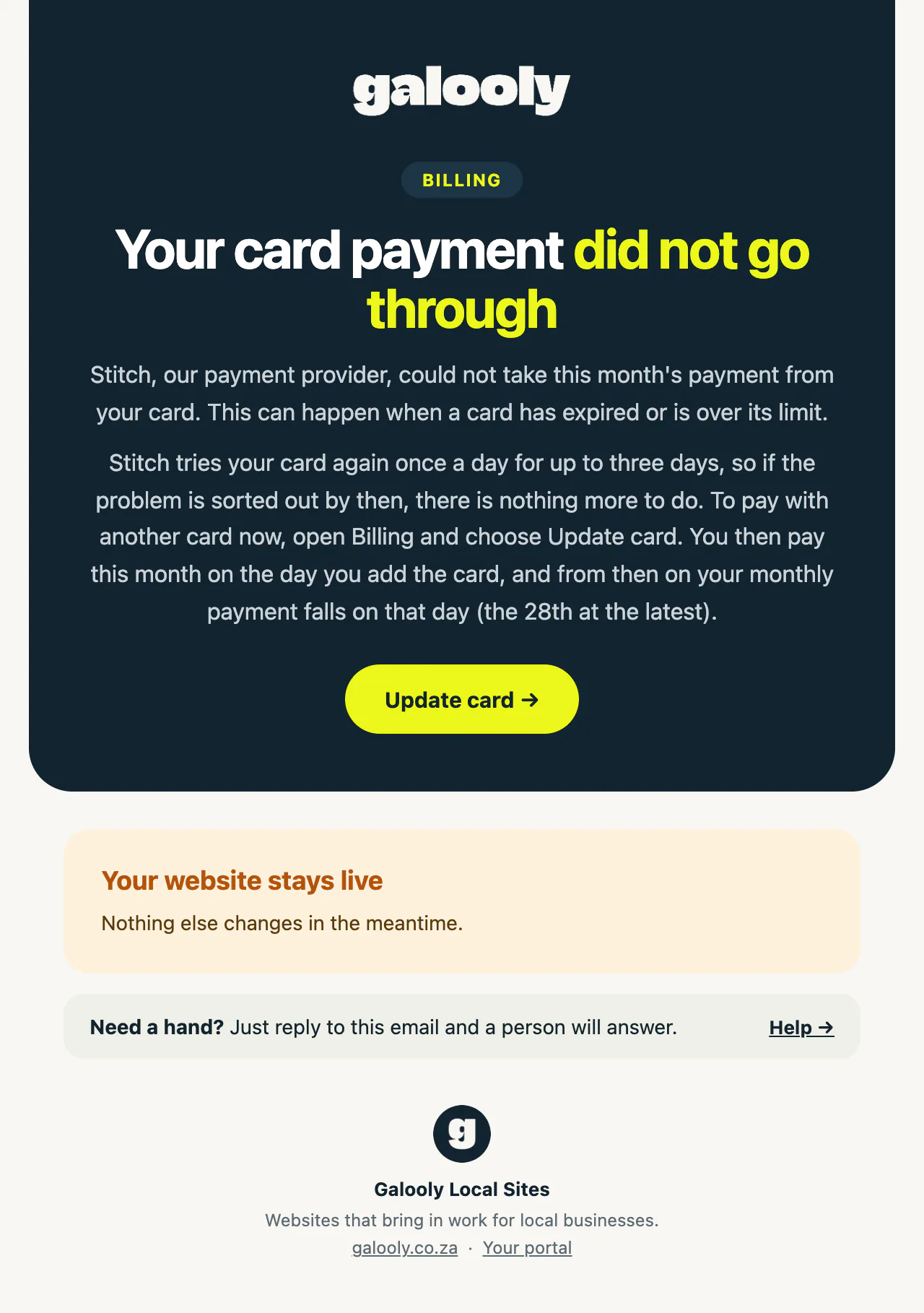
- “Your card payment did not go through” comes first. Stitch tries your card again once a day for up to three days.
- “Your card subscription has stopped” comes if the retries did not work (see below).
Both have an Update card button that opens Billing.
When the subscription stops
If your card still fails after the retries, Stitch stops your card subscription and does not try the card again.
- Billing shows Suspended, and a red note says your card subscription stopped after the payment failed.
- Your website stays live, but website changes are paused: you cannot send new change requests until you have paid. See Website changes are paused.
- To carry on, follow the steps under Update your card above. You pay for one month now and your subscription starts again, with your monthly payment on the day you add the card (the 28th at the latest).
Paying by EFT
- You already pay by EFT: Card details says “You pay by EFT, so there is no card on file.” No card is charged, so nothing on this page applies to you.
- You would rather pay by EFT than by card: once you pay by card, there is no button to switch. Contact us, and we can arrange EFT and email you an invoice with our banking details.
Good to know
- Upgrades wait: while a payment is failing, the upgrade card says “Please update your card first. Then you can upgrade here.”
- Charged twice? If your old card’s retry and your new card both pay for the same month, we refund the extra payment, as our refund policy says.
- Your card number: it stays with Stitch. We never see or store it.
If something goes wrong
- “Your card subscription is already active, so there is nothing to pay now.” A retry went through in the meantime. Check Invoices: there is nothing more to do.
- “We could not open the payment page just now.” Wait a minute and try again.
- Billing says “If you completed the payment, it shows here within a minute.” Wait a minute and reload the page. If you cancelled on Stitch’s page, nothing was charged and you can try again.
- Card details says “Please contact us and we will help sort it out.” instead of showing a button. The card payment cannot be set up from the portal right now. See Contact support.
Still stuck?
Message us on WhatsApp or send us an email. Tell us your business name, the page you were on and what you tried, and we take it from there.