
Signing in and your account
Sign in to your portal
There is no password to remember: we email you a sign-in link that works once.
Your portal has no password. You type your email address, we email you a link, and tapping the link signs you in.
Ask for a sign-in link
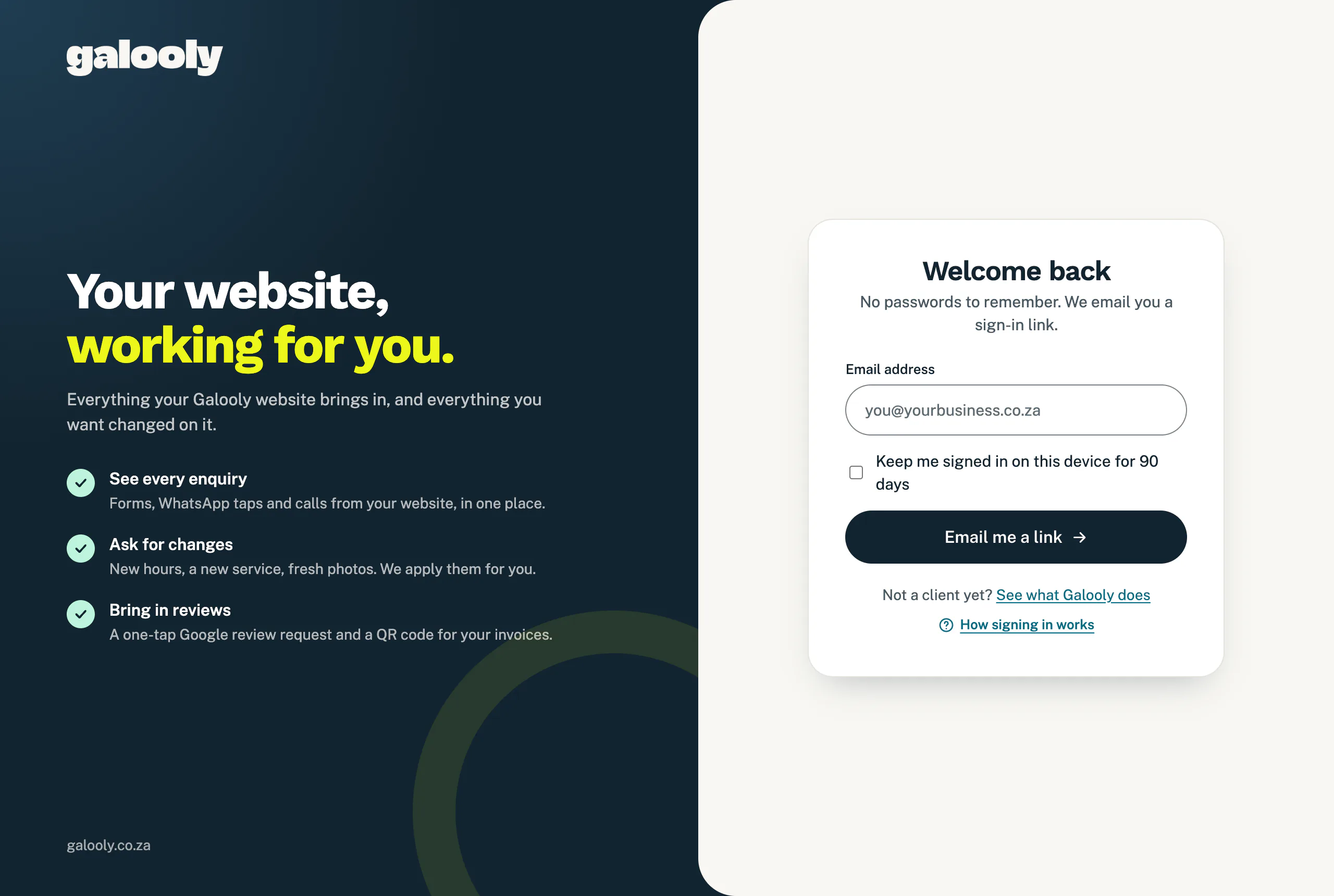
- Tap Sign in at the top of this website, or Your portal at the bottom of any email from us.
- Under Email address, type the address you signed up with, or the one you were invited with.
- On your own phone or computer, tick Keep me signed in on this device for 90 days. Without it, you stay signed in for 30 days. On a shared computer, leave it empty and sign out when you are done.
- Tap Email me a link.
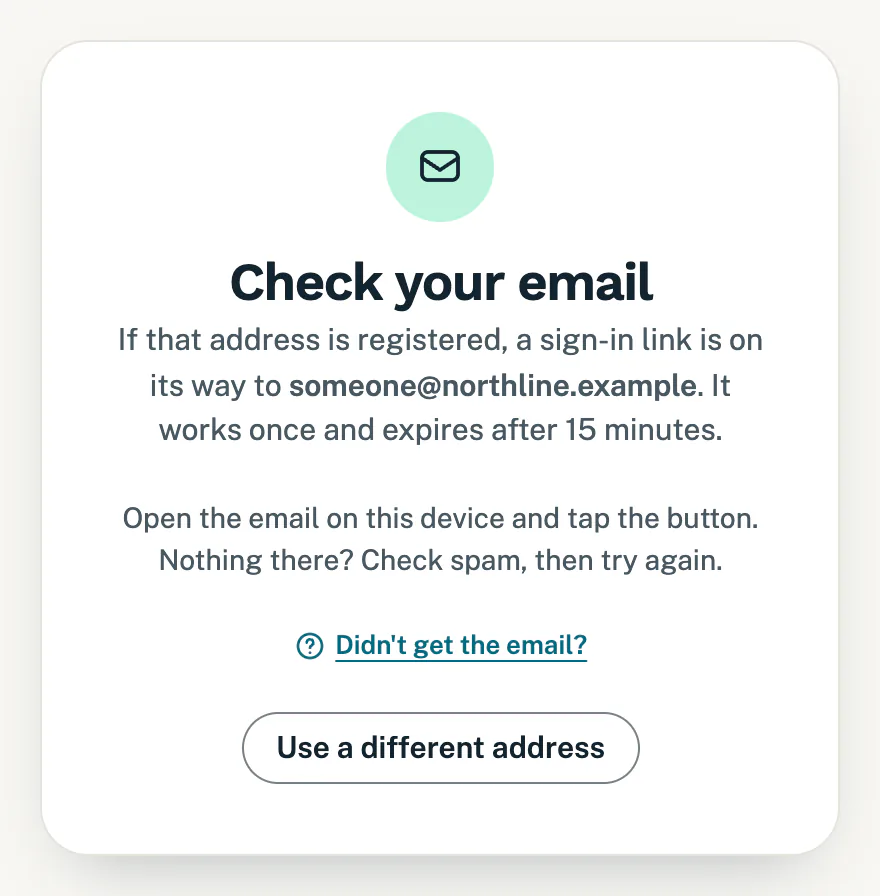
The page changes to Check your email. Your link is on its way.
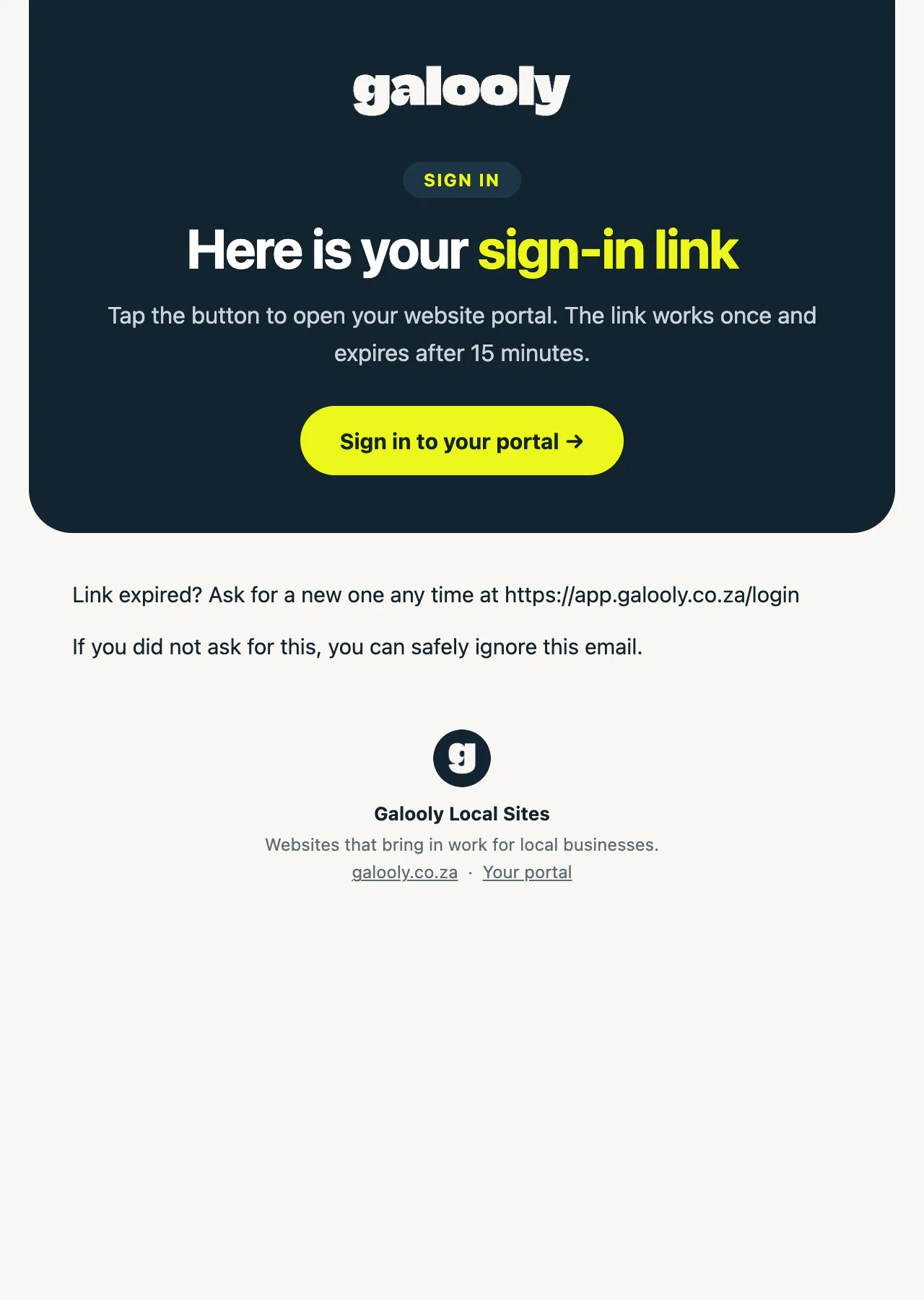
Open the email and tap the button
- Open the email from us with sign-in link in the subject. If it is not in your inbox, check your spam folder.
- Tap Sign in to your portal.
- A page says Signing you in and opens your portal by itself. If it stays on that page, tap Continue to your portal.
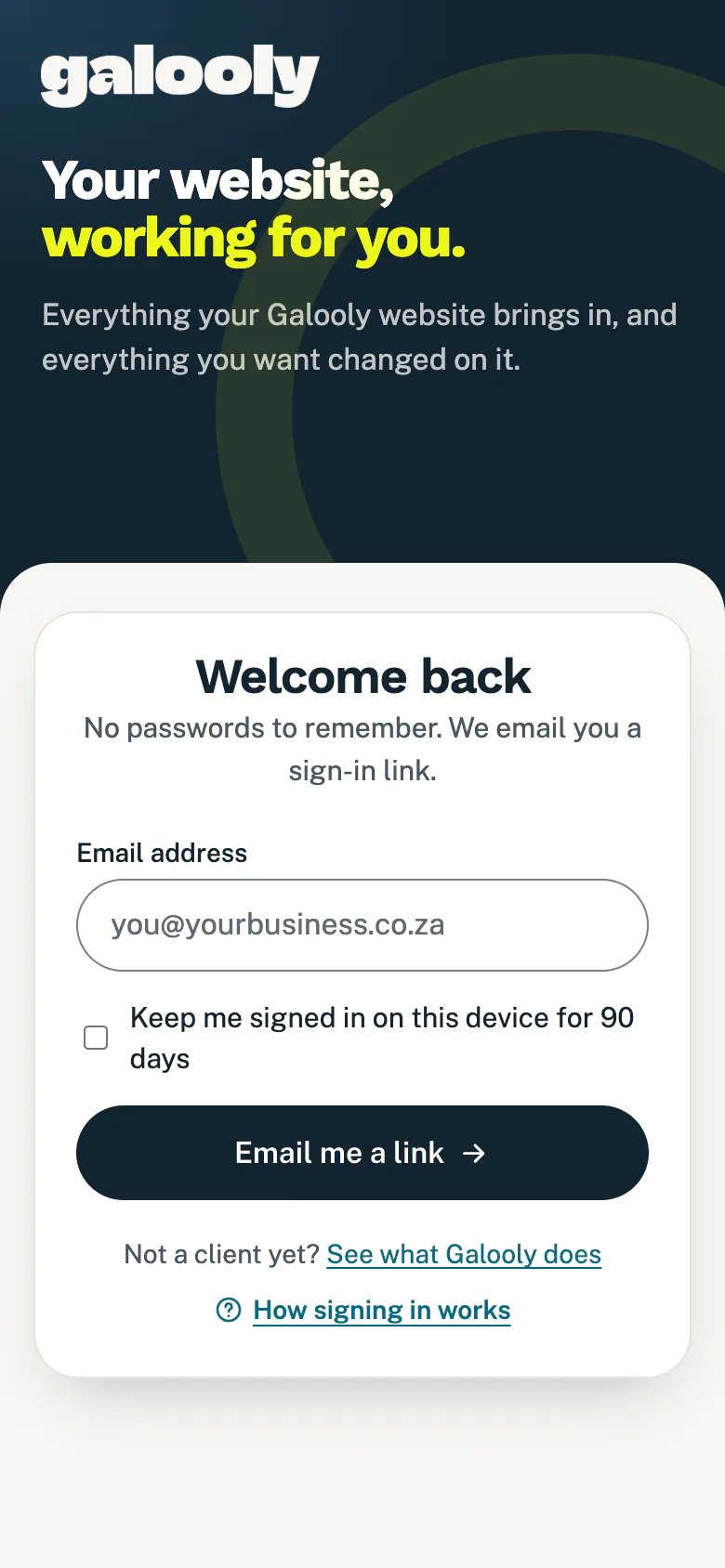
On your phone
Open the email on the device you want to use. The link signs in the phone or computer where you tap it, so if you ask for a link on your computer but tap it on your phone, your phone is the one that is signed in.
Sign out
- On a computer, tap Sign out at the bottom of the menu on the left.
- On a phone, tap the sign-out button at the top right, beside your initials.
- Or open Help (More on a phone) and tap Sign out under your name.
Signing out ends your sign-in on that device only. To sign out all your other devices at once, see Your name, language and signed-in devices.
Good to know
- A sign-in link works once and expires after 15 minutes. If yours has expired, ask for a new one on the sign-in page.
- You can ask for three links for the same address within 15 minutes. After that no email goes out, even though the page still says Check your email. Wait 15 minutes without trying, then ask again.
- The page shows Check your email for any address, so it never gives away whether an address has an account. No email? Make sure you typed the address you signed up with, then see Sign-in email missing or link not working.
- Just signed up? You are already signed in on the device you signed up on.
- On an iPhone, a sign-in link opens in Safari. If you added the portal to your Home Screen, sign in and use it in Safari instead. The Home Screen app may also show a box for a sign-in code: that is for our team only.
- Someone else in your business needs the portal? Give them their own access rather than sharing your link: see Give someone in your team access.
Still stuck?
Message us on WhatsApp or send us an email. Tell us your business name, the page you were on and what you tried, and we take it from there.