
Signing up
Sign up: tell us about your business
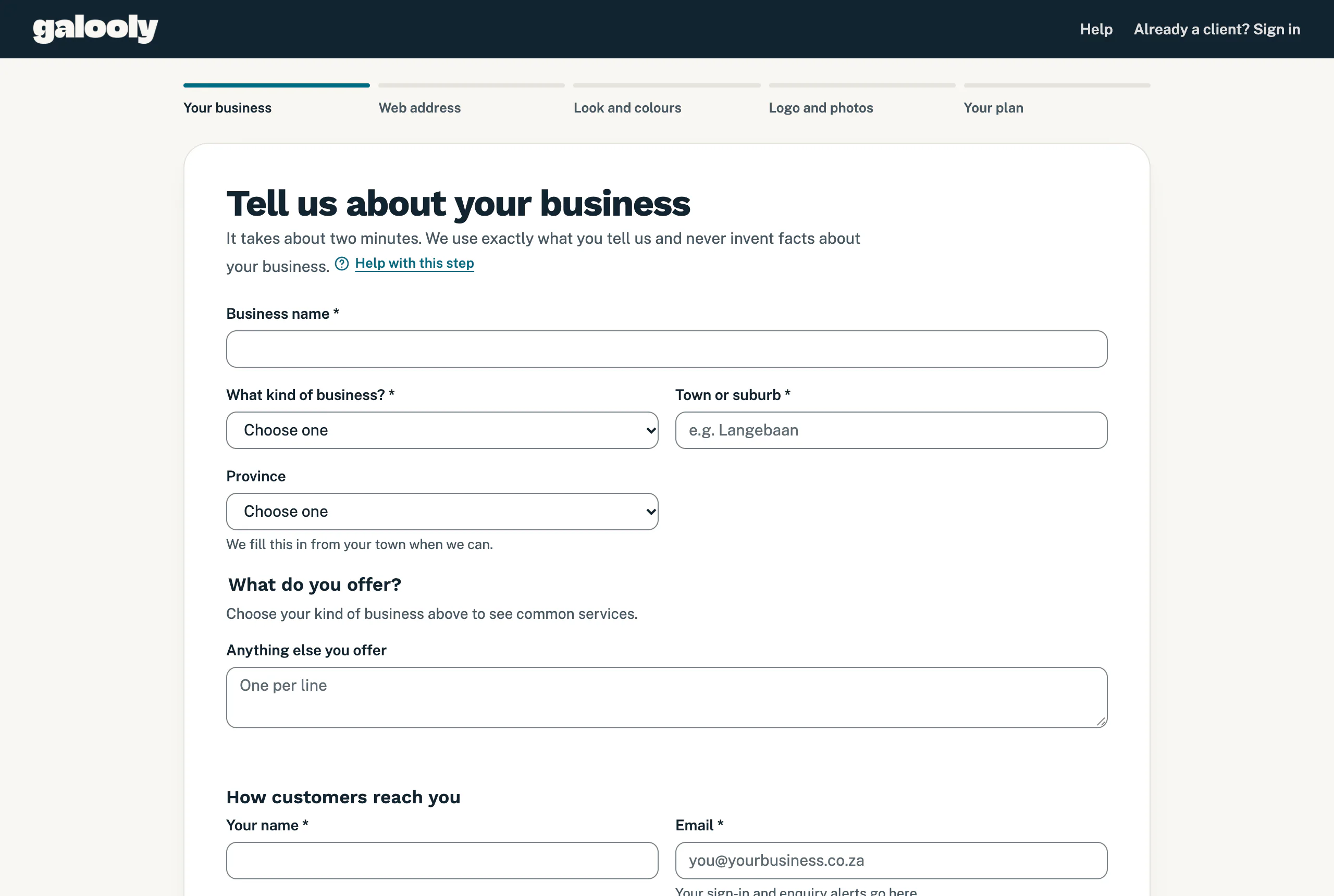
Step 1 of signing up: your business, what you offer and how customers reach you.
The first sign-up step asks about your business and how customers reach you. It takes about two minutes, and we use exactly what you tell us, so check the spelling of your business name and numbers.
To begin, tap Get started at the top of this website. The sign-up opens at Tell us about your business.
If you have not chosen yet, a cookie notice at the bottom asks whether we may use Google Analytics and Meta’s pixel. Tap Accept or Decline: either way you carry on signing up, and the choice you made on this website counts on the sign-up too. To change it later, tap Cookie settings under the form. See our privacy policy for what each one does.
Your business
- Type your Business name.
- Under What kind of business?, choose your trade. Not listed? Choose Something else and fill in What do you do?, for example Physiotherapist.
- Fill in Town or suburb. When we can tell the province from your town for sure, we fill in Province for you and say “Filled in from your town.” Check it, and change it if it is not right. For a town we do not know, or a name that is in more than one province (such as Richmond or Middelburg), choose your province yourself.
What you offer
- Under What do you offer?, tick everything you do. The list appears as soon as you choose your kind of business.
- Add anything that is not on the list under Anything else you offer, one per line.
How customers reach you
- Type Your name.
- Type your Email. Your sign-in links and enquiry alerts go to this address, so use one you check every day.
- Type your Phone number: a South African number, like 082 123 4567.
- Under WhatsApp number, leave Same as my phone number ticked if customers can WhatsApp you on that number. If your WhatsApp is on another number, untick it and type that number in the box that appears.
Already online?
- If you have a website, type it under Current website, for example mybusiness.co.za. We read it for your colours, logo and photos, so you do not have to send them again. You choose from them on the next steps.
- Add your Facebook page if you have one.
- Tap Next: your web address.
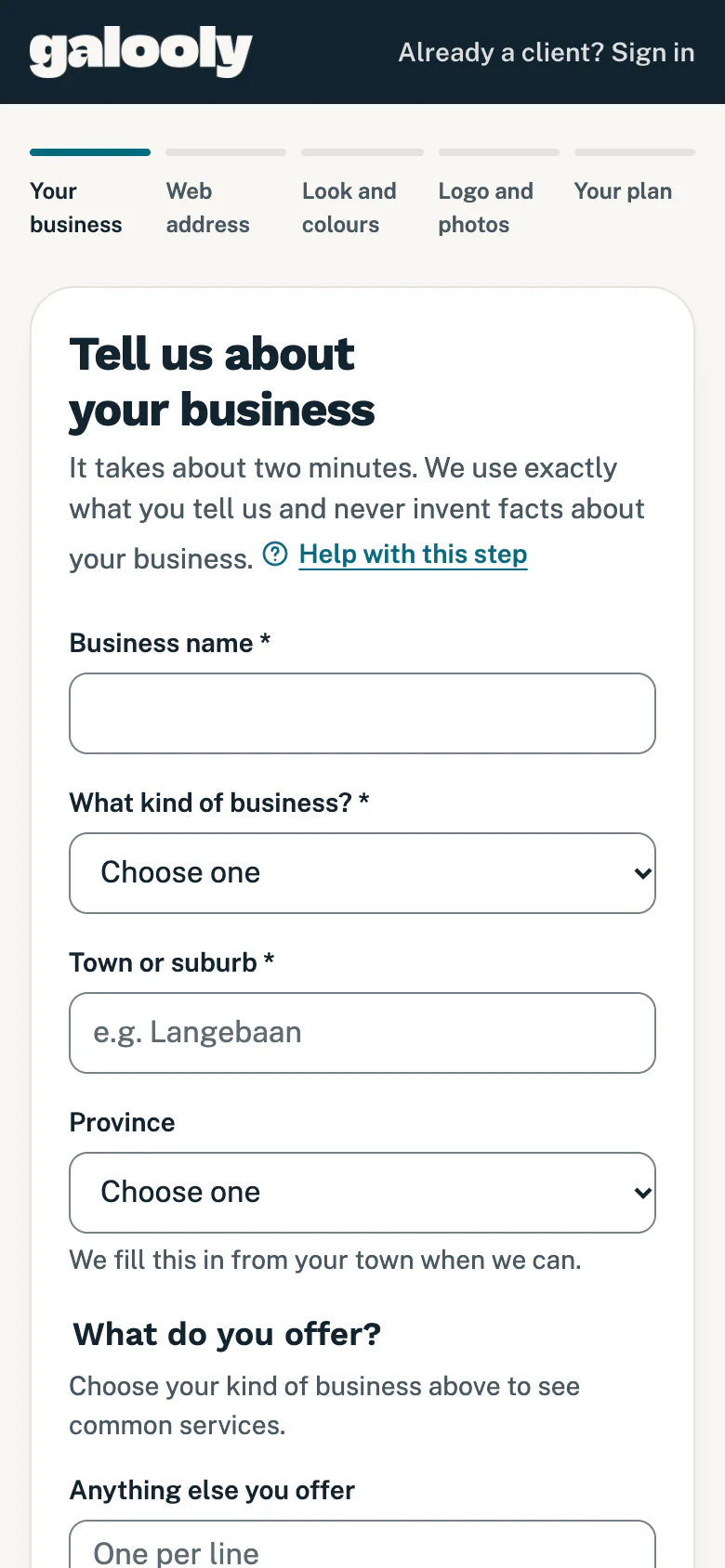
On a phone the form is the same, in one column, with the five steps along the top: Your business, Web address, Look and colours, Logo and photos and Your plan.
What the messages at the top mean
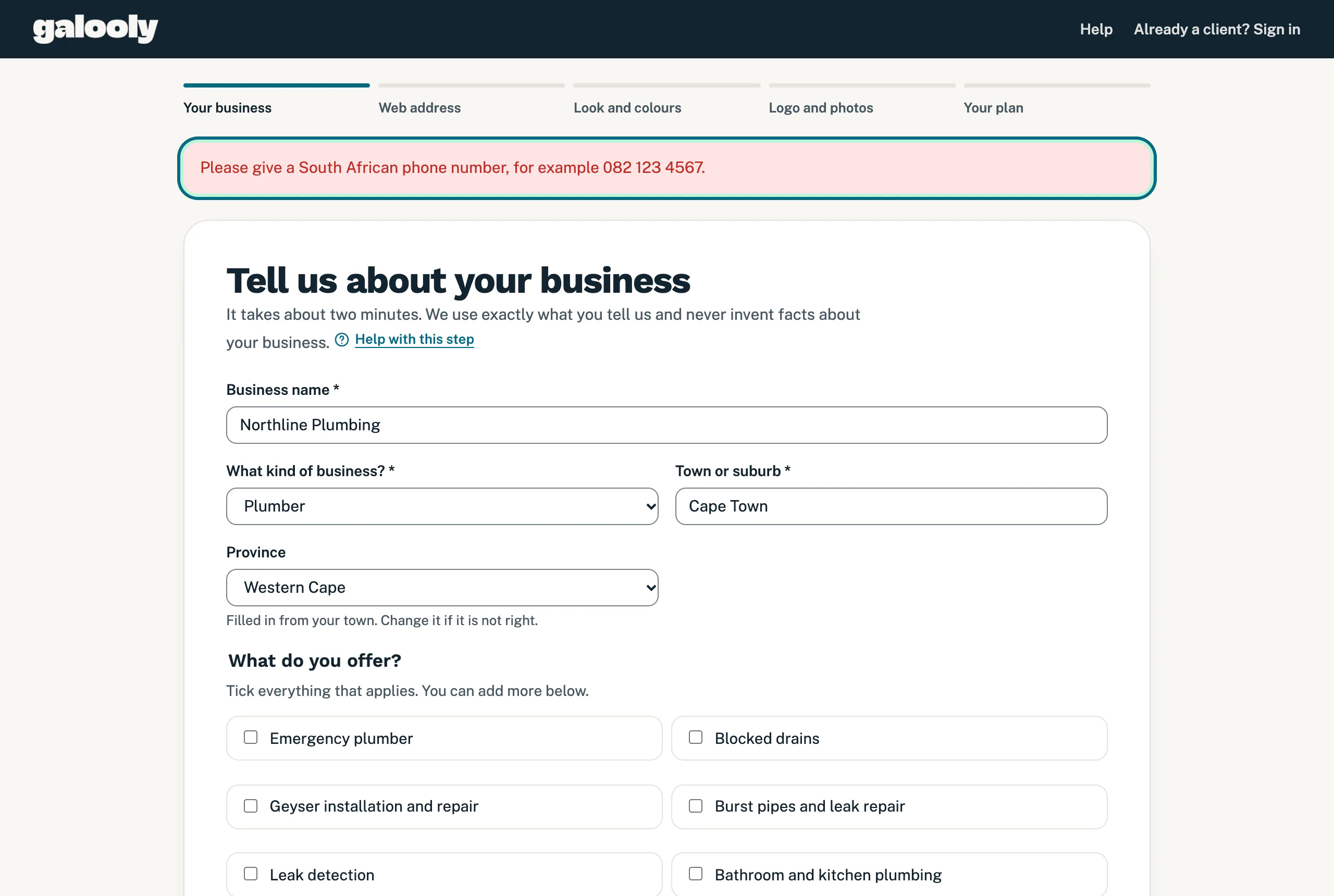
When something needs fixing, a message appears above the form when you tap Next. What you typed stays in the form, so you only fix that one thing and tap Next: your web address again.
- “Please fill in every field marked with a star.” Every field with a * needs an answer: business name, kind of business, town, your name, email and phone number.
- “Please choose your province. We could not tell it for sure from your town.” Choose it under Province.
- “Please tell us what kind of business it is.” You chose Something else: fill in What do you do?.
- “Please check your email address.” Look for a typing mistake, such as a missing @.
- “Please give a South African phone number, for example 082 123 4567.”
- “Please give your WhatsApp number, or tick Same as my phone number.” You unticked Same as my phone number: type your WhatsApp number, or tick the box again.
- “Please check the WhatsApp number.” Fix it, or tick Same as my phone number.
- “Please check the website address, for example mybusiness.co.za.” Fix it, or leave the box empty.
- “There is already an account for this email address. Please sign in instead.” Tap Sign in in the message. See Sign in to your portal.
- “Welcome back.” We have an earlier account for this email address. Tap Message us on WhatsApp and we reopen it. Signing up another business? Use that business’s own email address.
- “Too many sign-ups from here in a short time. Please try again in 15 minutes.”
Good to know
- Your answers are saved each time you tap Next, in the browser you are using, for 30 days. To carry on later, open the sign-up again on the same phone or computer and you are back where you stopped.
- Want to finish on another phone or computer? Once you have finished this step, every step has Email me a link to continue at the bottom. We email a link to the address you gave here, and it opens your sign-up on any phone or computer at the step you reached, with everything you entered. It works for 7 days, until you finish signing up. You can ask for up to 3 links an hour, and a link from an earlier email keeps working. If you change your email address on this step, links sent to the old address stop working.
- Each email address can have one account. For a second business, sign up with that business’s own email address.
- The help link under each step’s heading opens in a new tab, so you never lose what you typed.
- Rather answer a few questions on WhatsApp first? See Start your sign-up on WhatsApp.
Next up: Sign up: choose your web address.
Still stuck?
Message us on WhatsApp or send us an email. Tell us your business name, the page you were on and what you tried, and we take it from there.