
Your website and enquiries
Follow up your enquiries
Reply to website enquiries and keep track of who you contacted, won or lost.
Every form a customer sends from your website lands on Enquiries, as well as in your email. From there you can reply in one tap and keep track of who you have contacted, won or lost.
The list and its filters
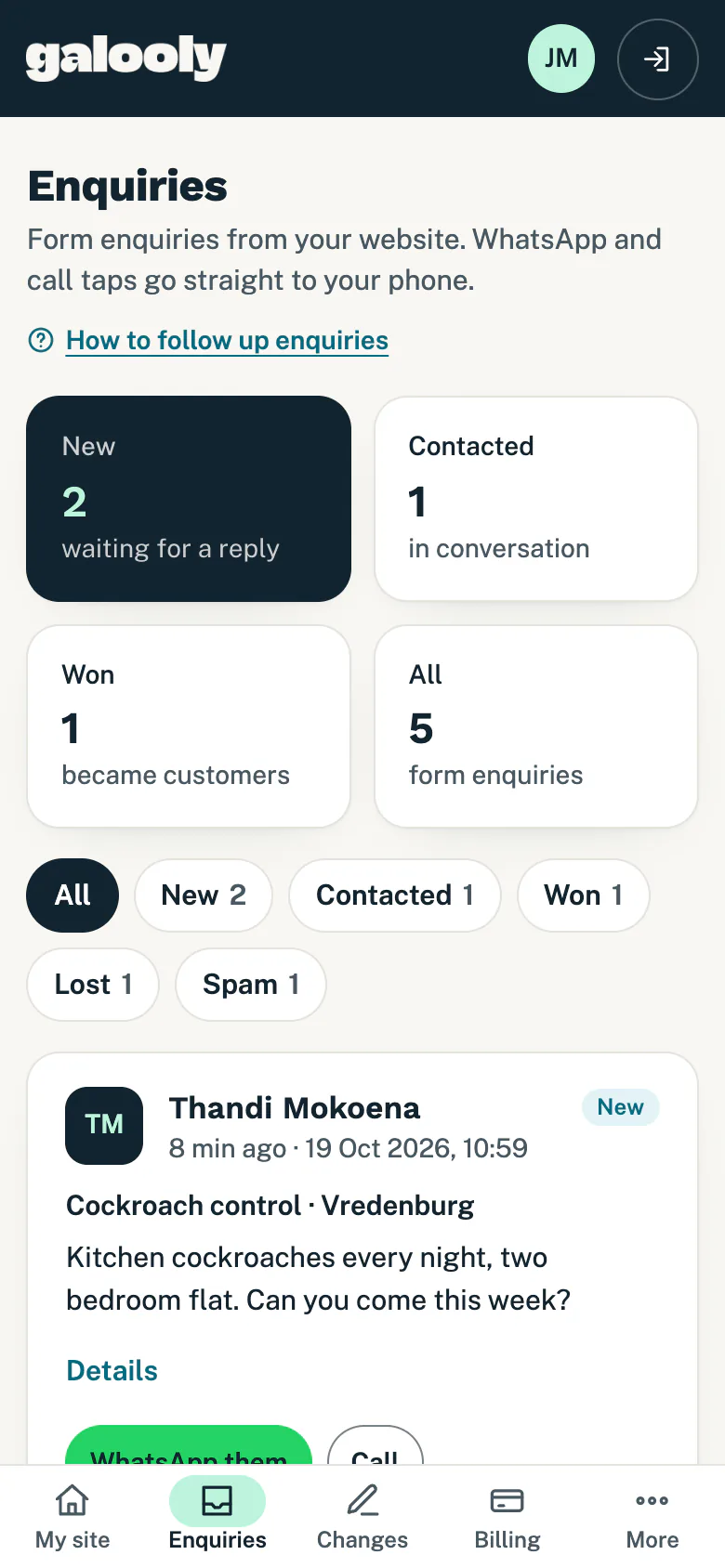
- Tap Enquiries in the menu. On a phone it is in the bar at the bottom of the screen.
- The boxes at the top count your enquiries: New (waiting for a reply), Contacted (in conversation), Won (became customers) and All.
- Tap a filter to see only some of them: All, New, Contacted, Won, Lost or Spam. The number beside each says how many there are.
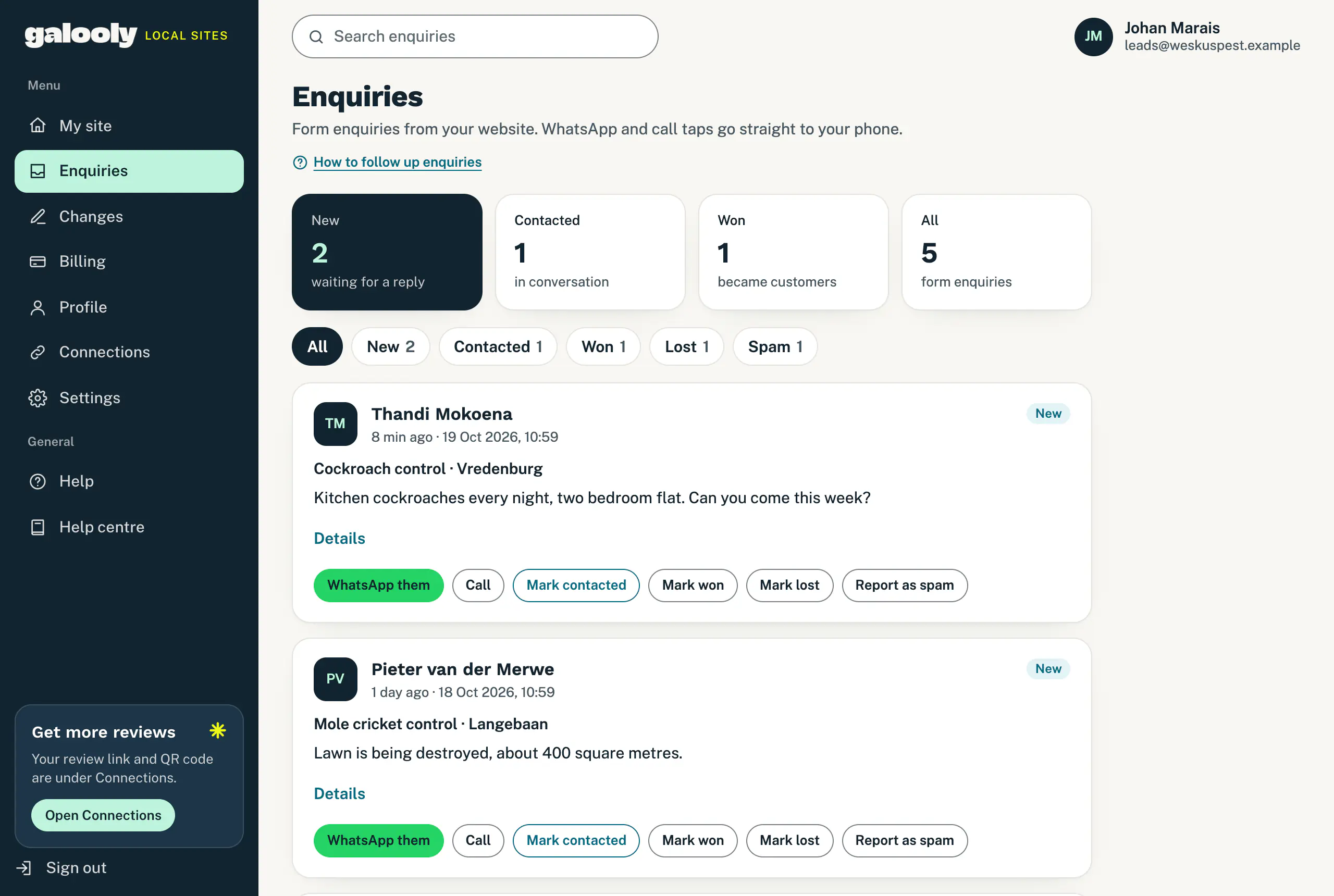
Each enquiry shows the customer’s name, its status, when it came in, the service and town they chose, and their message. Tap Details for their phone number and email address, any other answers from the form, and the page of your website they sent it from.
Reply to the customer
- WhatsApp them opens a chat with the customer, with a greeting already typed, for example “Hi Thandi, thanks for your enquiry to Weskus Pest Solutions.” with your own business name. Add the rest of your message and send.
- Call phones them.
- Email shows when the customer left an email address but no phone number. If they left both, their email address is under Details.
The WhatsApp and call buttons only show for a South African number. Any other number is under Details.
Mark how it went
Under each enquiry:
- Mark contacted once you have been in touch (it shows on new enquiries).
- Mark won when it became a job.
- Mark lost when it did not.
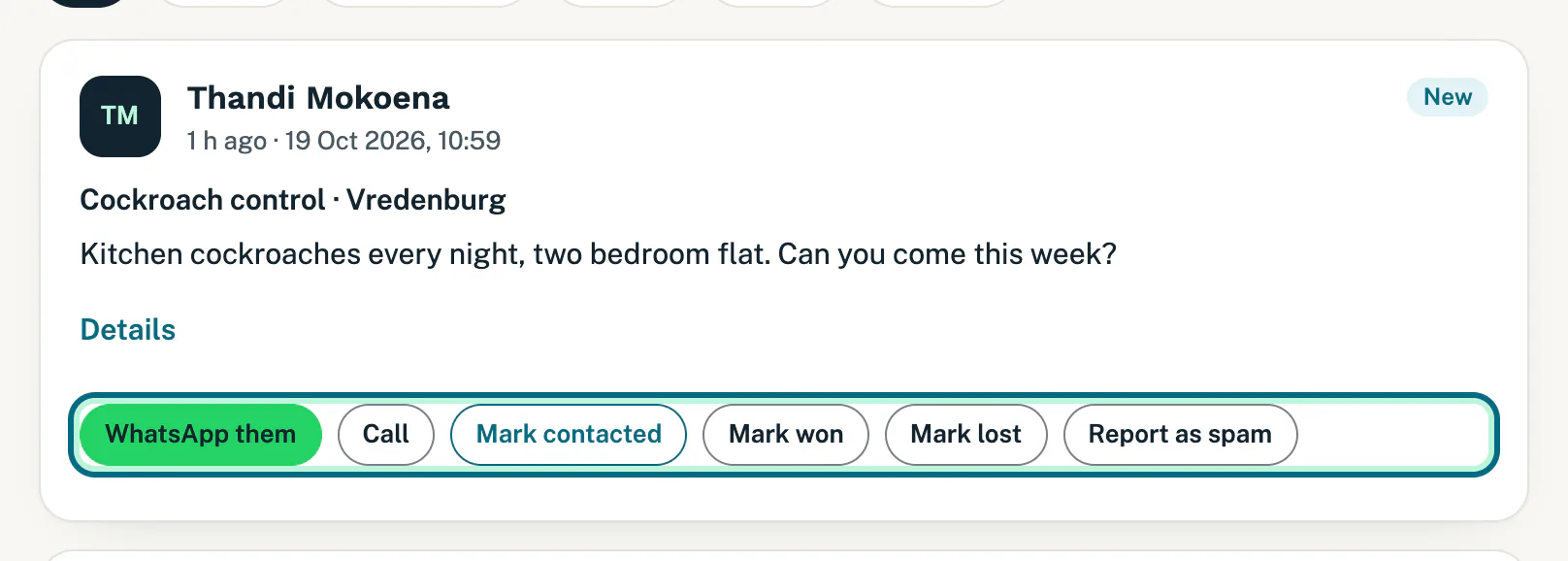
The label on the enquiry and the counts at the top change straight away. You can change your mind later: an enquiry marked lost can still be marked won. These labels are only for you; the customer is never told.
Report spam
Tap Report as spam on anything that is not a real enquiry. It leaves your list and the counts at the top, and waits under the Spam filter. Made a mistake? Open Spam and tap Not spam, and it goes back to New.
Search your enquiries
On a computer, every portal page has a box at the top that says Search enquiries. Type a name, a phone number, an email address or a word from the message, and press Enter. A Search label shows what you looked for; tap the ✕ on it to see everything again.
A phone does not show the search box, so use the filters there.
Good to know
- Only form enquiries are listed here. When a customer taps the WhatsApp or call button on your website, they reach your phone directly. My site shows how many taps there were.
- The list shows your newest 100 enquiries, and search looks through those same 100 (spam left out).
- Every enquiry is also emailed to you the moment it arrives. See Choose where enquiries go to pick who gets it. For alerts on WhatsApp, see WhatsApp enquiry alerts and your QR code.
- Replying to an enquiry email goes to the customer when they gave an email address, not to us.
- Reply quickly. Most customers contact two or three businesses.
Still stuck?
Message us on WhatsApp or send us an email. Tell us your business name, the page you were on and what you tried, and we take it from there.