
Domain and email
Connect your own domain
Point a domain you already own at your new website by changing its nameservers once.
This is for you if you already own a domain, like yourbusiness.co.za, and want your website to use it. The domain stays where it is registered. You change one setting there, and we do the rest.
No domain yet, or want us to look after yours? See Get a new domain or transfer yours.
Ask us to connect it
- In your portal, open Connections.
- Under Your domain, tap Connect a domain. Changes opens a form called Connect a domain.
- Under Your domain, type your domain. If your web designer or IT company looks after it, add their name and email or number.
- Tap Send it. You can follow the request, “Connect my own domain”, under Your requests on Changes. It is marked Setup.
Connecting your domain is setup, not a change to your website, so it never uses your monthly changes.
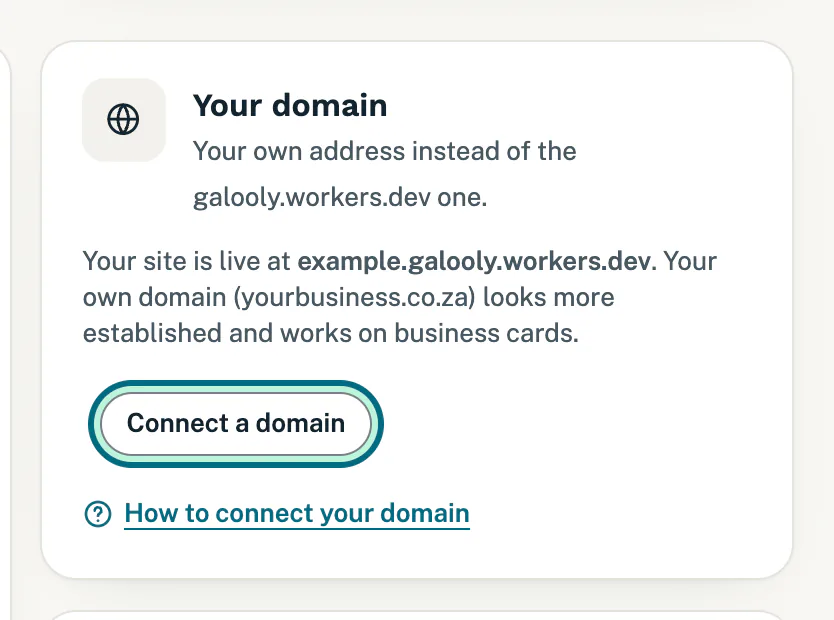
Gave us your domain when you signed up? Then we already have it. You do not need to ask again: wait for the email below.
Did we register the domain for you? Then we set its nameservers ourselves, and there is no email to wait for and nothing for you to change. Moving your domain to us? There are no nameservers for you to change either, but your current provider may email you to approve the transfer, so look out for that. See Get a new domain or transfer yours.
The nameservers email
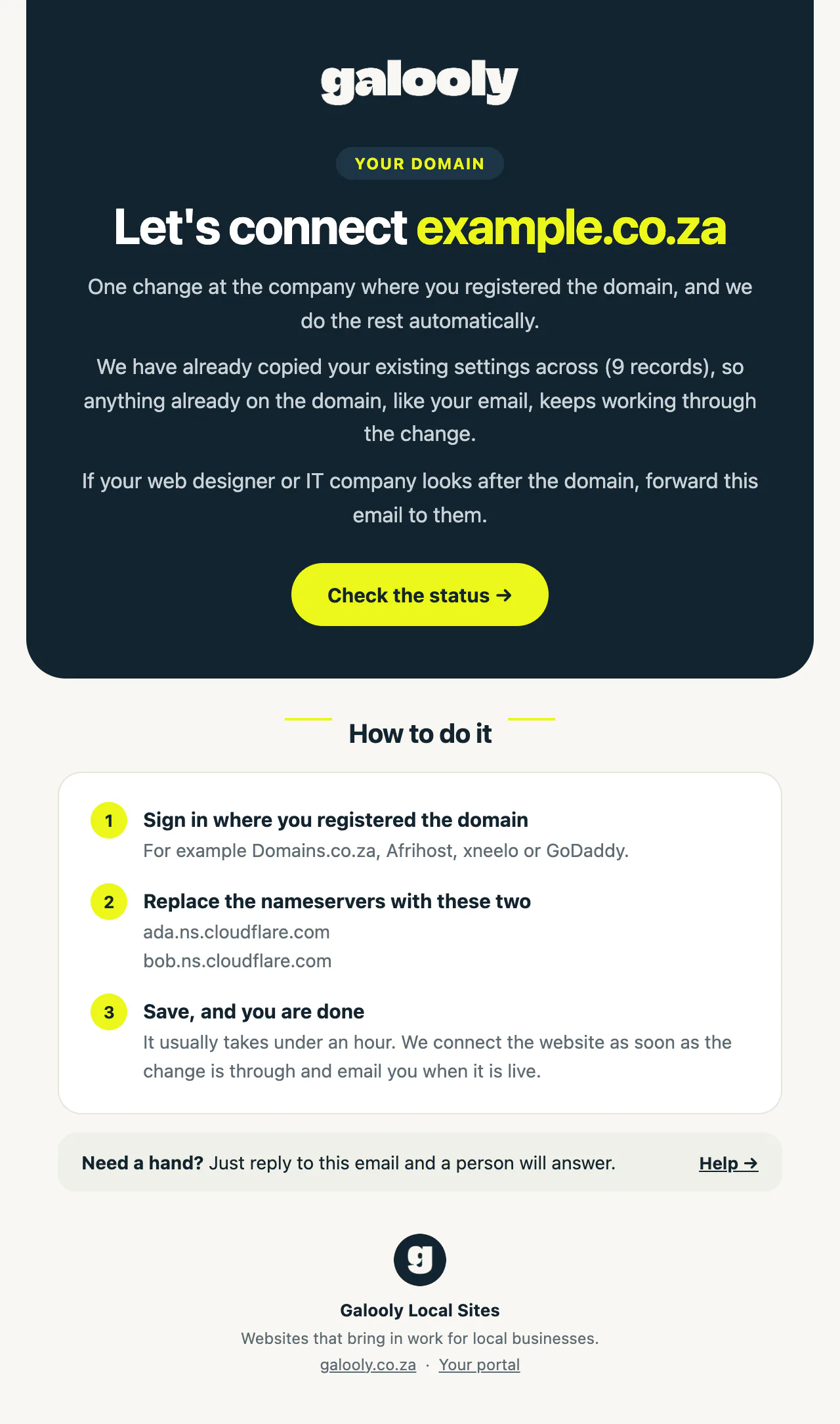
When your domain is set up on our side, we email you two nameservers. The subject is “Connecting yourbusiness.co.za to your website”, with your own domain in it.
If your domain already has settings, such as your email, we copy them across first, so they keep working through the change. The email says how many we copied.
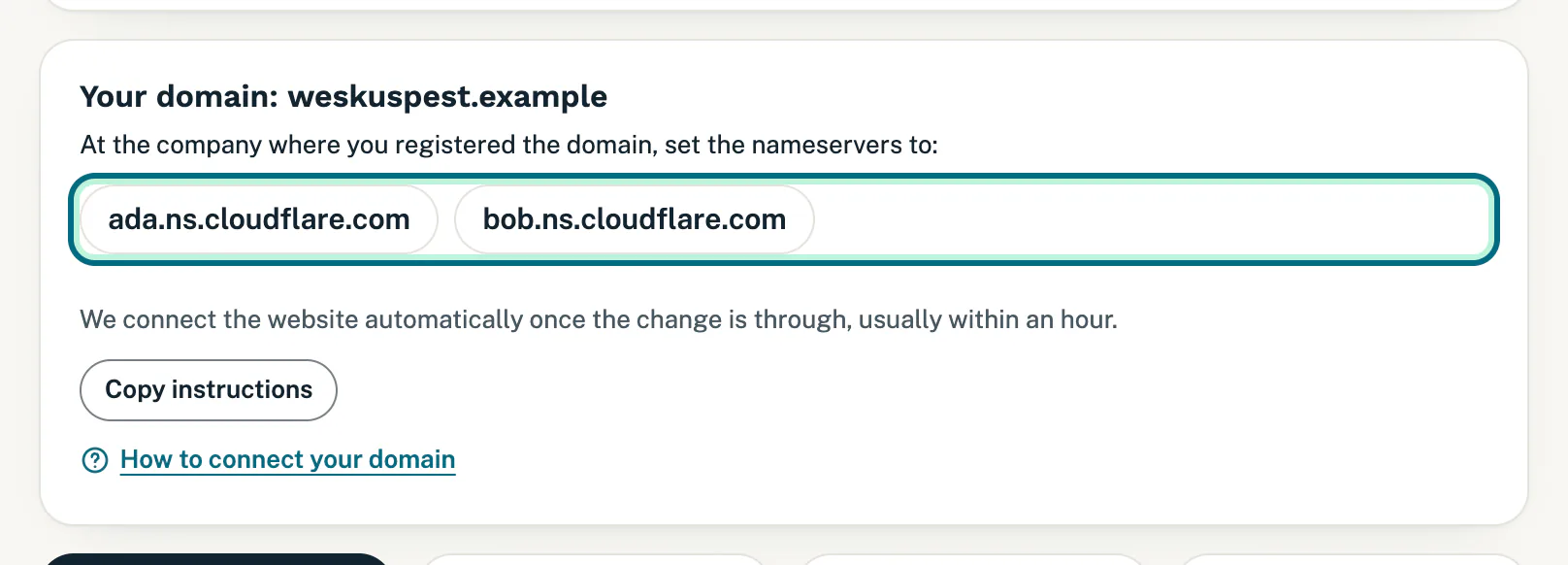
The same two nameservers also show on My site, in a card called Your domain.
Change the nameservers where the domain is registered
- Sign in where you registered the domain, for example Domains.co.za, Afrihost, xneelo or GoDaddy.
- Open the domain’s settings and find its nameservers. They are often under DNS or Nameservers.
- Replace the nameservers with the two from our email. Remove any others, so only these two are left.
- Save.
Someone else looks after your domain? Forward them our email, or tap Copy instructions on My site and paste the steps into an email or WhatsApp message to them.
We connect it automatically
You do not need to tell us when you have saved. We check for the change every 30 minutes and connect your website as soon as it is through, usually within an hour. To see where it stands, tap Check the status in the email, or open My site.
Your website keeps working on its current address while you wait.
When it is live
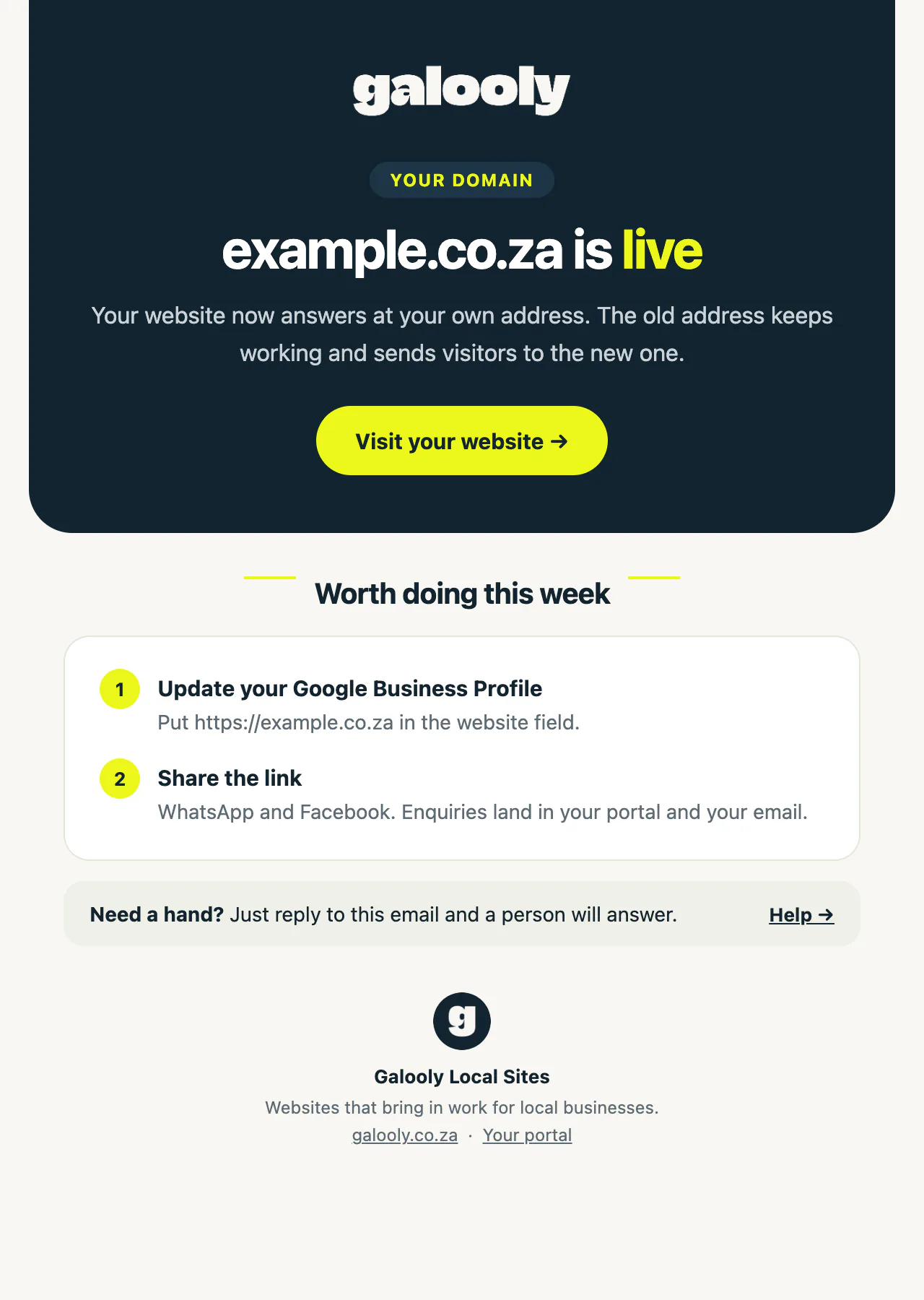
We email you to say your domain is live. Your website now answers at your own address. The old address keeps working and sends visitors to the new one.
On My site, the domain card goes away and your live address becomes your domain.
The email also suggests two things worth doing that week: put your new address in the website field of your Google Business Profile, and share the link on WhatsApp and Facebook.
Good to know
- Most nameserver changes go through within an hour. Some companies take longer to pass the change on. We keep checking every 30 minutes until it is through.
- Before your website is live, the Your domain card says it is not live yet instead of showing its address. You can still tap Connect a domain.
- Our emails about your domain go to everyone who has access to your portal.
- If your portal is set to Afrikaans, Copy instructions copies the steps in Afrikaans.
- While your website changes are paused because of a payment, you can still ask us to connect your domain. We take the request and start on it once your payment is back on track. See Website changes paused.
If something goes wrong
- Not sure where your domain is registered? Look for the yearly renewal invoice for the domain. It comes from the company that registers it.
- You cannot find the nameservers, or cannot sign in there? Ask that company’s support to change them for you, and give them the two nameservers from our email.
- Still not live the next day? Check that the two nameservers are spelt exactly as in our email and that no old ones are left. Then contact us.
- Something on the domain stopped working after the switch, such as your email? Contact us straight away and tell us what stopped.
Still stuck?
Message us on WhatsApp or send us an email. Tell us your business name, the page you were on and what you tried, and we take it from there.