
Signing in and your account
Your name, language and signed-in devices
Change how the portal addresses you, switch it to Afrikaans, and sign out your other devices.
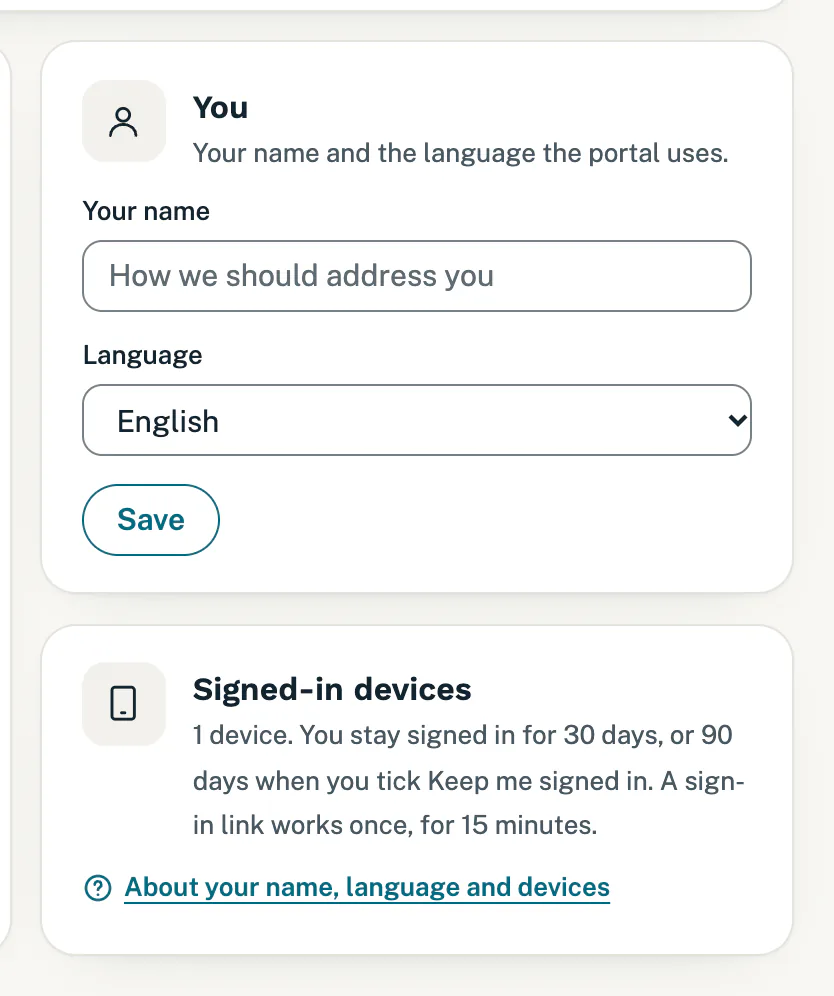
The You and Signed-in devices cards in Settings are about you alone: the name the portal calls you, the language it uses, and where you are signed in. Other people on your account set their own.
Change your name or language
- Open Settings. On a computer it is in the menu on the left. On a phone, tap More at the bottom, then Settings.
- On the You card, type your name under Your name.
- Under Language, choose English or Afrikaans.
- Tap Save. You see Saved., or Taal gestoor. if you chose Afrikaans.
Your name shows in the greeting on My site, at the top of every page (as your initials on a phone), and in the email when you invite someone. Leaving the box empty keeps the name you had.
In Afrikaans, the menu, page headings and many labels change language. Some parts stay in English for now, such as the sign-in page, some messages, our emails and this help centre. To switch back, open Instellings, choose English under Taal and tap Stoor.
See where you are signed in
The Signed-in devices card shows how many phones, tablets and computers are signed in as you right now, including the one you are using. It also reminds you how long you stay signed in, and that a sign-in link works once, for 15 minutes.
Sign out everywhere else
- On the Signed-in devices card, tap Sign out everywhere else.
- You see Signed out everywhere else. Every other device is signed out, and you stay signed in on this one.
The button only shows when more than one device is signed in. Use it if you lost a phone, signed in on someone else’s computer, or the number is higher than you expect.
Good to know
- You stay signed in for 30 days after you sign in, or 90 days if you ticked Keep me signed in on this device for 90 days on the sign-in page. After that you sign in again with a new link. See Sign in to your portal.
- To sign out only the device in front of you, tap Sign out in the menu, or the sign-out button at the top right on a phone.
- Sign out everywhere else only signs out your own devices. To take away someone else’s access, remove them under People with access. See Give someone in your team access.
Still stuck?
Message us on WhatsApp or send us an email. Tell us your business name, the page you were on and what you tried, and we take it from there.