
Changes to your website
Ask for a change to your website
Use a quick request for hours, phone numbers, services, photos and holidays, or describe anything else.
You do not edit your website yourself. You tell us what to change on the Changes page, and we make the change and check the site before it goes live. This guide takes you from opening Changes to a request in our queue.
Send a request
-
Open Changes. On a computer, it is in the menu on the left. On a phone, tap Changes in the bar at the bottom.
-
Pick a quick request. Under Quick requests, tap the one that fits: Update hours, Change phone number, Add a service, Add photos, Holiday notice or Something else. The Something else form is already open when you arrive, so for anything that is not on the list, start typing.
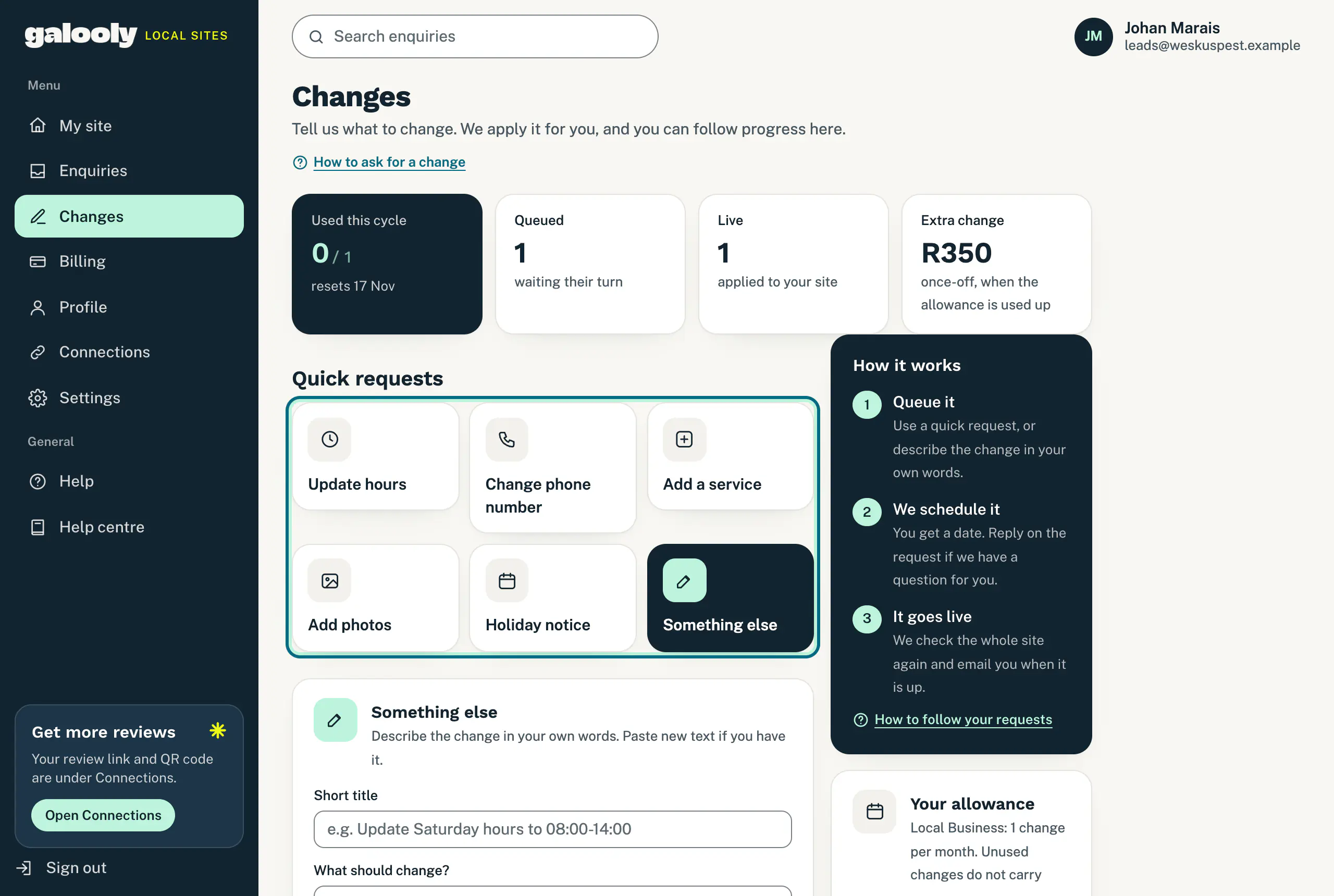
Changes: pick a quick request or describe anything else. -
Fill in the form. Each form asks only what we need for that change (see the list below). To send photos or documents with it, choose them under Attachments.
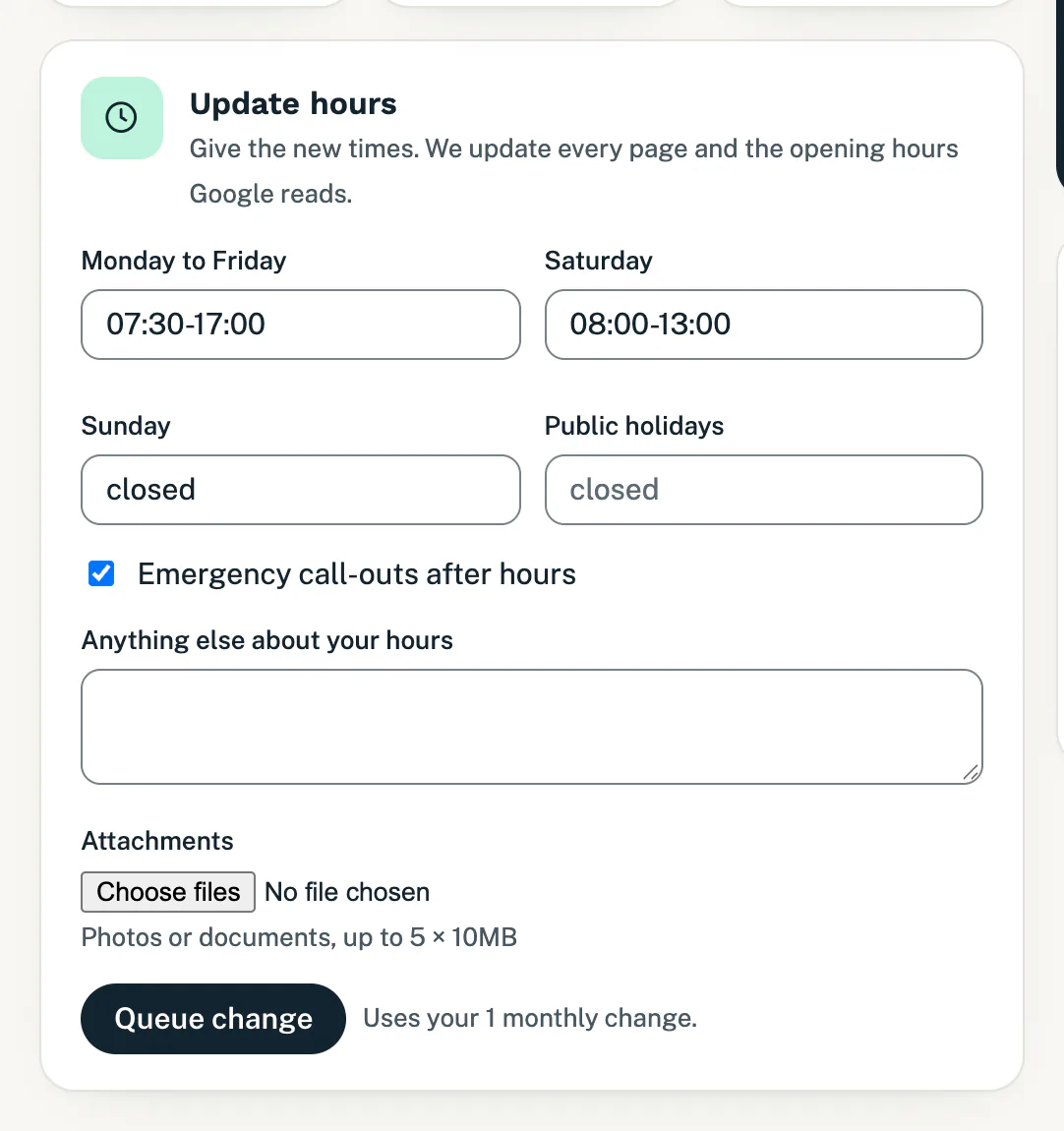
A quick request for new opening hours. -
Tap Queue change. A note at the top says “Thanks. Your request is queued. We will confirm when it is scheduled.” Your request now shows under Your requests, marked Queued.
What each quick request asks
- Update hours: Monday to Friday, Saturday, Sunday and Public holidays (for example 07:30-17:00, or closed), a tick box for Emergency call-outs after hours, and Anything else about your hours. Where we can, the form starts with the hours your website shows now. Check every box before you send. We update every page and the opening hours Google reads.
- Change phone number: New phone number and New WhatsApp number (if different). Fill in at least one. We change the number everywhere it appears, including the call and WhatsApp buttons.
- Add a service: Service name, What it involves, in your words and, if you like, a Price guide (optional). We write it up in your site’s voice.
- Add photos: Where should they go? (the home page, the gallery or a service) and Anything we should know about them, such as which job and which town. Attach at least one photo. We resize the photos and place them where you say.
- Holiday notice: Closed from, Open again on and an optional Message for the site. A notice goes on your site between those dates.
- Something else: a Short title and What should change?. Describe the change in your own words, and paste new text if you have it.
Good to know
- Attachments: up to 5 files per request, each under 10MB. Photos, PDFs and Word documents all work.
- Your monthly changes: a request you queue here uses one of your monthly changes once we schedule it, and the line beside Queue change reminds you. When this month’s are used up, you can still queue requests. See your monthly changes and fast-track.
- Shortcuts: the buttons on your Profile page (such as Update hours, Add a service and Add photos) open these same forms, and so does Request a change in the email that tells you a change is live. See check what your website shows.
- What happens next: follow the request on Changes as it moves from Queued to Live. See follow your change requests.
If something goes wrong
A message at the top of the page tells you what is missing:
- “Please give the new number.” Fill in a new phone number, a new WhatsApp number or both.
- “Please name the service.” Fill in Service name.
- “Please give both dates.” Fill in Closed from and Open again on.
- “Please give the change a short title.” Fill in Short title.
- “Please attach at least one photo.” Add photos needs at least one photo.
- “At most 5 attachments.” Choose up to 5 files.
- “Each attachment must be under 10MB.” Send a smaller copy of that file.
After one of these messages, check the form before you tap Queue change again: what you typed and attached may not be there any more.
If the quick requests are gone and the page says New requests are paused, a payment has not gone through. Your website stays live. See website changes are paused.
Still stuck?
Message us on WhatsApp or send us an email. Tell us your business name, the page you were on and what you tried, and we take it from there.