
Troubleshooting
Sign-in email missing or link not working
What to do when the sign-in email does not arrive, or the link says it did not work.
This guide is for when you asked for a sign-in link and no email came, or the link opened a page saying That link did not work. Work through the steps in order.
If the email did not arrive
-
Check the address on the screen. After you tap Email me a link, the page says Check your email and shows the address the link went to. If it has a typo, or it is not the address you signed up or were invited with, tap Use a different address and try again.
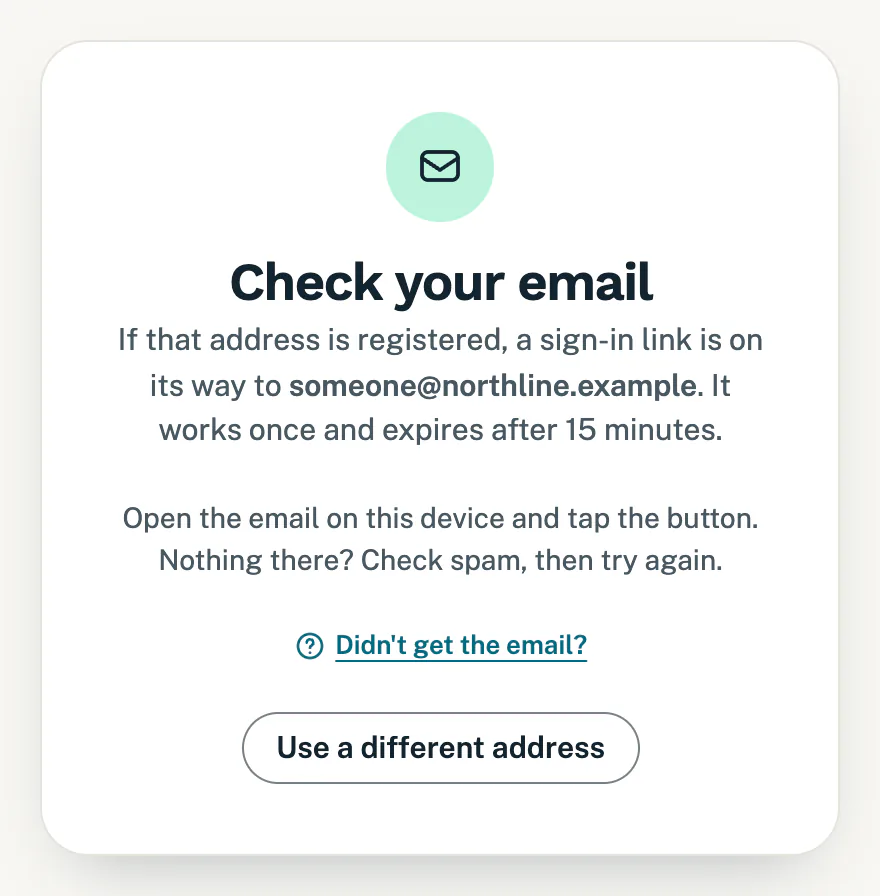
The link is on its way. It works once and expires after 15 minutes. -
Check your spam folder. Look in spam or junk, and in any other folder or tab your email app sorts mail into. You can also search your mailbox for “sign-in link”. If you find it there, mark it as not spam so the next one lands in your inbox.
-
Do not ask again straight away. You can ask for three links for the same address within 15 minutes. After that no email goes out, even though the page still says Check your email, and every try counts towards the limit. So if you have asked a few times, wait 15 minutes without trying, then ask once.
-
Try the other address you use. The page says Check your email for any address, so it never shows whether an address has an account. If someone in your business gave you access, ask them which address they used. They can see it in the portal under Settings, in People with access.
-
Still nothing? Contact us. You do not need to be signed in. Our WhatsApp number and email address are under Still stuck? at the end of this page. Tell us your business name and the address you typed, and we check which address is on your account.
If the link did not work
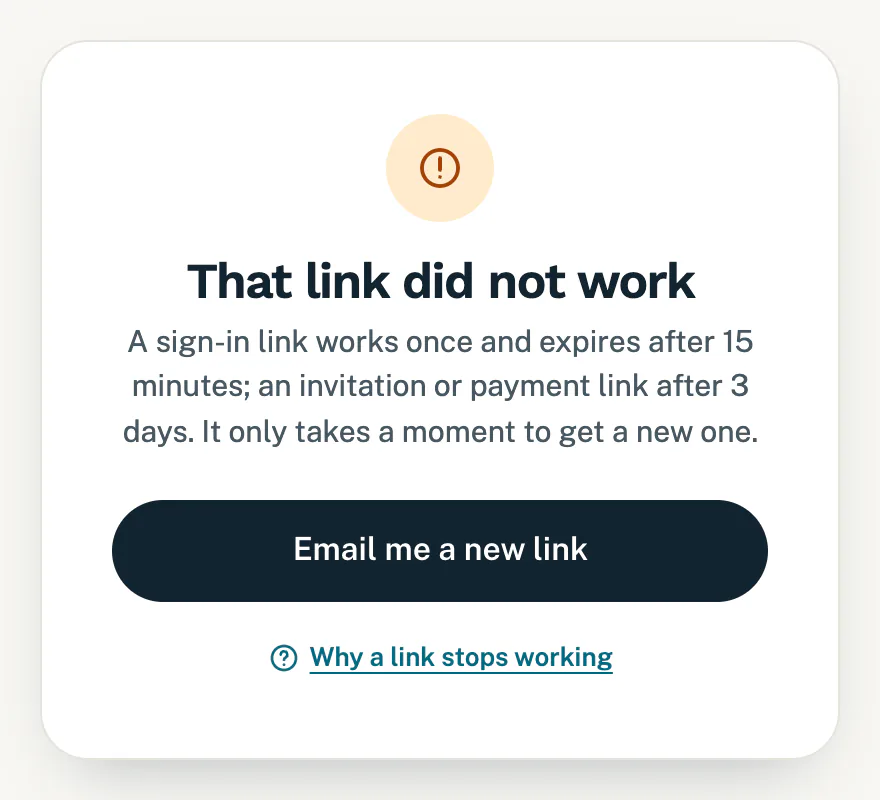
A sign-in link works once, and only for 15 minutes. After that, opening it shows That link did not work. It also shows when:
- you already used the link, for example by tapping it again in an old email;
- only part of the link reached your browser, for example when it was copied out of an email. Tap the button in the email instead;
- it was an invitation to the portal that is more than 3 days old (an invitation’s button works once, for 3 days). Your access is still there: ask for a sign-in link with the address the invitation went to.
To get in:
- Tap Email me a new link. It opens the sign-in page. If you are still signed in on that device, your portal opens straight away instead.
- Type your email address and tap Email me a link.
- Open the new email on the device you want to use, and tap Sign in to your portal within 15 minutes.
Open it on the same device
The link signs in the browser it opens in. If you ask for a link on your computer but tap it on your phone, your phone is signed in and your computer still asks you to sign in. Open the email on the phone or computer you want to use.
Some email apps open links in their own built-in browser. You are then signed in there, and your usual browser still shows the sign-in page. If that happens, set your email app to open links in your usual browser, then ask for a new link.
On an iPhone, a sign-in link opens in Safari. If you added the portal to your Home Screen, sign in and use it in Safari instead. The Home Screen app may also show a box for a sign-in code: that is for our team only.
Good to know
- A link lasts 15 minutes and works once. If you asked more than once, use the newest email.
- The limits: three links for one address in 15 minutes. One internet connection, such as your office Wi-Fi, can ask 10 times in 15 minutes in all, whoever is asking.
- You stay signed in for 30 days on a device, or 90 days when you tick Keep me signed in on this device for 90 days. So you should not need a link often. See Sign in to your portal.
- A payment link from us works once, for 72 hours. After that, sign in with the same email address and open Billing to pay.
- A closed account gets no link. If your business’s account has been closed, the page still says Check your email, but nothing is sent. Contact us if you would like to reopen it.
If something goes wrong
- The page stays on Signing you in. Tap Continue to your portal.
- You sign in, then land on the sign-in page again. Your browser may be blocking cookies. The portal needs one to keep you signed in. Allow cookies for the portal, or try another browser.
- You are signed out every time you close the browser. In a private or incognito window, closing it signs you out. Use a normal window on your own device.
Still stuck?
Message us on WhatsApp or send us an email. Tell us your business name, the page you were on and what you tried, and we take it from there.