
Changes to your website
Follow your change requests
See where each request is, answer our questions and choose which one we do first.
Every change you ask for shows under Your requests on the Changes page, newest first. This guide shows you how to see where a request is, answer our questions, choose which one we do first and cancel one you no longer need.
See where a request is
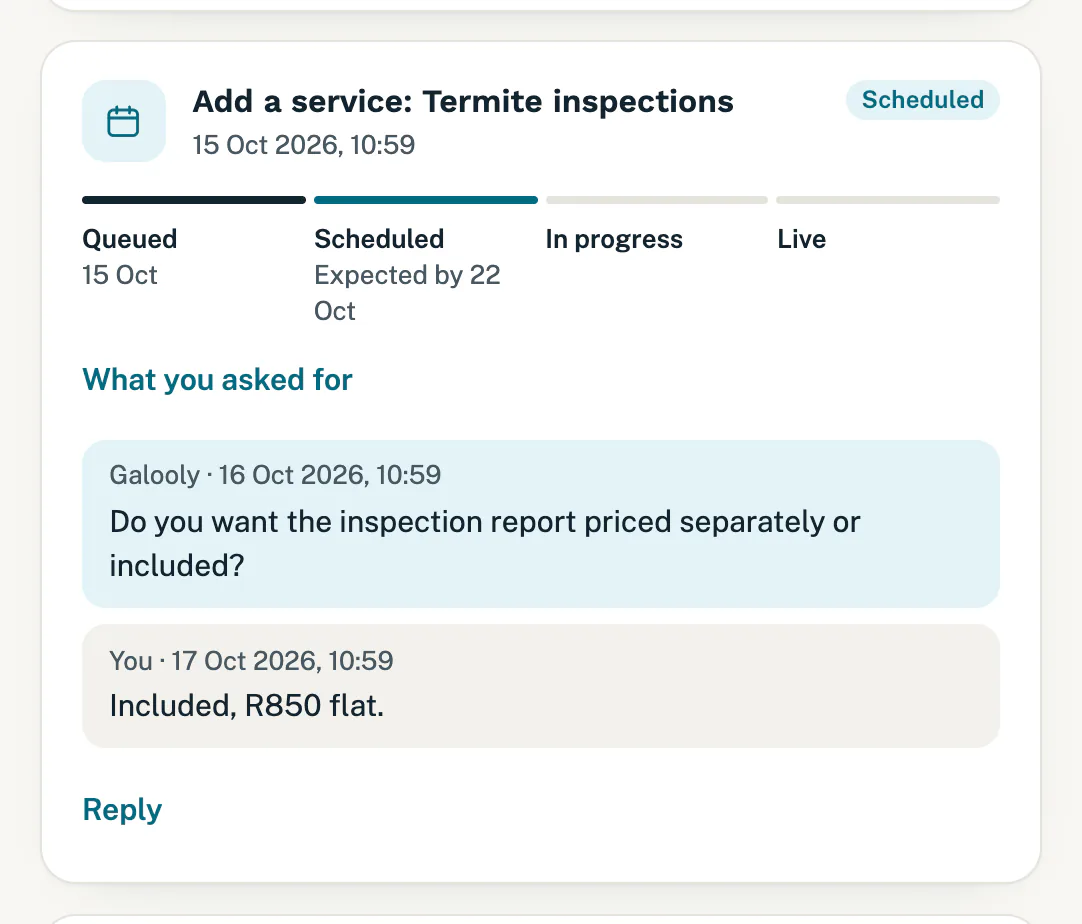
Open Changes and scroll to Your requests. Each request shows its status at the top right and a progress line underneath:
- Queued: we have it, and it is waiting its turn.
- Scheduled: we have planned the work. A date shows under it, or “Expected by” and a date.
- In progress: we are making the change.
- Live: the change is on your website. The date it went live shows under it.
Tap What you asked for to see what you sent. Photos you attached show as small pictures; tap one to open it.
Two statuses have no progress line:
- Declined: we could not do the change as you asked. We tell you why, on the request and by email. Reply on the request and we can look for another way.
- Cancelled: you cancelled it while it was still queued.
A billing request or a cancellation from Billing has no progress line either, because it is not a change to your website. It shows only its status, and Done once we have dealt with it.
Reply to a question
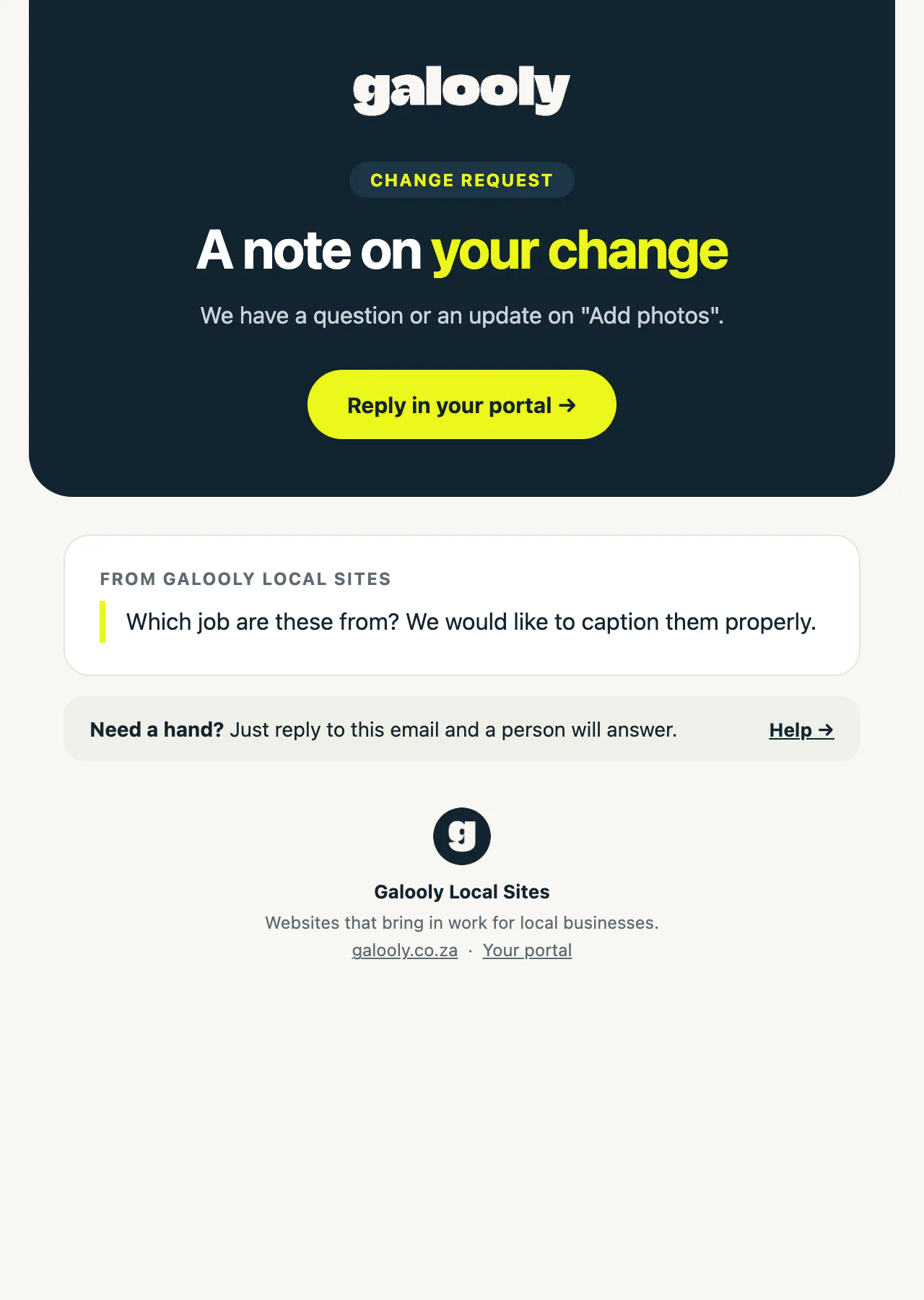
When we have a question or an update, we write it on the request and email you. The email’s subject starts with “About your change:” and names the change.
- Tap Reply in your portal in the email, or open Changes and find the request.
- Tap Reply under the request.
- Type your answer and tap Send reply.
Your answer shows on the request under You, and ours under Galooly. We get a note as soon as you send it. You can also reply to add something you forgot, on any request that is not cancelled.
Choose which one we do first
When more than one request is queued, each queued one has a Do this one first button. Tap it on the change you need most, and we take it before your other queued requests. Your list stays in date order, so you will not see it move.
Cancel a request
While a request is Queued, tap Cancel request. It is marked Cancelled, and we do not work on it. Once a request is scheduled, the button is gone: reply on the request and tell us instead.
When your change is live
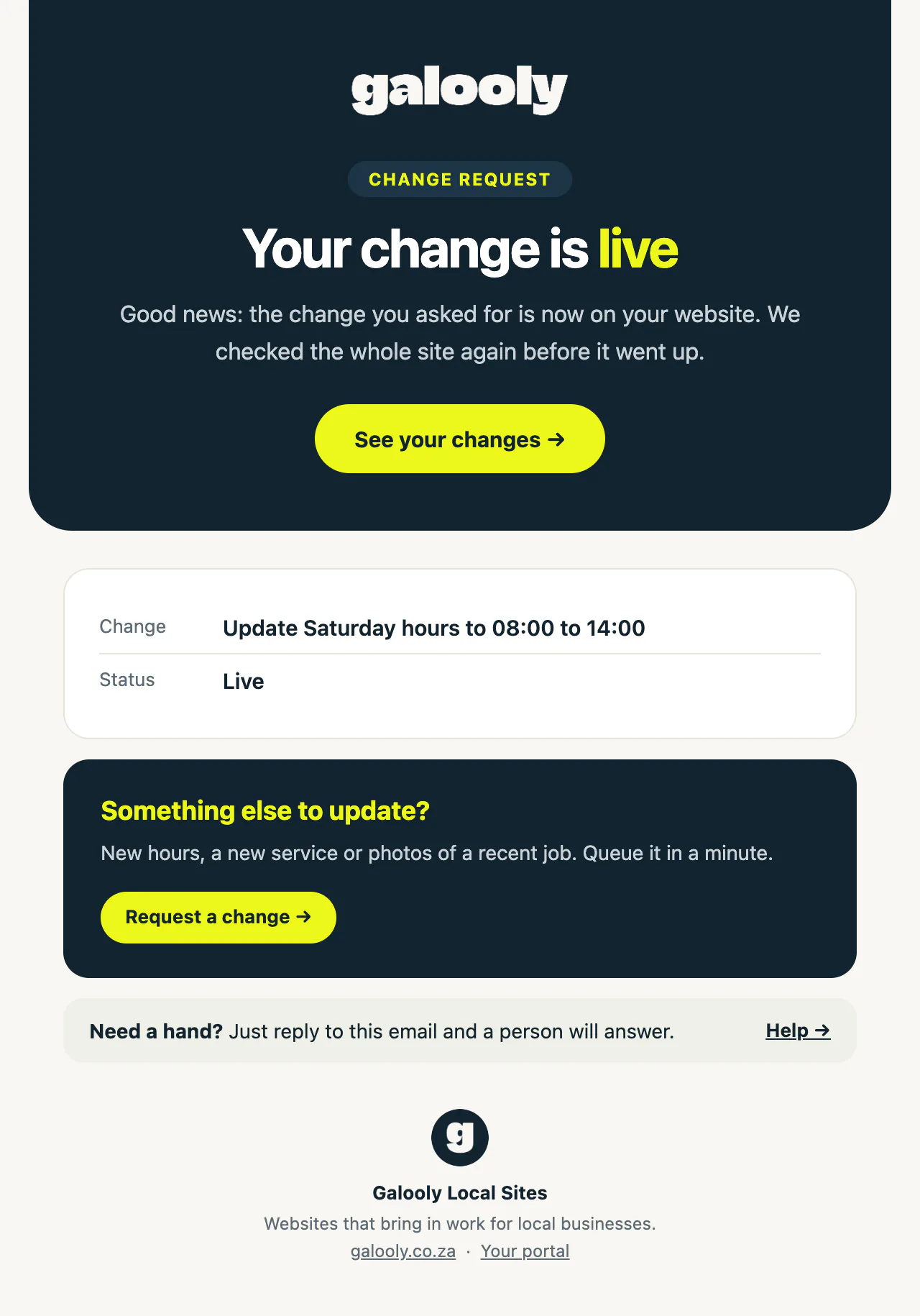
We email you as soon as a change is live. The email is called “Your website change is live” and names the change. Tap See your changes to open Changes, or Request a change to queue the next one.
Setup you asked for on Connections is not a change to your website, so its email is different:
- Your email or another mailbox: the email is called “Your setup request is done” and names the request. Tap Open Connections to see it there.
- Your domain: we send no separate email when the request is done. The email saying your domain is live is the one to look out for. See Connect your own domain.
- Your Google review link: it goes on your website, so you get the “Your website change is live” email.
Good to know
- Which updates we email: we email you when we write on a request, when a change is live or your setup is done, and when we decline one. A move to Scheduled or In progress shows on Changes only, so look there.
- Who gets the emails: everyone with access to your portal. See give someone in your team access.
- Other requests in the list: you may see requests you did not type on Changes, such as an answer from the checklist on My site, setup you asked for on Connections (your domain, your email, another mailbox or your Google review link), a change to your alert addresses from Settings, or an upgrade or cancellation from Billing. They carry a short label beside the date: Website set-up, Setup, Site details update, Billing request or Cancellation.
- How far back: Changes shows your 50 most recent requests.
- When payments stop: if website changes are paused after a failed payment, your queued requests keep their place, and we carry on with them once your payment is back on track. See website changes are paused.
If something goes wrong
- You want to change what you asked for: reply on the request with the correction before it goes live.
- A live change does not look right: reply on that request and tell us what is wrong.
- No email from us: check your spam folder. Changes always shows the latest on every request, whether or not an email arrived.
Still stuck?
Message us on WhatsApp or send us an email. Tell us your business name, the page you were on and what you tried, and we take it from there.