
Your website and enquiries
Get more Google reviews
Send your review link on WhatsApp after a job, or print the review QR code.
Google reviews help new customers choose you. Your portal gives you two quick ways to ask for one: a ready-made WhatsApp message and a QR code to print. Both are on the Google Business Profile card under Connections.
Send us your Google review link
You do this once. If the Google reviews box at the top of Connections says Add link, we do not have your link yet.
- Find your review link in the Google Business Profile app: Customers, then Reviews, then Get more reviews. Copy it.
- On Connections, tap Send the link on the Google Business Profile card. Changes opens a form called Send your Google review link.
- Paste your link under Your Google review link and tap Send it. The request, “Add my Google review link”, is marked Setup on Changes.
Once we have added it, the box says Ready and the buttons below appear on the card. Sending the link is setup, so it never uses your monthly changes (how monthly changes work).
Ask for a review on WhatsApp
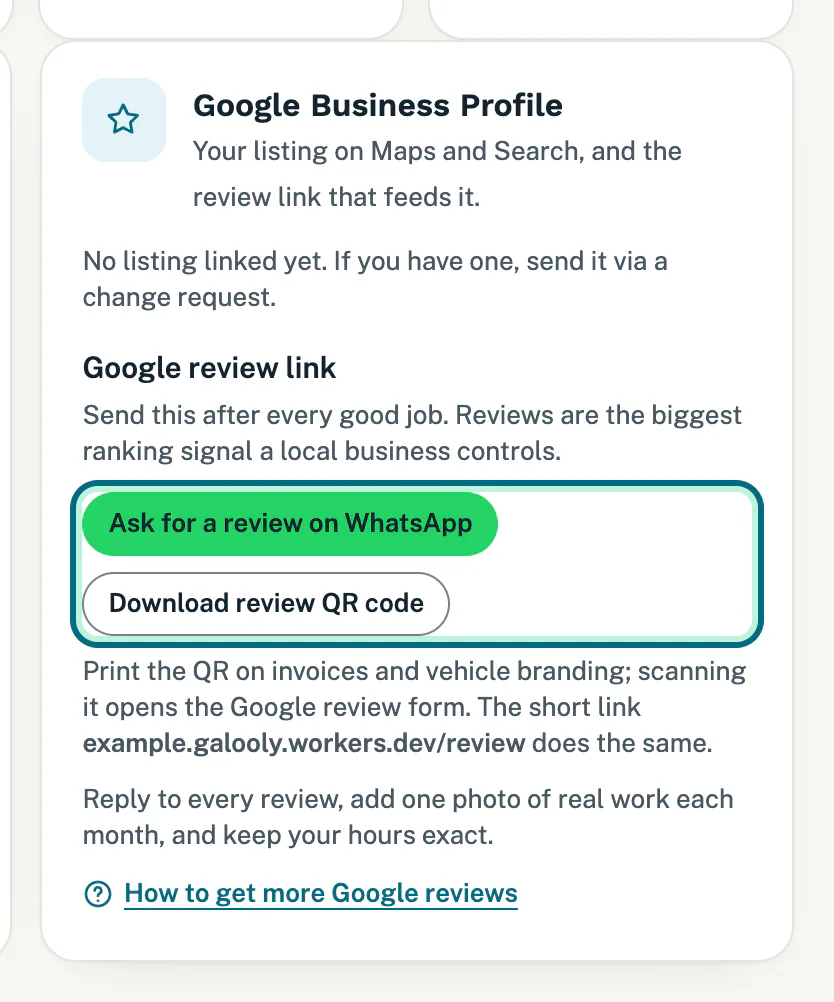
- After a good job, open Connections and tap Ask for a review on WhatsApp.
- WhatsApp opens with a message ready, for example: “Thank you for choosing Weskus Pest Solutions. If you have a minute, a quick Google review helps other people find us:” followed by your review link. Yours has your own business name.
- Choose your customer’s chat, change the words if you like, and send.
Print the review QR code
Tap Download review QR code. The QR code opens as a picture; save it (on a phone, press and hold it) and print it on invoices and vehicle branding. Scanning it opens the Google review form for your business.
Your short review link
Under the buttons is a short address: your website’s address followed by /review. It does the same as the QR code, taking people straight to your Google review form, and it is easy to say out loud or add to your email signature.
The QR code and the short link both go through your own website first, then on to Google.
Good to know
- Ask after every good job, while the work is fresh in your customer’s mind.
- Help your listing along: reply to every review, add one photo of real work each month, and keep your hours exact. To check your hours, see Check what your website shows.
- No listing linked yet? The card then says so. If My site asks for Link to your Google Business Profile, send it from there: that does not use your monthly changes. See Send us what we still need.
- Want a few reviews quoted on your website? If My site asks for Two or three customer reviews we may quote, screenshots of Google or WhatsApp reviews work.
- No QR code or short link yet? Both appear once your website is live. Until then, the Your domain card on Connections says your website is not live yet.
- QR code will not open? If your own domain is still being connected, try again once it is live.
Still stuck?
Message us on WhatsApp or send us an email. Tell us your business name, the page you were on and what you tried, and we take it from there.