
Signing up
Start your sign-up on WhatsApp
Answer a few questions on WhatsApp, then finish the last steps on the web with your link.
You can start signing up in a WhatsApp chat with us. You answer a few short questions, then tap a link to finish the last steps on the web, with your answers already filled in.
Message us and tap Get a website
- Open a chat with us on WhatsApp. The WhatsApp button at the end of this page opens it.
- If WhatsApp shows suggested messages, tap I’d like a website for my business. Otherwise send any message, such as Hi, and tap Get a website.
- We tell you what we ask for and how we use it. Tap Yes, continue.
Answer the questions
- The name of your business.
- What kind of business it is: tap Choose one and pick your trade. Tap More… for the rest of the list. Not listed? Choose Something else and describe what the business does in a few words.
- Your town or suburb.
- Your province: tap Choose a province.
- Your name. We offer the name on your WhatsApp profile: tap Yes, that’s me, or No, I’ll type it.
- Your email address. Your sign-in links and enquiry alerts go here.
- Your phone number. We offer the number you are chatting from: tap Yes, or Another number and type the number to call.
- Whether you have a website or Facebook page. Tap Yes and send the link, or tap No.
Tap Continue sign-up
- We send a message with a Continue sign-up button. Tap it.

- The sign-up opens on the web with your answers filled in, and a note at the top: “We filled in what you told us on WhatsApp. Tick your services and continue.”
- Tick the services you offer, check your details and tap Next: your web address.
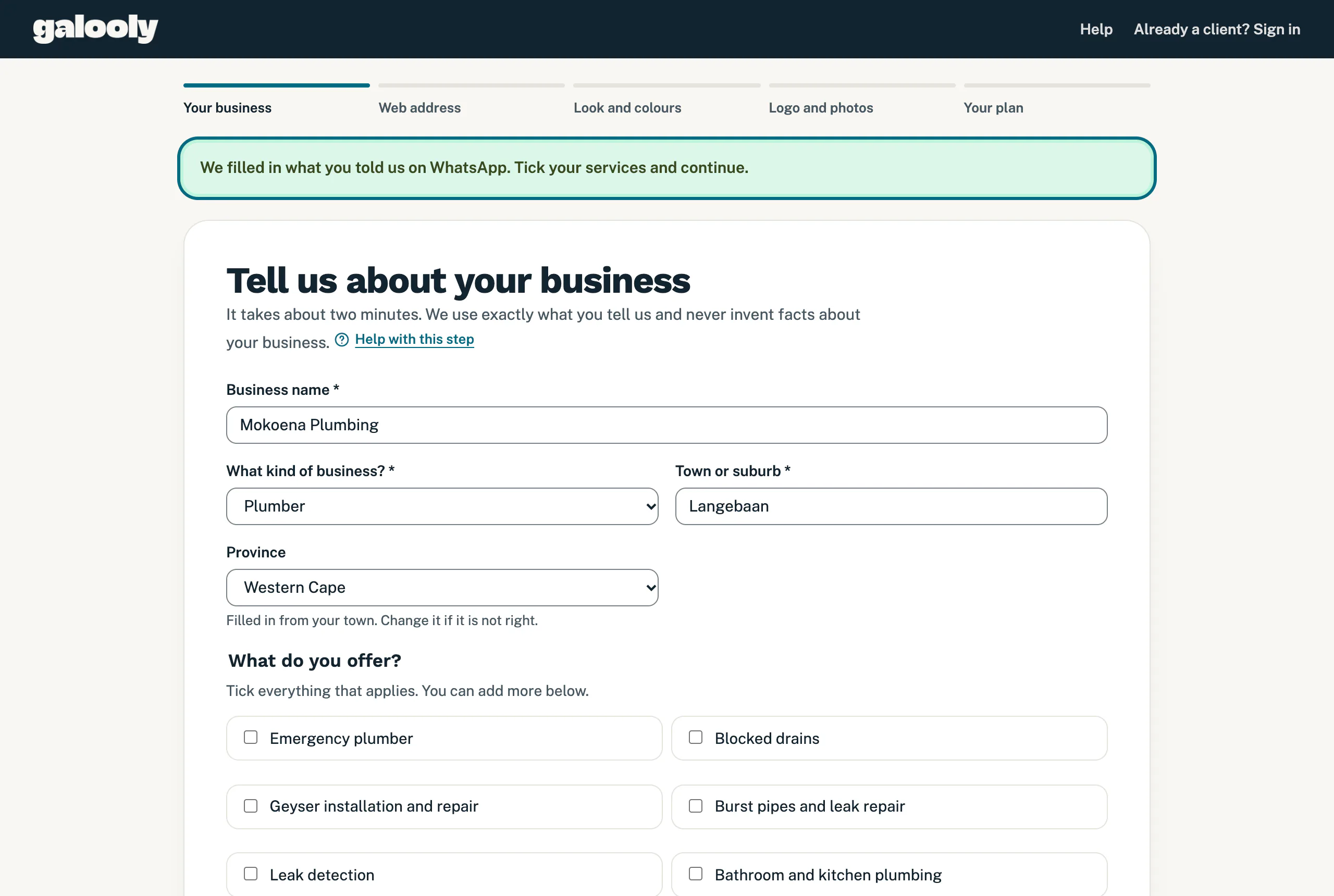
- Carry on with the rest: your web address, your look and colours, your logo and photos and your plan.
How long the link works
- The link works for 7 days, as often as you open it.
- Once you finish the web address step, the link no longer opens your sign-up. From then on, carry on in the same browser: open the sign-up again on that phone or computer and you are back where you stopped.
- To carry on on another phone or computer, tap Email me a link to continue at the bottom of any step. We email you a link that opens your sign-up at the step you reached, for 7 days.
When the link does not work
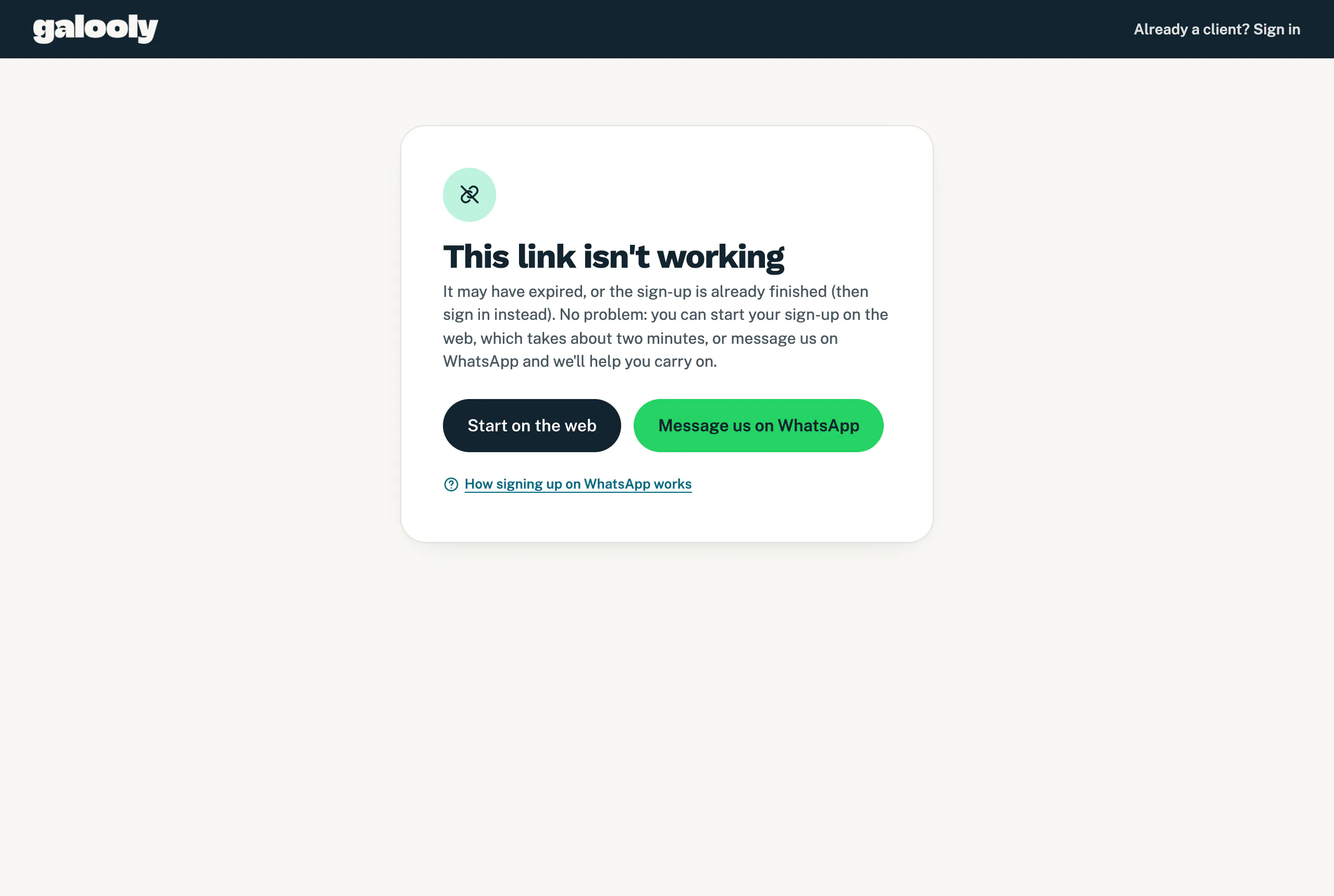
If the link has expired, you have already moved past the web address step, or your sign-up is finished, you see “This link isn’t working”. A finished sign-up means you already have a portal: sign in instead. Otherwise:
- Tap Start on the web to sign up on the web. It takes about two minutes.
- Or tap Message us on WhatsApp and we help you carry on. To answer the questions again and get a new link, reply MENU in the chat and tap Get a website.
Good to know
- Reply MENU any time to start over, and HELP to chat to a person.
- Reply STOP and we do not message you again. Reply START if you change your mind.
- After your email address, we remind you: already have a login? Sign in instead. Each email address can have one account. See Sign in to your portal.
- You can start up to three sign-ups from one WhatsApp number a day. After that, sign up on the web.
- Already a client? When you message us from the WhatsApp number on your website, the chat goes to client support. To sign up a second business, use the web sign-up with that business’s own email address.
Still stuck?
Message us on WhatsApp or send us an email. Tell us your business name, the page you were on and what you tried, and we take it from there.