
Troubleshooting
Contact support
Reach us on WhatsApp or by email, and what to include so we can help quickly.
Stuck, or something does not look right? This guide shows the ways to reach us, and what to tell us so we can help on the first reply.
Find us in your portal
Open Help in the menu on the left, or More in the bar at the bottom of a phone. Under Need a hand? there are two buttons: Email support and WhatsApp.
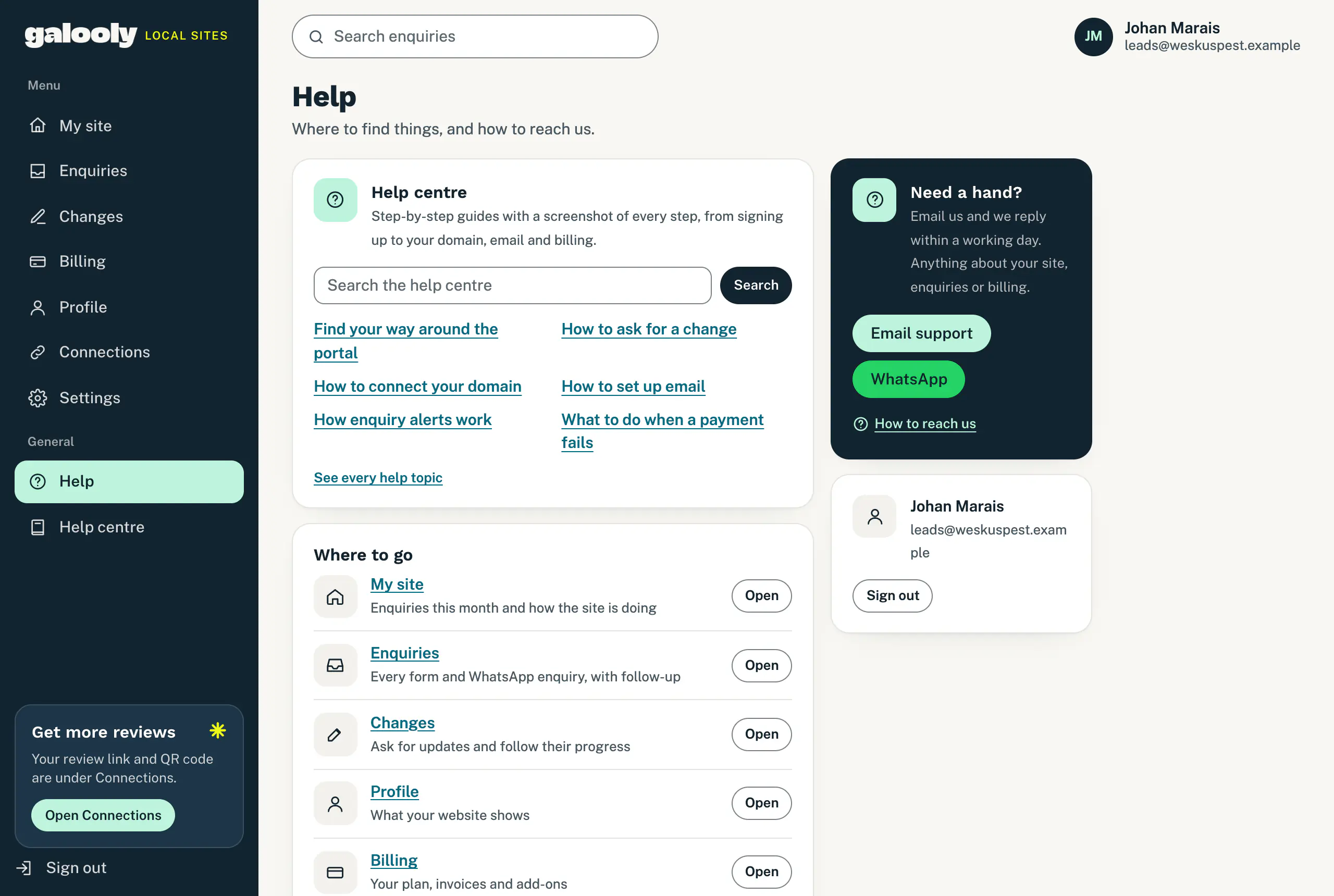
You do not need to be signed in to reach us. Our WhatsApp number and email address are also under Still stuck? at the end of every page of this help centre.
- Tap WhatsApp under Need a hand?, or use our number under Still stuck? below.
- Send a message. From your business’s WhatsApp number, the one on your website, we answer and ask what you need. Tell us in one message. A photo or voice note is fine too.
- From another number, you get a welcome with Get a website and Contact us. Tap Contact us, confirm your name, choose a topic and send your message. Say which business it is about.
- We reply in the same chat, usually the same working day.
Send the word HELP on its own at any point to hand the chat to a person. Need the settings for a mailbox? From your business’s number, tap Email settings: see Set up email on your phone or computer.
- Tap Email support under Need a hand?. It opens a new email to us in your email app.
- Or write to the email address under Still stuck? below, from any email app.
- Or reply to any email from us, such as a receipt or a note about a change. Your reply reaches the same inbox.
- If you can, send it from the address you sign in with, so we know which business it is.
We reply within a working day.
Reply on a change request
If your question is about a change you asked for, ask it on the request itself:
- Open Changes and find the request under Your requests.
- Tap Reply, type your message and tap Send reply.
We get a note as soon as you send it, and our answer shows on the request. You can reply on any request that is not cancelled. See Follow your change requests.
For a new change to your website, use a request on Changes rather than a message, so you can follow it from queued to live. See Ask for a change to your website.
What to include
- Your business name, and the email address you sign in with.
- The page you were on, like Billing or Changes, and what you tapped.
- What you expected, and what happened instead. Copy any message word for word, or send a screenshot.
- For something on your website, the address of the page and what should change.
Leave out card numbers and passwords. We never need them to help you.
Good to know
- Replying to an enquiry email reaches your customer, not us. When the customer left an email address, Reply on an enquiry email goes to them. See Choose where enquiries go.
- Prefer a form? Use Send us a message on our home page and we get back to you.
- Can’t sign in? See Sign-in email missing or link not working. WhatsApp and email work without signing in.
If something goes wrong
- Email support does nothing. The button needs an email app set up on your device. Write to the address under Still stuck? from the email you normally use instead.
- No reply yet. Check your spam folder for our email. On WhatsApp, we reply in the chat you started.
Still stuck?
Message us on WhatsApp or send us an email. Tell us your business name, the page you were on and what you tried, and we take it from there.